In this tutorial i am going to learn you about how you can easily verify your custom domain with your HTML file and Meta Tags in webmaster tool. This is very important thing for gain original traffic because when you verify your domain in webmaster tools and submit the sitemap or your domain then Google easily index your site in Google Search Engine it is the main object or part of SEO (Search Engine Optimization). In the previous posts i have already learn you about how to verify your blogger in webmaster tools and also tell you how Add your domain in webmaster tools. But in this post i am going how you can easily verify domain. If you make your website better then other site the most important thing is to make Webmaster account and check daily you website status about Crawl Errors. Your Website Health Your 404 errors this tool is very good then other tools.I have give some links about how crawl errors is removed and 404 errors also.
How I Can Remov Or Fix Broken URL For Google Adsense Crawler
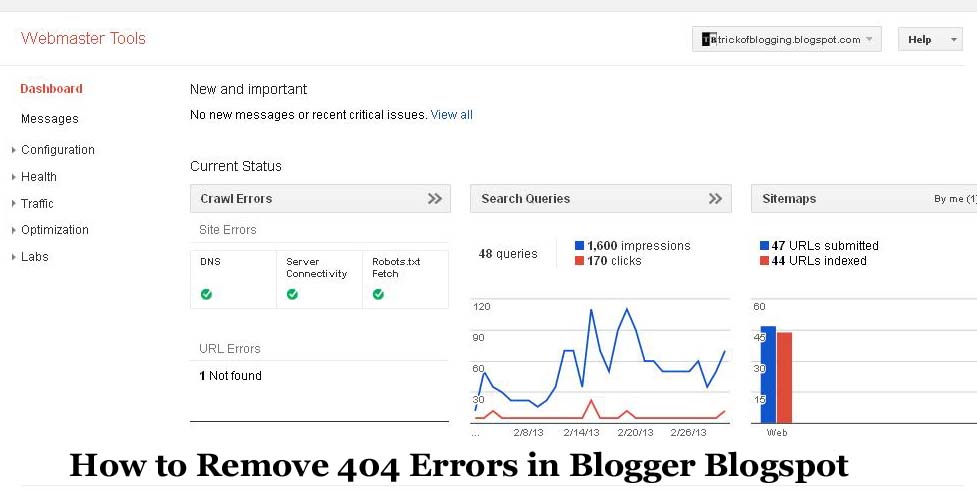
How to Remove 404 Errors in Blogger Blogspot .
Crawler error and 404 error is removed same like as blogger errors i write this post on blog errors but you can easily do with your website also.
Now How To Verify Custom Domain With HTML File.
Go To Gmail Account which you have add your website if you can't do this till then add your site in webmaster tools account easily click add site and paste the URL of your site. Click Add Site only.
After doing this Click Manage Site > Add or Remove Users right side of your website link.
Now click Owner > Owner Verification Page.
Click HTML file and download in your computer. When you download then next step is.
Open your Website Cpanel > Go to File > File Manager > Click File Manager.
After Clicking this link you enter in your public html root directory now to do easily see the given below picture. To see clearly enlarge this picture.

When you click File Manager which is located on your Front Page of CPanel then you see the box like file manager directory click Go link to upload your html verification code in the cpanel.

There are two steps 1 to click upload folder and 2 is put your upload HTML file in the box shown by arrow and with in a 4 or 5 second your HTML file is upload is complete and go to webmaster tools and click red button to verify below all four verification method.
Now How To Verify Custom Domain With Meta Tags:
This method is so easy to do.
Go to Webmaster tools same as above and copy your Meta Tags text and paste in the <head> section.
Head section is located in your WordPress Editor.
Login in your WordPress Admin.
Go to Appearance > Editor > Head Section > Paste Code in below <head> save it and go to webmaster tools and click to verify meta tags when you click your website is verify in webmaster tools and you see the message of congratulations.Your Done correctly if you also like to verify Google Analytic Code then keep visiting my site.
Related Posts:
SEO Tips How Keyword Take Your Website On Rank
How I Submit Sitemap of My Website In Google Search Engine
Use Google Better Keywords Search Engine Friendly For Wordpress
Method of Getting Free Backlinks From Your Blogger Or Website In Simple 5 Trick or Tips
How To Increase The Website Ranking From Social Bookmarking Sites
How I Can Remov Or Fix Broken URL For Google Adsense Crawler
How to Remove 404 Errors in Blogger Blogspot .
Crawler error and 404 error is removed same like as blogger errors i write this post on blog errors but you can easily do with your website also.
Now How To Verify Custom Domain With HTML File.
Go To Gmail Account which you have add your website if you can't do this till then add your site in webmaster tools account easily click add site and paste the URL of your site. Click Add Site only.
After doing this Click Manage Site > Add or Remove Users right side of your website link.
Now click Owner > Owner Verification Page.
Click HTML file and download in your computer. When you download then next step is.
Open your Website Cpanel > Go to File > File Manager > Click File Manager.
After Clicking this link you enter in your public html root directory now to do easily see the given below picture. To see clearly enlarge this picture.
When you click File Manager which is located on your Front Page of CPanel then you see the box like file manager directory click Go link to upload your html verification code in the cpanel.
There are two steps 1 to click upload folder and 2 is put your upload HTML file in the box shown by arrow and with in a 4 or 5 second your HTML file is upload is complete and go to webmaster tools and click red button to verify below all four verification method.
Now How To Verify Custom Domain With Meta Tags:
This method is so easy to do.
Go to Webmaster tools same as above and copy your Meta Tags text and paste in the <head> section.
Head section is located in your WordPress Editor.
Login in your WordPress Admin.
Go to Appearance > Editor > Head Section > Paste Code in below <head> save it and go to webmaster tools and click to verify meta tags when you click your website is verify in webmaster tools and you see the message of congratulations.Your Done correctly if you also like to verify Google Analytic Code then keep visiting my site.
Related Posts:
SEO Tips How Keyword Take Your Website On Rank
How I Submit Sitemap of My Website In Google Search Engine
Use Google Better Keywords Search Engine Friendly For Wordpress
Method of Getting Free Backlinks From Your Blogger Or Website In Simple 5 Trick or Tips
How To Increase The Website Ranking From Social Bookmarking Sites