Cari Blog Ini

Tampilkan postingan dengan label Webmaster Tools. Tampilkan semua postingan

Jumat, 07 Juni 2013

Create | Make | Add | Set 404 Error Page In Blogger Blogspot Easily

In this tutorial i will show you how you can easily Add or Create 404 Error Page in your Blog. This error is drop very bad effect on your blog because visitors can not visit your blog or website properly and they left your blog from this page. To setup this page follow my simple tutorial with best tricks. Blogging is one of the best way to introduce yourself that's why keep blogging with full of joy and make you a perfect blogger. For adding this page on your blog i write a small tutorial for you which help to add this amazing thin on your blog homepage.

Create | Make | Add | Set 404 Error Page In Blogger Blogspot Easily
Create | Make | Add | Set 404 Error Page In Blogger Blogspot Easily 1

What Is 404 Errors:


404 Error then create if some one visit your blog with your blog link and after your link some keywords are written. This is not effect on your blog health for SEO (Search Engine Optimization Ranking) but it effect on blog readers. If you set this then your visitors are not go without visiting your blog properly.

Best Blogger Tips And Tricks For My Blog SEO Instantly 

Add 404 Error Page In Your Search Preferences:


For adding this 404 Error Page follow below tutorial and work according to which i write. By adding this your visitors also report you about your 404 Error using your Contact Us Page. Also you give the home page link in the Error Page by click on this link your visitors come on your blog home page.

Add | Make About Us Page Widget | Gadget On Your Blog Footer Or Sidebar
Customise Blogger Default Template To Make Professional Template
Add | Put | Embed Three Or Four Column Footer Widget/Gadget In Blogger Blogspot

Go to Blogger.com.
Go to Settings.
Go to Search Preferences.
Click on Edit. See below picture/image.


Create | Make | Add | Set 404 Error Page In Blogger Blogspot Easily 2


Now pick/copy the below code and paste in the Custom Page Not Found Box after further customization in your 404 Error page.


<!-- TOB Default Template -->
<div class='TOB-404-box'>
  <p style='line-height: 30px'><strong>
<font color='#ff0000' size='5'>
Oops What Happen!
</font> <font color='#666666'>
My Blog Reader you click a broken link or a page which is removed from this blog now. Please Do any one of the Following.
</font></strong></p>
  <ol style='line-height: 25px'>
    <li><a href='javascript:history.go(-1)'>&#171; Go Back</a> </li>
    <li>Contact Us to Report this problem <a href='http://trickofblogging.blogspot.com/p/blog-page_1262.html'>Click Here</a>&#160;&#160;&#160; (<em>This will help us to serve you even better</em>) </li>
    <li>Go To Homepage by <a href='http://trickofblogging.blogspot.com/'>Click Here</a>
      <br/></li>
  </ol>
  <p>
    <br/>
    <br/>
    <br/></p>
  <p align='center'><font color='#0080ff' style='font-size: 150px'><strong>404</strong></font></p>
  <p>&#160;</p>
  <p align='center'/>
  <p align='center'><font size='5'>Page Not Found</font></p>
</div>
      

Customize the some Features:


Change the Red Highlighted Color Text with your desire text. Oops What Happen.
Change the Orange Highlighted Color Text with your desire text.
Change the Blue Highlighted Color link with your own Contact Us Page link.
Change the Grey Highlighted Color link with your own Blog Homepage Link.
Change the Pink Highlighted Color Text with your own desire words. Page Not Found.


Now your half work is done.
Now Go to Template.
Go to Edit HTML.
In the HTML Body Box.
Press Ctrl+F to find the below code/tag.

]]></b:skin>


Paste this above code in the search box and press enter.
When you find this code.
Copy the below CSS Style sheet Code and paste it below/after this code/tag.

<b:if cond='data:blog.pageType == &quot;error_page&quot;'>
<style type='text/css'>
.status-msg-wrap {
    font-size: 100%;
    margin: none;
    position: static;
    width: 100%;
}
.status-msg-border {
    display:none
}
.status-msg-body {
    padding: none;
    position: static;
    text-align: inherit;
    width: 100%;
    z-index: auto;
}
.status-msg-wrap a {
    padding: none;
    text-decoration: inherit;
}
.TOB-404-box {
  background:#B27D00;
  width:98%;
  margin:10px 0px;
  padding:20px 10px;
  border:1px solid #ddd;
  -moz-border-radius:6px;
  -webkit-border-radius:6px;
  border-radius:6px;
  box-shadow: 5px 5px 5px #CCCCCC;
}
</style>
</b:if>

Now if you want to change the Background Color of your box then change the #B27D00
Save your Template.
Now you have done all work.
Now if you want to check it is working or not write any keywords after your blog homepage link.

If you want to ask any question about this or about Blogger SEO, Blogger Verification, WordPress, WordPress SEO, Make Money, Blogging Tips, Webmasters Tool Tutorial then just contact us using contact us page and feel free.

Related Articles:


How to Remove 404 Errors in Blogger Blogspot
How I Can Remov Or Fix Broken URL For Google Adsense Crawler
5 Ways How to Make your Blogger Blog Like WordPress Website
How To Make Backlinks To Other Website To Increas Page Rank
Get Google Page Rank With In 1 Month By Simple And Easy Tricks
Add | Put | Embed Three Or Four Column Footer Widget/Gadget In Blogger Blogspot
Add Manually CSS Jqeury Drop Down Menu By Replace/Remove Pages On Blogger
Add Facebook Like Box Widget/Gadget On Blogger By Facebook Developer Plugin

Kamis, 06 Juni 2013

WordPress Best | Easy Plugins Installation List For SEO And Make Professional Wesbite After Blogger

This tutorial show you how you can easily Install Plugins for your WordPress website with easy use and make your Website Blog Good Looking with simple and easy tricks. If you have a WordPress Blog with .COM or any URL with WWW. then you can add these plugin listed below and make your website best and get also more Organic Traffic on your website by using these plugins. I have write many post on my blog about WordPress Search Engine Optimization. If you want to increase your WordPress Blog traffic then use these tricks and enjoy.


WordPress Best Easy Plugins Installation List For SEO And Make Professional Wesbite After Blogger
WordPress Best Easy Plugins Installation List For SEO And Make Professional Website After Blogger 1


These Below List Are The Main WordPress SEO Plugins:


I discuss these listed below plugins with detail and the best use of these plugins.

  1. All-In-One SEO Pack.

  2. WordPress SEO by Yoast.

  3. SEO Ultimate.

  4. SEO Friendly Images.

  5. HeadSpace2.

  6. Platinum SEO plugin.

  7. SEO Slugs.

  8. SEO Post Links.

  9. Automatic SEO links.

  10. WP Backlinks.

  11. SEO Title Tag.

  12. 404 SEO Plugin.


1) All-In-One SEO Pack:

All-In-One SEO Pack is one of the most common and best SEO plugin for WordPress. This plugin also count in one of the best plugin for website to ping in Search Engine Ranking. If you want to add this plugin in your site then it is very simple in use and easy to install i also give you a link of this plugin but you can install this plugin just go to your website admin. The link and the small tutorial is given below.

Download All-In-One-SEO-Pack Version 2.0.2   Download Verison 2.0.2 


Login in to WordPress Admin.
Go to Dashboard.
Go to Plugin.
Click on Add New. See in picture/image below.

WordPress Best Easy Plugins Installation List For SEO And Make Professional Wesbite After Blogger 2

In the Search Plugins Box.
Type the same name of plugin which you want to install link. All-In-One SEO Pack and press enter.
When you press enter the plugin list are shown click the All-In-One SEO Pack plugin to install and return to back plugin page. Now your plugin is install and it works when you write your first post below the post writing page it will show and you add Title Tags, Description, or Significance Keywords.

SEO Tips How Keyword Take Your Website On Rank


2) WordPress SEO by Yoast:

It is also the Second Best SEO plugin for WordPress website it has also extensive features. To install this plugin in your WordPress website also very easy tricks. Follow the same above tutorial and paste the plugin name in the Plugin Search Box and install it in your website. I give you also the link of this plugin which redirect you on the plugin site.

Download the WordPress SEO By Yoast  Version 1.4.7    Download Version 1.4.7


3) SEO Ultimate:

SEO Ultimate also one of the best SEO plugin this plugin quickly ping your website in search engine and increase your website in search engine ranking. In early days of WordPress All-In-One-SEO-Pack is reigning King of WordPress SE O Plugin but now a days it is also the best plugin for WordPress. This features packed with lot of SEO related modules.

Use Google Better Keywords Search Engine Friendly For Wordpress

Download the SEO Ultimate Version 7.6.1      Downlaod Version 7.6.1


4) SEO Friendly Images:

By SEO Friendly Images you can give ALT relation to your images and Meta tags and increase your website traffic with Google Images Traffic. Install this plugin same as above tutorial and also by visiting the redirect link which is given below.

Download the SEO Friendly Images Version 2.7.5   Download Version 2.7.5


5) HeadSpace2:

HeadSpace2 is very powerful plugin to manage Meta-Data and handle a wide range of SEO tasks.This plugin allow Admin to manage the Title Tags of their blog post and the custom description of every post. This plugin also increase or improve the search engine ranking. For download or install this plugin visit below link or use the above tutorial.

Download the HeadSpace2 Version   3.6.38         HeadSpace2 3.6.38


6) Platinum SEO Plugin:

This Platinum SEO Plugin work with a host of features like automatic 301 redirects for permalink changes and it also generate the automatically META Tags of your blog post and also Avoid Duplicate Content, it has Search Engine Optimized post and page titles and this plugin contain many other features. For download or install this plugin click below link or install this plugin according to above tutorial.

Download the Platinum SEO Plugin Version 1.3.7   Download Version 1.3.7


7) SEO Slugs:

This SEO Slugs plugin work very well it optimize your post link with better search engine ranking and also make automatically your post permalink search engine friendly because this plugin remove the all these word which is not such important for search engine like in, is, my, you, what, the, or and many more words like these. For download this plugin or install this plugin visit below link.

Download the SEO Slugs Plugin Version 1.0   Download Version 1.0


8) SEO Post Links:

This SEO Post Links plugin work same as SEO Slugs Plugin it also shorten the permalinks of your post and make necessary keywords for search engine friendly for your post. For download or install this plugin on your website visit below link or work according to above small tutorial in first plugin details.

Download the SEO Post Links Plugin Version 1.0  Download Version 1.0


9) Automatic SEO Links:

Automatic SEO Links is the plugin which is use to internal linking for search engine ranking. When you install this plugin on your website blog then your same keywords make linking and you can also select or adjust the Anchor Text, Title or (relation) means rel "nofollow" or "dofollow". For adding this plugin in your website visit or click below link or install this plugin easily.

Download the Automatic SEO Links Version 2.0.1   Download Version 2.0.1


10) WP Backlinks:

WP Backlinks is the plugin which is used to make backlinks for our site and we can not put or do so much work to  make our website backlinks. This plugin work like when you install WP Backlinks plugin in your website it make a button link in sidebar widget and this allow webmaster and bloggers to submit a link for link exchange. If also has the best option in it if you want to display different link on different pages then this plugin is better than other.


11) SEO Title Tag:

This SEO Title Tag plugin is very easy to use and install it also optimize the Title Tags in your WordPress blog post. It allow to override a page's title with custom one, and you can easily editing of title tags, title tags for 404 Error pages.

Download the SEO Title Tag Version 3.4.1      Download Version 3.4.1


12) 404 SEO Plugin:

This plugin is one of the best plugin in my view because if visitor come on your blog and if they found 404 Error on your blog page they instantly left your blog and visit another. Therefore add this awesome plugin in your WordPress because they customized your blog 404 Error easily and give the other post links of your blog according to Search Queries which visitor want to find. For download and install this plugin in your WordPress site visit below link or follow above tutorial.

Download 404 SEO Plugin Version 1.3.2      Download Version 1.3.2


The Best And Most Important Plugins Having SEO:


These plugin which i discuss below is most important plugins about SEO and it is also the best for setting WordPress SEO. If your website not index by any search engine then how traffic comes on your site. That's why use this plugin and get a lot of visitors form search engine by Submitting Sitemap of Website/Custom Domain, Adjust Robot Meta Tags (for blog also) and also verify your domain in Google Webmaster Tools and Add Google Analytic on your website using your Gmail account.  


  • Google XML Sitemaps:

  • Robots Meta:

  • Google Webmaster Tools:

  • Google Analytics:


Google XML Sitemaps:

This plugin is one of the best and more reliable plugin to generate the Sitemap in XML file of our website. Google XML Sitemap generate the XML Sitemap which supported by the Google, Bing, Yahoo, Ask, AOL and many other major search engine. If you should get traffic from these main search engine then submit your website sitemap to major search engine. Google XML Sitemap is the plugin which make your website structure and Google Bot, Bing Bot, and other search engine can easily access the data of your website because they get your website structure means keywords, post, internal linking, meta tags, and many more things. I have also a best plugin to share with you which ping your website to major search engine Pingomatic it increase the visibility of your blog in search engines. You just add the homepage URL and RSS Feed URL in this form and ping it. Now to Install or add this plugin in your site or blog visit below link or also type this Google XML Sitemap Generator in Search Plugin Box.

How I Submit Sitemap of My Website In Google Search Engine

Download the Google XML Sitemaps Version 3.2.9     Download Version 3.2.9


Robots Meta:

Robots Meta Tags plugin is best for SEO because this plugin allow us to Add Meta Tags to individual post and pages. It is also very easy to use and install. It allow to webmaster to block comment indexing in search engine also login or admin page. For installation of this plugin is same procedure.

Download the Robots Meta Plugin Version 3.3.1       Download Version 3,3,1


Google Webmaster Tools:

Google Webmaster Tools is the best way to keep Website Health Good because in webmaster tool we work on every thing behind our website. Website Health is very important for any blog or website like Crawler Errors, Crawl Stats, Blocked URL, Index Status and most important is Malware check daily. Sitemap, Remove URL, Content Keywords and many more. I have write many tutorial on Google Webmaster Tools i give you some link below by using this you can easily access or control Webmaster tools properly.

Add Or Verify Site/Domain With HTML File Or Meta Tags In Webmaster Tools 
Sitemap of Your Blog Is Submitt to Major Search Engines
How I Can Use Webmaster Tools Properly
WordPress SEO Tips and Trick You Need
How To Increase Index Status In Webmaster Tools Tricks For Better SEO


Google Analytics: 

Google Analytic is the best tool powered by Google by using this tool we can easily check how many visitors comes on our blog or website and also how many from search engine how many from referrals, how many direct. They have lot of features but now my post is to much long that's why i want to finish this post now. To add this Google Analytic Tools  on your website for verification and also for tracking your visitors. Now after few days i will write post about Google Analytic all features discuss one by one in details. Now you just add this Analytic on your website and enjoy.

How To Verify Or Add Custom Domain With Analytic Code In Webmaster Tools

If you want to ask me any thing about Webmaster Tools, Google Analytic, Blogger SEO, Blogger To Make Money, Best SEO Tips, Increasing Traffic Using Social sites and many more about SEO and bloggers then feel free and comment to me and also contact us using Contact Us page write your message and feel free and wait for reply.

Related Articles:


How Use Social Website To Increase Your Website Traffic
How To Make Sitelink For Better SEO
Get Google Page Rank With In 1 Month By Simple And Easy Tricks
How To Easily Make Money With Affiliate Marketing Blogger /Website
How To Make Website Like My Blogger Tricks To Get Best Alexa Rank
Simple | Easy Tutorial For Transfer Blogspot To Website
How I Can Use Crawlers And Indexing Tool In Blogger
http://trickofblogging.blogspot.com/2013/02/how-to-increase-website-ranking-from.html 

Sabtu, 27 April 2013

How To Add Google Custom Search On Blog Or Website With Simple Tricks

In this tutorial i tell you how easily put Google Custom Search on blog or website. Best tips and tricks about adding custom search box on blog are given to you in this post.


What Is Google Custom Search:

Google Custom Search engine is simple a search box on your website which show you search results on web history on Google but there is a benefit when you put on your website page because people when search this box ads are appear in these results and you can easily make money form Google Custom Search box. If you have a account of Google Adsense then you can easily do this for making money from your website.

Now i am going to teach you how you can embed or put it on your website or blog using easy tricks. First of you have Adsense Account to make money.

Make Your Own Free Blog At Blogger.Com
How I Can Write 100% Original Content For Blogger
Easy Tricks To Get Lot Of Visitors On My Blogger

And Get Account Here ----> How I Can Get Approval From Google Adsense My Blog Or Website

How To Add Google Custom Search On Blog Or Website With Simple Tricks

How To Put Google Custom Search Box To Make Money:

This post and trick is very easy you can understand it easily i make this post very understanding to all type of people. Go head and check this out.

Login to Gmail.
Go to Webmaster Tools.
Click the blog or website link which you verify on webmaster tool if you can not verify your website or blog in webmaster tools then go to verify easily by using below link then proceed.

How to Verify My Blogger Blogspot in Webmaster Tools   For Blogger
How To Verify My Custom Domain With HTML File Or Meta Tags In Webmaster Tools For Website

When you verify you website then click your website link then you can see 5 links on left side of your webmaster tools page. Like below you can see.
  1. Configuration.
  2. Health.
  3. Traffic.
  4. Optimization.
  5. Labs. 
Click on last link Labs and then Custom Search you can see a page like this pic below.


Basic Configuration:

In basic configuration you can give some keywords in keyword box like tags or your blog related keywords like my blog is about blogging tricks then i put blogging, tricks, tutorials, blogger blogspot.Now give some keywords in this blog about your blog related. Now you can see a box Search Preferences here you see a link of my blog you can not put a blog or website link you can tick the second option write these word Search the entire web but emphasize included sites.
After Basic Configuration go to Look And Feel option.

Look And Feel:

Here you can manage your Custom Search Box for your blog or website means you can give some beautiful colors or location where you can put search box on your site or blog. Now next option is Make Money.

Make Money:

In this option you can give your Email address, Zip Code or Postal Code and 5 digit of your phone number. Now next and last option is Code.

Code:

Here you can get a code of your Custom Search Box which you can manage yourself and put it on your website easily because it is in HTML form or Code.

Now your work is done completely enjoy having fun.

Related Articles:

How I Can Link My Adsense Account With Google Analytic To Check Earning
Why I Make More Pages On My Blog To Increase Organic Traffic
How I Can Save My Blog Post Duplicate Content Problems
How I Can Use Webmaster Tools Properly For Blogger
How I Can Boost Traffic With Targeted Country On Blogger
How I Can Handle New Interface Of Blogger HTML Editor
How to Remove 404 Errors in Blogger Blogspot
How Use Social Website To Increase Your Website Traffic


    Kamis, 25 April 2013

    Quantity | More | Best Tricks To Use Custom Robots Tags Selection Blogger

    In this tutorial i tell you how to set or adjust the Custom Robots option in blogger to better SEO. If you want to blogging with full of tricks then read more and more articles about SEO. Blogger is one of the best way to learn Search Engine Optimization which can do any simple person. Now come to point and work on custom robots tags in blog how to customize it for get organic visitors from search engine on our blog. I have discuss simple and easy tricks in this post which is easily understand by someone.

    Let's Start Tutorial For Custom Robots Tags:

    I suggest you if you have a blog then make money also with your blog by applying Google Adsense. If you make your blog with good looking template or get more visitors to your blog then click below links and get more tricks about blogging.

    Make Your Own Free Blog At Blogger.Com
    5 Ways How to Make your Blogger Blog Like WordPress Website
    You Can Easily Manage Permalinks Which Is Search Engine Friendly


    How To Set Custom Robots Tags And How To Verify Title Tags:

    When you start your blog and make changes in your blog related to SEO (Search Engine Optimization) then first your go to setting and  search preferences and click edit on custom robots header tags when you click it then click all and noodp in all option and save it then your blog is ready to get more visitors from search engine and you have good blog with better ranking. One thing you also verify the title tags in webmaster tools for better and best search engine optimization. To read how to add title tags and how to verify it click below links.

    How To Added Meta Tag In Your Blogger For Better Optimization
    How Manage Blogger Title Tags to Improve SEO
    How To Verify My Custom Domain With HTML File Or Meta Tags In Webmaster Tools
    How to Verify My Blogger Blogspot in Webmaster Tools  

    Now when you all do these tricks then definitely your blog get Alexa rank and Google Page rank also and get daily 1000 visitors for make more and more money.

    Related Articles:

    How To Make Blogger Header Image
    How To Add Categories Link To Your Blogger Blog
    SEO Tips How Keyword Take Your Website On Rank
    Live Traffic Counter Put In Your Blogger Blogspot
    Other Tips To Make Money


    Rabu, 27 Maret 2013

    How I Can Use Webmaster Tools Properly For Blogger

    The tutorial is about Webmaster Tools and their new features how to use for make blogging better. In this post i give latest tricks and tips for use webmaster tools easily. If you have a blog and you are not know webmaster tools properly then i will learn you some important features and steps to control the webmaster tools properly and use for better results. If you have a good content blog and website then you submit your blog and website to Google with the help of webmaster tools. Webmaster is the new features of Google to control our website or blog for better SEO (Search Engine Optimization). But one thing is we have full control on webmaster tools for better SEO and it is very important thing. I have discuss some important features to make better SEO and rank your website or blog within a month.

    Some Important Features Of Webmaster Tools:

    When you are going to make a blog and purchase a custom domain then think about the name which you want to purchase because it is very important for you. If you choose two words domain name that's better but if you purchase three words name then it is too difficult to show in search results because it has a large domain name and when you are decide the domain name then try to purchase those name which very rare means select those name which have low competition in search results.Now some important features and their uses.

    Geographic Target:

    In the webmaster tools when you click on configuration > setting you can see the feature of Geographic Target. Geographic Target is very important for you because if you want that the most of visitor comes on USA then you select the USA country and save it and you get more visitor from USA.

    Internal Links:

    In the webmaster tools when you go on traffic link and click Internal Links then you can see the links which are make on your own blog. The tips is to make more and more internal links for better SEO. When you make more internal links then crawler check your blog and it find the most of link to your blog and crawler index your blog very quickly. If you not know how to make internal links then click the below link for more details.

    Make Internal Links And Backlinks and Increase in Blogger Blogspot

    Sitemap:

    In the webmaster tools sitemap is so so important for optimize your blog because if you not submit sitemap of your blog or website then Google not index your website in search engine because it has not structure of your blog or website that's why it is not properly index your blog and ignore by search engine. If you make a blog then first you submit your sitemap. If you not how to submit then click this link for more details.

    How I Submit Sitemap of My Website In Google Search Engine 

    Last and most important feature which i discuss now. Use this tools or feature first when you make every new blog or purchase your custom domain.

    Manage Site:

    Manage site is fist feature which is very important in this feature you are able to add or remove your site or blog and verify your site or blog easily with different steps. The features is too much important because if you can verify your custom domain or blog in webmaster tools then Google can't index your website or blog properly. To use this link properly click below link with different features.

    How to Verify My Blogger Blogspot in Webmaster Tools

    When you purchase a custom domain then to verify it click this below link.

    How To Verify My Custom Domain With HTML File Or Meta Tags In Webmaster Tools

    When you verify your custom domain or blog with all webmaster features then use below link to verify with Google Analytic Code for tracking your website visitors.

    How To Verify Custom Domain With Analytic Code In Webmaster Tools 

    Related Posts:

    How To Add Categories Link To Your Blogger Blog
    SEO Tips How Keyword Take Your Website On Rank
    WordPress SEO Tips and Trick You Need
    How I Can Write 100% Original Content For Blogger
    How To Added Meta Tag In Your Blogger For Better Optimization

    Rabu, 06 Maret 2013

    How To Verify My Custom Domain With HTML File Or Meta Tags In Webmaster Tools

    In this tutorial i am going to learn you about how you can easily verify your custom domain with your HTML file and Meta Tags in webmaster tool. This is very important thing for gain original traffic because when you verify your domain in webmaster tools and submit the sitemap or your domain then Google easily index your site in Google Search Engine it is the main object or part of SEO (Search Engine Optimization). In the previous posts i have already learn you about how to verify your blogger in webmaster tools and also tell you how Add your domain in webmaster tools. But in this post i am going how you can easily verify domain. If you make your website better then other site the most important thing is to make Webmaster account and check daily you website status about Crawl Errors. Your Website Health Your 404 errors this tool is very good then other tools.I have give some links about how crawl errors is removed and 404 errors also.

    How I Can Remov Or Fix Broken URL For Google Adsense Crawler
    How to Remove 404 Errors in Blogger Blogspot .

    Crawler error and 404 error is removed same like as blogger errors i write this post on blog errors but you can easily do with your website also.

    Now How To Verify Custom Domain With HTML File.

    Go To Gmail Account which you have add your website if you can't do this till then add your site in webmaster tools account easily click add site and paste the URL of your site. Click Add Site only.
    After doing this Click Manage Site > Add or Remove Users right side of your website link.
    Now click Owner > Owner Verification Page.
    Click HTML file and download in your computer. When you download then next step is.
    Open your Website Cpanel > Go to File > File Manager > Click File Manager.
    After Clicking this link you enter in your public html root directory now to do easily see the given below picture. To see clearly enlarge this picture.


    When you click File Manager which is located on your Front Page of CPanel then you see the box like file manager directory click Go link to upload your html verification code in the cpanel.


    There are two steps 1 to click upload folder and 2 is put your upload HTML file in the box shown by arrow and with in a 4 or 5 second your HTML file  is upload is complete and go to webmaster tools and click red button to verify below all four verification method.


    Now How To Verify Custom Domain With Meta Tags:

    This method is so easy to do.
    Go to Webmaster tools same as above and copy your Meta Tags text and paste in the <head> section.
    Head section is located in your WordPress Editor.

    Login in your WordPress Admin.
    Go to Appearance > Editor > Head Section > Paste Code in below <head> save it and go to webmaster tools and click to verify meta tags when you click your website is verify in webmaster tools and you see the message of congratulations.Your Done correctly if you also like to verify Google Analytic Code then keep visiting my site.


    Related Posts:

    SEO Tips How Keyword Take Your Website On Rank
    How I Submit Sitemap of My Website In Google Search Engine
    Use Google Better Keywords Search Engine Friendly For Wordpress
    Method of Getting Free Backlinks From Your Blogger Or Website In Simple 5 Trick or Tips
    How To Increase The Website Ranking From Social Bookmarking Sites

    Senin, 04 Maret 2013

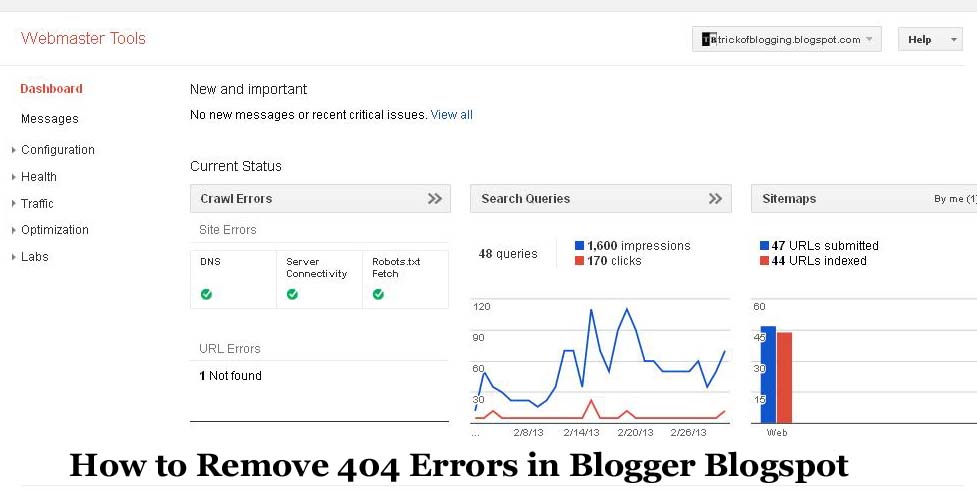
    How to Remove 404 Errors in Blogger Blogspot

    In this tutorial i tell you about how to remove your blogger URL with 404 errors which occurs in your webmasters tools. If you are not do easily then this tutorial is very easily to redirect the error of your URL. Now i am going in details when you make a good and content full blog then you have to see daily health of your blog if you can't do this so check it weekly but not go to check in a month. Because when you have see any errors in your blogger then you should to remove it as soon as possible. 404 errors is occur when webmaster is not indexed your page or not crawl this page then error is appear in your webmaster tools. Important thing is that if you see this how you can remove it or redirect your problem.

    I am going to tell you about the most simple and easy way to redirect or remove your page error when Google Crawler is not crawl your page it says 404 error.

    Create | Make | Add | Set 404 Error Page In Blogger Blogspot Easily

    When you see this error in your webmaster account then which is linked with your blog or website then your first step is here. If you can't verify your blog in webmaster then to do so Click Here.

    Login in your Blogger.com.
    Login also in your webmaster account where you verify you blog or website.
    Click your verify website or blog link.
    You see this on right side of your screen.

    • Dashboard
    • Messages
    • Configuration
    • Health
    • Traffic
    • Optimization
    • Labs.


    Click the Health link on these given links.
    Now click on Crawl Errors.
    Copy the link which is not found or indexed by Google Webmaster and Paste on notepad.
    Now go to the Blogger.com

    Go to Search Preference > Error and Redirection > Custom Redirect click to Edit.
    Paste your URL which is not indexed in first box and where your redirect paste URL in second box.
    Now Save it.

    You have done correctly and your page is now redirect to the other page which your submit. Your error is removed in your webmaster tools account in a day or a week.


    Related Post:


    SEO Tips How Keyword Take Your Website On Rank
    How To Increase The Website Ranking From Social Bookmarking Sites
    How Can I Make Earning With My Blogger Blogspot
    How I Can Add Recent Post Moving In Down And Upward Direction
    How I Can Remov Or Fix Broken URL For Google Adsense Crawler

    Minggu, 03 Maret 2013

    How I Can Remov Or Fix Broken URL For Google Adsense Crawler

    In this tutorial you will learn how to fix or remove your broken URL in blogger or Google Adsense Crawler. If you are worry about this then forget this problem your solution is here. If your are using Google Adsense on your blog and make money through your Google Adsense Account then you may also check and remove your error which occur in your blogger or Google Adsense account if you not do this and not properly check your account for better performance then your account is in danger.

    When Google Adsense crawler is not crawler your page for showing relevant ads with your content then crawler send error for this page. Crawler bot crawl your page but they does not reach on your page then this error is appear on your Adsense account. Webmaster tools also tell you about this if any one page of your blog is not crawl by spider or crawler then it shows errors. Webmaster tools is the best way to remove this problem. This problem is also removed by three other methods. Now i am going to tell you about the solution of your problem.When you face this problem then do this.

    First Solution for Removing or Fix Your Broken or Crawler Errors:

    1. Go to Blogger.com.
    2. In  new tab open google.com/webmasters/tools.
    3. Click your sitelink which you verify in your webmaster tools.If you can not add or verify your site in your webmaster account then click link to do so. How to Verify Blogger or Website in Webmaster Tools.
    4. Go to Health > Crawler Errors. If you see any one URL which have not crawl by Google Search engine then pick your Url and copy it on your notepad file.
    5. Now go to optimization link which is below traffic link.
    6. Go to Remove URLs click this link.
    7. Now click on a create a new removal request button.
    8. Paste your URL which is not crawl by Google Adsense Crawler or Google Search Engine.
    9. Then Click Continue.

    You have done this correctly and your URL is removed in a day or in some hours by webmaster tools and your website or blog is healthy. One Of the most and way to remove the URL and your crawler error is removed in your Google Adsense Account in a day or two days. If your are also make your blog better for search engine friendly then this tip also work because when your site or blog have any crawler error then this means your site performance in search engine is not better. To make your blog search engine friendly i have some tips and SEO techniques to make perfect blog or ranking your blog is very important for make better earnings. If you can do so then your blog  performance is better then other blog or website also. Some tips to do.

    • Make Good and Content Full blog.
    • Add Your Site in Google Webmaster tools.  Click To Add Site
    • Submit your Blog or Website sitemap to Google Search Engine. Click To Submit Sitemap
    • Make Link with Google Analytic account to better performance of your site. Click To Here
    • Last thing check daily all of three account regularly to check out your site. 

     Related Post:

    You Can Easily Manage Permalinks Which Is Search Engine Friendly
    Now Step Two to Create Internal Links And Backlinks To Different Blogger Blog Post
    SEO Tips How Keyword Take Your Website On Rank
    WordPress SEO Tips and Trick You Need
    How To Increase The Website Ranking From Social Bookmarking Sites
    How Manage Blogger Title Tags to Improve SEO

      Minggu, 24 Februari 2013

      How I Submit Sitemap of My Website In Google Search Engine

      In this tutorial i will show you how to submit your website blog sitemap to Google search engine for better indexing your content and increase your page rank. If you are a new in this field then don't worry you problem solution is here. Let's start this tutorial when you purchase your custom domain like [www.cancer.disease.com] for example and you are rank your website content then make to do this.

      Now Start With First Step:
      1. Submit your sitemap to webmaster tools.
      2. Make your analytic account.
      3. Make more page to better SEO.
      4. Check your page indexed Level.

      To submit sitemap go to webmaster tools. Click the red button Add/Test Sitemap. 
      Your domain address is already written in this but to submit sitemap you can just write this word to submit your sitemap to webmaster. 

      Write this sitemap.xml simple and click submit and refresh your page after this your sitemap is submit and on pending in between one day your content is index by Google search engine. 


      Kamis, 21 Februari 2013

      How to Verify My Blogger Blogspot in Webmaster Tools

      In this tutorial i am going to tell you about verification of your blog in webmaster tools. From webmaster tool you gain your have SEO of your blog. I make this tutorial very easy for some one how is not know about SEO or keyword for Search Engine Optimization. If you have a blog already at Blogger.com then start with this. And if you have not a blog then click link which is shown below to how to make blog at blogger.com.

      When you get your blog then go to webmaster tools which is for your SEO in the blogger. I already tell about the Blogger SEO article in my post. First what is webmaster tools? This is a tool which is given by Google to make your blog better in search engine and it gives you high rank in the Google search engine when you start it then you can realize that's good for your blogger blog. In the webmaster tool i will learn you main heading how to handle. Let's start with verification process.

      1. Go to Webmaster Tools like this www.google.com/webmasters/tools
      2. Login your Webmaster Tools account.
      3. Go to Home and after this you can see on the right side of your webmaster page Manage Site. Click
          this link.
      4. Click Add or Remove User.
      5. Click owner and also click owner verification page. Now you can choose meta tags. When you click Meta Tags then it gives you a code. Copy this code on your clipboard and go to your Blogger.com and then go to Template > Edit Template > Expand Widget Template. Then the code which you have copy on your clipboard copy it and paste below the head section which look like this <head>. I also show in the picture how you can add this code and which place.
            
      6. When you paste your code in below head section then click save template. Go to webmaster tools and click to verify. When you click if the code is correctly paste then you see the massage about congratulation. This is the first verification like this you make the three other steps of verification of your blog. Like HTML file which is already verify when you make your blog. Because Blogger.com is Google account. Next verification is Google Analytic code which is also very important with Google Analytic Code you can easily see how visitor is come from and which post is read about visitor and many more. I will definitely learn you about Google Analytic Code implementation. One and the most important step of verification is Domain Name Provider if you have only blog then not to verify it if you purchase a custom domain like this my blog name is trickofblogging.blogspot.com when i purchase a custom domain it changes to www.trickofblogging.com and i also pay for it near $10 per year. 

      Now your Code is implement your verification is done. But other verification is most important i will tell you about these verification method in the next post. For these step you make your blog perfect and your blog is easily saw in the search engine if you like this post the you like these post also.

      Selasa, 08 Januari 2013

      Now Next Step To Add Webmaster Tools And Google Analytics to a Blogger Blog

      If you are new to blogging at Blogger.com you might not be aware that tracking and statistics software can be linked to your site to give you details about your visitors. The process of adding a free tracking program such as Google Analytics is relatively straight forward. By following the simple steps below you will gain access to very useful data about the kind of traffic accessing your site. This will help your grow your site and target your content to meet the needs of your visitors.

      Steps to Add Google Analytics to Your Blogger Blog:

      1. Login To Google Analytics:
      Login to Google Analytics at http:/google.com/analytics with your Blogger.com login. If for some reason you wish to create a new account you can do so but be aware that you
      will lose the advantages of accessing other Google Service Such as Google Webmaster Tools and Google Adsense without having to logout.

      2. Sign Up to Google Analytics:
      Click on the sign Up button and you will be taken to the Analytics Now you are going to login to and signup page. Enter your blog URL. account name country and time zone on this page,

      Now Pick Up your Blog URL
      The URL like
      marketingmost.blogspot.com

      You would enter nameofyourblog.blogspot.com

      3. Account Name:
      It is a good idea to choose a general name such as Umair's Account because this will be the account name for anything from 1 to 100 website.

      4. Click On Continue:
      In the next screen you will be prompted to enter your personal details: Your name, phone number and country. Complete these and click on Continue.The final sign up page is the Terms of Agreement Screen. Once you agree to these your sign up is complete.

      5. Copy the Code Block:
      After completing the signup process Google Analytics provides you with  a code block of javascript to be added to your site. Now copy the code highlight the code block copy it and paste in your notepad.

      6. Login To Blogger.com:
      Now login to blogger.com at http;//www.blogger.com/. In a new window login to your site at Blogger.com and navigate from the Dashboard to the layout tab.

      7. Navigate to Edit HTML in the Layout Menu:
      From the layout menu select the edit HTML link. You are going to be adding a title bit of code to your template so care needs to be taken here not to overwrite any existing code. As precaution it is advisable to backup your template at this point. You will see the option to do so.

      6. Add Code Block to your Template:
      To added the code block to your template you will need to locate the code that closes the body tags. This will be very near the bottom of the template. You will need to paste the code block immediately before the tag.

      7. Add Google Analytics Code to Your Blogger Template :
      To paste the code block position the cursor in front of the tag and use the command Ctrl |+ V. Once the code is placed in your template and you are sure it is positioned correctly click on Save Template. All going well you have now successfully added Google Analytics To Your Blogger Blog.

       8. Return to Google Analytics:
       Go back to the Google Analytics window. On the overview page you will see details about your blog such as Reports, Status, Vistis etc. If there is a tick in the status column your Analytics code is working correctly.

      9. Google Analytics Overview Page:
       If the status conatins a yellow triangle symbol with an exclamation mark inside don't despair it just means that Google has not yet updated details of your site. Check back in 24 hours as it code to actually providing reports.Once Google Analytics is successfully receiving data about your site you can  begin to make use of the wealth of information at your fingertips.

      10. Troubleshooting:
       If after a day the status still displays a yellow triangle you may need to troubleshoot. A yellow triangle is displayed when the code is not detected or not verified. Check your Blogger Template to ensure the code block is pasted in the correct position.

      Senin, 07 Januari 2013

      If You want to Increase Google Ranking Then Sitemap of Your Blogger Is Submitt to Major Search Engines

      Now submit your sitemap to Google:
      For a step by step walk through of how to submit your Blogger Blog to Google, verify your site and add a sitemap please refer to my article submit your Blogspot Blog sitemap to Google.

      Google Webmaster Tools Index Stats Page:
      Submit Your Site and Sitemap to Yahoo. Yahoo has a fair share of the search engine market and therefore getting your Blogger Blog crawled and indexed needs to be priority. For an in depth discussion on how to submit your site, verify it and submit a sitemap to Yahoo Site Explorer please see my article submit Blogspot Sitemap to Yahoo.

      Yahoo Site Explorer:
      Submit your site and sitemap to MSN

      You can now submit a sitemap directly to MSN at Webmaster Center. For detailed steps in submitting a Blogger site and Sitemap to MSN.

      MSN Webmaster Center:
      Historically submitting your Blog sitemap to Moreover.Com Expedited indexing in MSN because of a standing arrangement that Moreover would provide the submitted feeds to MSN for crawling and indexing. At the time of writing this article it is not clear if this is still useful as sitemaps can now be submitted to MSN directly. However, It can't do any harm so. I suggest giving it a go.

      To submit a sitemap to Moreover copy and paste the following line into your internet browser address taking care to replace your site name with the actual name of your site:

      http://api.moreover.com/ping?u=http://yoursitename.blogspot.com/rss.xml

      If all is well you will receive the following success message:
      Moreover sitemap Submission success Message Submit Your Site and Sitemap to Ask.com
      It is worth submitting your sitemap to Ask.com, previously known as Ask Jeeves. It is considered an important search engine and owns Excite, Bloglines, My way and iwon.
      Ask.com also is a participant in the sitemaps Protocol Program.

      It is easy to submit your Blogger sitemap to Ask.com. Simply copy this link and paste into your internet browser address bar. Be sure to substitute your site name with the actual name of your site.

      http://submissions.ask.com/ping?sitemap=http://yoursitename.blogspot.com/rss.xml

      Provided there are no issues you will see the success screen: 

      Ask.com Sitemap Submission Success Screen
      This article explored how to go about submitting your blog and sitemap to 5 Major search engines: Google, Yahoo, MSN Live search, Moreover.Com and Ask.com.