Cari Blog Ini

Tampilkan postingan dengan label problems. Tampilkan semua postingan

Selasa, 22 Januari 2013

That Is The Solution Of Your Blogger Missing Gadget Features

If you are experiencing problems with the Add a Gadget features not showing up in the layout screen of your Blogger Blogspot Blog then read on as I have found the solution to this annoying problem.

The other day I discovered to my horror i had lost the option to Add a Gadget in the layout screen of all my blogs in Blogger. Typically it couldn't have happened at a worse times as i had just planned to sit down to write some new posts. I looked in the Blogger help section for the solution but could find no reference to the problem.
I eventually found the answer, after about 10 minutes, buried in the Blogger Help Group section. I thought I would therefore post a short tip for anyone out there looking for a quick answer to the loss of the Add a Gadget function from the Layout Screen.

Clear Your Browser's Cache:
When the Add a Gadget feature is missing from your layout screen and you have tried refreshing it probably means you need to clear the cache of your Browser. In Internet Explorer 6 you would go to the Tools menu and choose internet options from the drop down menu. In the dialog box that appears select the General tab and then click on the Delete Files from the Temporary Internet Files Section. Once done close the dialog box and refresh the layout screen in Blogger. With any luck you will now be able to see the Add a Gadget option once again. For other Browsers follow the directions in the browser's help section on clearing the cache or check out Blogger Help Article about clearing cache.

 A short and a beautiful tip on how to fix the problem of add a gadget missing from the layout screen in the Blogger. If you like this post then subscribe us and like it.

Sabtu, 05 Januari 2013

How Manage Blogger Title Tags to Improve SEO

This Blogger tutorial explains how to improve search engine optimization SEO of your Blogger Blog by optimizing your post title tags for search engines like Google and Yahoo. How to improve search engine results by optimizing post title tags.


By default your Blogger Blog does not have search engine optimized title tags. This puts your blog at disadvantages compared to other blogs that have inbuilt SEO or enhance SEO modules as these sites are likely to be placed more highly in search engine results.

 The title tags of your blog are ordered by blog name first followed by the titles of the post. This is not ideal for popular search engines like Google and Yahoo which give more importance to the first words of a title. By ways of example take a look at how the title tags of this blog were viewed in a browser before any SEO. Note the order of the tags Blog Name, Blog Post Name. 


How Blogger Title Tags are viewed in an IE browser:
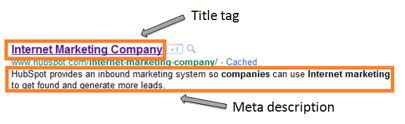
When this site was first indexed by Google this is the search engine results this site received. Note how the blog name is first in all the results.

Search Engine:


Fortunately there is a simple tweak to your template which can rectify this problem. By simply reversing the position of the blog name and page title significant improvement can be gained in search engine results. See the difference in the example.

How Your Blogger Title Tags are viewed in your browser with Change

Follow the step by step guide below to achieve higher rankings in Search Engine results. Tweak of Title Tags For New Blogger Blog.

1. Login to your blog at Blogger.com and navigate to Design> Edit HTML
2. Backup your template by downloading it to your computer. This will ensure that you can upload your template before these changes in case of problems.

3. Replace the following line of code about 8-10 lines from the top.

<title><data:blog.pageTitle/></title>

with highlight code Ctrl+C to Copy

<b:ifcond='data:blog.pageType==&quot;item&quot;'><title><data:blog.pageName/>

Replace With


<data:blog.title/></title>
<b:else/>
<title><data:blog.pageTitle/></title>
</b:if>

4. Check on save template and then view blog. Navigate to an individual post. You will see that your page title is now first followed by your blog title. A pipe symbol separates the two.