
In this tutorial i will show you how to add or put PayPal Donate Button in blog post, sidebar, footer, above post title and below post. PayPal Button widget is manage in commonly sidebar or in footer.
PayPal Account Information What Is That:
 |
| Tricks To Add Simply/Easily/ PayPal Donate Button To Blogger |
PayPal account is use to receive or sent money and if you want to make a few cents or some bucks from all the hardworking when you are blogging on your Blogger Blog or Website then you should add a PayPal Donate Button to your blogger (Blogspot Blog) or Website. Adding donation button will encourage all those happy readers to say a big thanks you for helping them out but don't think every one donate some money to your blog or website they are few of who will willingly donate some chumps.
Easily adding a gadget to the blogger sidebar or in the footer of your blogger template you can get some money. We will using a widget to contain our PayPal Donate Button and we have not required to changing template of our blog. If you want to add the PayPal Donate Button in between blog post then it is also very easy to do.
The Best Placement of Adsense On Your Blogger Blogspot
How to Verify My Blogger Blogspot in Webmaster Tools
How Can I Make Earning With My Blogger Blogspot
The Best Placement of Adsense On Your Blogger Blogspot
How to Verify My Blogger Blogspot in Webmaster Tools
How Can I Make Earning With My Blogger Blogspot
Add A PayPal Donate Button To Blogger Sidebar Or Blogger Footer:
Create or Make PayPal Account first if you have not already create.
Login to your PayPal account.
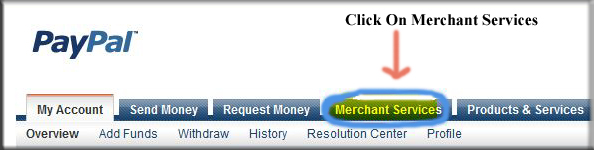
Click on the Merchant Services Tab like shown in the picture.
 |
| Tricks To Add SimplyEasily PayPal Donate Button To Blogger 1 |
Select Donation from the list of keys features displayed in the right sidebar of the PayPal Website Payments Standard Option 3 Payment Solutions. PayPal have changed its interface. You now need to select PayPal Website Payment Standard from Merchant Service drop down and then under the option 1 you will see in ting writing words I must say (There are also Buttons for Donation and Gift certificates). "Click On Donations".
 |
| Tricks To Add SimplyEasily PayPal Donate Button To Blogger 2 |
Select Donation link in PayPal from PayPal Website Payments Standard Option 1 to add a donations button to Blogger Blogspot Blog.
From the PayPal Create a Donation Button Now link (One of Two).
 |
| Tricks To Add SimplyEasily PayPal Donate Button To Blogger 3 |
Manage the default button which you want and customize it.
Select the Currency which is adjusting by your country or area and depending on your need location.
Select Donors enter their own contribution amount radio button unless you want to have a set amount.
Ensure the Secure Merchant ID radio button is selected. This will always prevent spammers getting hold of your email address.
At Step 2 it is worth saving your button.
At Step 3 customize your checkout page by allowing donors to write a short comment by selecting the Yes radio button to special instruction to seller.
Select the No radio button for customer's shipping address. Select the create Button.
When PayPal make or creates the PayPal Donation Button HTML code then copy it on your notepad file to further use. Now Sign out of your PayPal Account. Now next work in blogger.com.
How I Can Add Recent Post Moving In Down And Upward Direction
How to Remove 404 Errors in Blogger Blogspot
Why I Make More Pages On My Blog To Increase Organic Traffic
Easy | Best | Simple Tricks To Make Money From Youtube | Chitika
Go to Blogger.com.
Go to Layout.
Click Add A Gadget.
Select HTML/Javascript widget which is located on 11th no in the list.
Now copy your PayPal Donate Button Code from notepad file where you can save it and paste the HTML code into the HTML coding box.
Now Pick the gadget with mouse and place it sidebar of your template where you want left or right its depends on your choice.
Now give the name of gadget/widget which you want. Like "Donate For My Blog".
Click the save button.
Visit your blog and your PayPal Donation Button is appear in your blog sidebar.
Now for checking donate button will it work or not click your button you can see this type of page which is given below appear after your blog page then its mean your PayPal Account is working for your blog.
In this small tutorial you can easily add the PayPal Donation Code in the footer of every post but remember your previous post can not work like future post. Before adding the PayPal Button first copy your button code in HTML form.
Go to Blogger.com.
Go to Setting.
Go to Post and Comments.
Click on Post Template Add links.
Paste the code into the Post Template Box and save it.
Click to Writing New Post you can see the code in Compose form if you want to see the PayPal Donation Button Code then you should go to HTML form to see the code.
How I Can Use Crawlers And Indexing Tool In Blogger
How I Can Get Approval From Google Adsense My Blog Or Website
How I Can Make Internal Links In The Blog Post To Increase Rank
If you want to add the PayPal Donation Button in between blog post then copy your button code and go to HTML form and where you want to show your button paste this code after breaking the <br> tags and you can easily add the code in your blog post and enjoy it.
How I Remove Or Change Blogger Post Image Border In Blogspot
Best Blogger Tips And Tricks For My Blog SEO Instantly
Easy Trick To Add Twitter Updates Gadget To Blogspot Blogger
How I Make My Blogger Good Looking Best Tricks
Easy Tricks To Get Lot Of Visitors On My Blogger
How I Can Get More Pageviews Using Social Bookmarking.Com
How I Can Import And Export My Blog To Other Blogspot
 |
| Tricks To Add SimplyEasily PayPal Donate Button To Blogger 4 |
Ensure the Secure Merchant ID radio button is selected. This will always prevent spammers getting hold of your email address.
At Step 2 it is worth saving your button.
At Step 3 customize your checkout page by allowing donors to write a short comment by selecting the Yes radio button to special instruction to seller.
Select the No radio button for customer's shipping address. Select the create Button.
When PayPal make or creates the PayPal Donation Button HTML code then copy it on your notepad file to further use. Now Sign out of your PayPal Account. Now next work in blogger.com.
How I Can Add Recent Post Moving In Down And Upward Direction
How to Remove 404 Errors in Blogger Blogspot
Why I Make More Pages On My Blog To Increase Organic Traffic
Easy | Best | Simple Tricks To Make Money From Youtube | Chitika
Now Working In Blogger When PayPal Donation Button Code Is Get:
In blogger you can make more and more changes you can easily add or put your PayPal Donation Button where you want but i have best placement of paypal button which i already use on my website.PayPal Button Adding Tutorial In Blogger Sidebar Or Footer:
Go to Blogger.com.
Go to Layout.
Click Add A Gadget.
Select HTML/Javascript widget which is located on 11th no in the list.
Now copy your PayPal Donate Button Code from notepad file where you can save it and paste the HTML code into the HTML coding box.
Now Pick the gadget with mouse and place it sidebar of your template where you want left or right its depends on your choice.
Now give the name of gadget/widget which you want. Like "Donate For My Blog".
Click the save button.
Visit your blog and your PayPal Donation Button is appear in your blog sidebar.
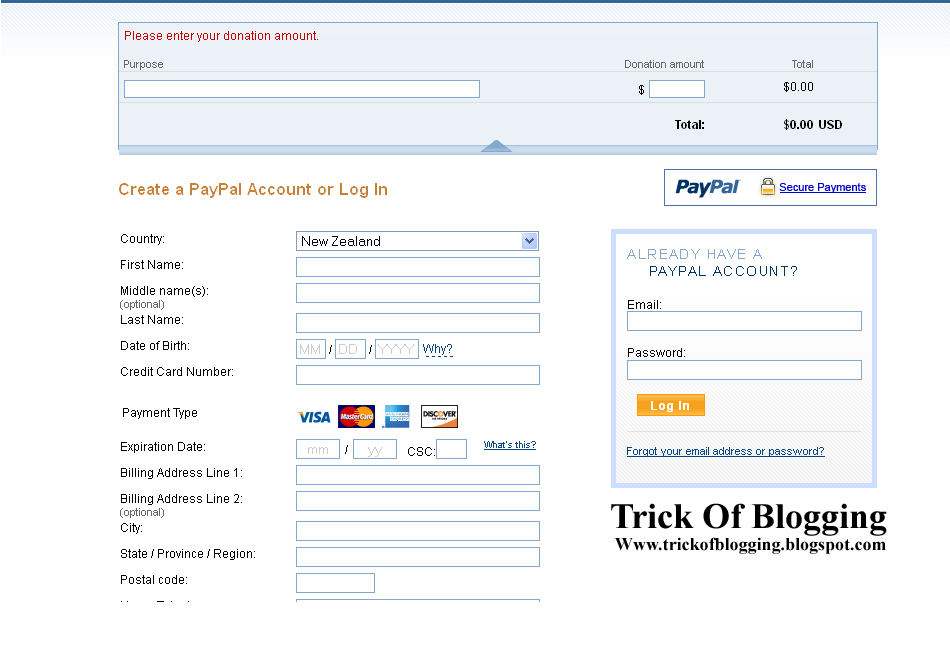
Now for checking donate button will it work or not click your button you can see this type of page which is given below appear after your blog page then its mean your PayPal Account is working for your blog.
 |
| Tricks To Add SimplyEasily PayPal Donate Button To Blogger 5 |
PayPal Button Adding Tutorial In Blogger Post Footer After Every New Post:
In this small tutorial you can easily add the PayPal Donation Code in the footer of every post but remember your previous post can not work like future post. Before adding the PayPal Button first copy your button code in HTML form.
Go to Blogger.com.
Go to Setting.
Go to Post and Comments.
Click on Post Template Add links.
Paste the code into the Post Template Box and save it.
Click to Writing New Post you can see the code in Compose form if you want to see the PayPal Donation Button Code then you should go to HTML form to see the code.
How I Can Use Crawlers And Indexing Tool In Blogger
How I Can Get Approval From Google Adsense My Blog Or Website
How I Can Make Internal Links In The Blog Post To Increase Rank
PayPal Button Adding Tutorial In Anywhere In Blog Post:
If you want to add the PayPal Donation Button in between blog post then copy your button code and go to HTML form and where you want to show your button paste this code after breaking the <br> tags and you can easily add the code in your blog post and enjoy it.
Related Articles:
How Easily Delete/Remove/Get Rid Blogger Blog Tricks In BlogspotHow I Remove Or Change Blogger Post Image Border In Blogspot
Best Blogger Tips And Tricks For My Blog SEO Instantly
Easy Trick To Add Twitter Updates Gadget To Blogspot Blogger
How I Make My Blogger Good Looking Best Tricks
Easy Tricks To Get Lot Of Visitors On My Blogger
How I Can Get More Pageviews Using Social Bookmarking.Com
How I Can Import And Export My Blog To Other Blogspot


