
In this tutorial i will show you how to Add Three Column Tab Gadget in blogger sidebar with three option Followers, Popular Posts, Blog Archive. To install this widget in blogger template is so simple and easy or if you want to add this widget in blog then follow the below tutorial for doing this on your blogger. I also put/install this widget now then i want to share it with my blog readers. To add this widget in blogger is very effective for blog reader they can easily access your blog and easily find what they want on your blog. These three option is not fix you can easily change after adding this widget on blog.
5 Ways How to Make your Blogger Blog Like WordPress Website
How I Make My Blogger Good Looking Best Tricks
How To Make Website Like My Blogger Tricks To Get Best Alexa Rank
This widget is one of the best widget because it is not occupies too much space in this widget space is less and three option is added easily which is very best. It also make your blog looking good and your blog look like perfect blog after adding this. The three tab gadget in layout many types but i choose simple and best looking i also make this tutorial so easy and any one add this widget to their blog by using this easy tricks.
5 Ways How to Make your Blogger Blog Like WordPress Website
How I Make My Blogger Good Looking Best Tricks
How To Make Website Like My Blogger Tricks To Get Best Alexa Rank
Adding Three Tab Gadget/Widget On Blogger Blogspot:
This widget is one of the best widget because it is not occupies too much space in this widget space is less and three option is added easily which is very best. It also make your blog looking good and your blog look like perfect blog after adding this. The three tab gadget in layout many types but i choose simple and best looking i also make this tutorial so easy and any one add this widget to their blog by using this easy tricks.
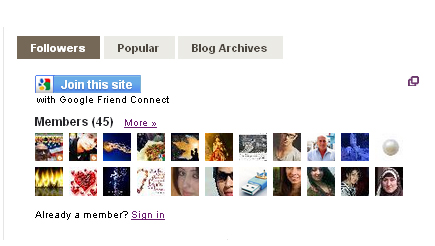 |
| Add | Put Three Tab Gadget/Widget In Blog Layout Sidebar On Blogspot |
Now we are going to start the simple adding Three Tab or Multi Tab Widget on Blogger Blogspot. Follow below tutorial and add easily.
Go to Blogger.com.
Go to Template.
Click on Edit HTML orange button link.
First Download your full blogger template.
Press Ctrl+F in the HTML Body Box.
Paste the below code/tag in the search box and press enter.
]]></b:skin>
When you find this code/tag then pick or copy the below code and paste just above/before the above tag.
/***----- TOB Multi Tabbed Widget ----***/
.tabs-widget{list-style:none;list-style-type:none;margin:0 0 10px 0;padding:0;height:26px}
.tabs-widget li{list-style:none;list-style-type:none;margin:0 0 0 4px;padding:0;float:left}
.tabs-widget li:first-child{margin:0}
.tabs-widget li a{color:#4E4840;background:#EBEBE5;padding:5px 16px;display:block;text-decoration:none;font:bold 12px Arial,Helvetica,Sans-serif}
.tabs-widget li a:hover,.tabs-widget li a.tabs-widget-current{background:#756857;color:#FFF;text-decoration:none}
.tabs-widget-content{}
.tabviewsection{margin-top:10px;margin-bottom:10px;}
Now if you have Default Template or any types of template then find the any code which is given below one by one.
<div class='column-right-inner'>
<div id='sidebar-wrapper'>
<div id='rsidebar-wrapper'>
When you find any one of them then copy below code and paste below any of tag which you find.
Get Google Page Rank With In 1 Month By Simple And Easy Tricks
Best Blogger Tips And Tricks For My Blog SEO Instantly
<div class='tabviewsection'>
<script type='text/javascript'>
jQuery(document).ready(function($){
$(".tabs-widget-content-widget-themater_tabs-1432447472-id").hide();
$("ul.tabs-widget-widget-themater_tabs-1432447472-id li:first a").addClass("tabs-widget-current").show();
$(".tabs-widget-content-widget-themater_tabs-1432447472-id:first").show();
$("ul.tabs-widget-widget-themater_tabs-1432447472-id li a").click(function() {
$("ul.tabs-widget-widget-themater_tabs-1432447472-id li a").removeClass("tabs-widget-current a");
$(this).addClass("tabs-widget-current");
$(".tabs-widget-content-widget-themater_tabs-1432447472-id").hide();
var activeTab = $(this).attr("href");
$(activeTab).fadeIn();
return false;
});
});
</script>
<ul class='tabs-widget tabs-widget-widget-themater_tabs-1432447472-id'>
<li><a href='#widget-themater_tabs-1432447472-id1'>Followers</a></li>
<li><a href='#widget-themater_tabs-1432447472-id2'>Popular</a></li>
<li><a href='#widget-themater_tabs-1432447472-id3'>Blog Archives</a></li>
</ul>
<div class='tabs-widget-content tabs-widget-content-widget-themater_tabs-1432447472-id' id='widget-themater_tabs-1432447472-id1'>
<b:section class='sidebar' id='sidebartab1' preferred='yes'>
<b:widget id='CustomSearch1' locked='false' title='' type='CustomSearch'/>
<b:widget id='Followers1' locked='false' title='Followers' type='Followers'/>
</b:section>
</div>
<div class='tabs-widget-content tabs-widget-content-widget-themater_tabs-1432447472-id' id='widget-themater_tabs-1432447472-id2'>
<b:section class='sidebar' id='sidebartab2' preferred='yes'>
<b:widget id='PopularPosts1' locked='false' title='Popular Posts' type='PopularPosts'/>
</b:section>
</div>
<div class='tabs-widget-content tabs-widget-content-widget-themater_tabs-1432447472-id' id='widget-themater_tabs-1432447472-id3'>
<b:section class='sidebar' id='sidebartab3' preferred='yes'>
<b:widget id='BlogArchive2' locked='false' title='Blog Archive' type='BlogArchive'/>
</b:section>
</div>
</div>
Now Save your Template.
Click to View Blog.
Now you have done this trick and your blog look good now if you want to replace gadget with other gadgets then delete the following and replace which you want to add.
Related Articles:
Add | Put HTML Color Code Generator Tool To Your Blogger With Easy Tricks
Add Manually CSS Jqeury Drop Down Menu On Blogger
Add Three Or Four Column Footer Widget/Gadget In Blogger Blogspot
Add Facebook Like Box Widget/Gadget On Blogger
AddAbout Us Page Widget | Gadget On Your Blog Footer Or Sidebar
Add | Put 50 Flag Translator Widget | Gadget On Your Blogger
Easy Trick To Add Twitter Updates Gadget To Blogspot Blogger
Add Recent Post Moving In Down And Upward Direction


