Cari Blog Ini

Tampilkan postingan dengan label trick. Tampilkan semua postingan

Jumat, 21 Juni 2013

Add | Changes Labels Or Tags With CSS Button Beautiful Color With Hover Effect

In this tutorial i will show you how to Change or Replace simple labels with CSS Buttons with hover effect in blogger blogspot. This work is done in the CSS Coding and if you have proper knowledge using CSS then this trick is so simple for you and you can easily do that. If you have not familiar with CSS Language then don't worry i give simple and easy tutorial for doing this trick. Blogger platform is one of the best way to share your content to other peoples and also tell them about yourself with the help of your content. If you share your helpful and good stuff to people then they use your content and remember your to giving thanks. If you want visitors are come on your site and stay more time on your site then you should make Best and Good Looking Blog or Site for this means. I have publish many post on how to make blogger good looking and how you put SEO in your blogger blogspot, How you can Make money and how you can choose best template for your blogger blogspot. Now if you want to do these tricks then i give you some links after this CSS tricks first do that.


How I Can Use Webmaster Tools Properly For Blogger
How I Can Make Internal Links In The Blog Post To Increase Rank

Now Lets Start The Tutorial Add CSS Bricks To Replace Or Change Lables:


If you have not adding this trick in your template then ready now for doing it. I give you small tutorial which tell you in details what you do for having it.

Add | Changes Labels Or Tags With CSS Button Beautiful Color With Hover Effect
Add | Changes Labels Or Tags With CSS Button Beautiful Color With Hover Effect 1

Go to Blogger.com.
Go to Template.
Click on Edit HTML.
Press Ctrl+F in the HTML Body Box.
When Search Box is appear in the HTML Body Box.
Then copy below code/tag and paste in this box and press enter.


]]></b:skin>


After appearing this tag copy the below CSS Coding for Labels and paste just before or above this code.


/*--- MBL Custom Label Cloud With CSS3 --- */
.Label a{
padding-left:20px;
background:#000;
padding:0 20px;
color:#fff!important;
border-radius:100px;
-moz-border-radius:100px;
height:32px;
line-height:32px;
text-transform:uppercase;
text-decoration:none;
border:none !important;
-webkit-transition:all .3s ease-in-out !important;t: 30pxt: 30px;
float:left;
margin-left:5px;
margin-top:5px;
font-size:14px; }

.Label a:hover{
color:#000 !important;
background:#ff0; }

Now Save your Template.


And now turn to active the labels to get effect.

How I Make My Blogger Good Looking Best Tricks

Add Labels By Going to Layout:


Go to Blogger.com.
Go to Layout.
Click On Add A Gadget.
Go to Labels.
Click on Labels.
Now select or tick same as below pic.

Add | Changes Labels Or Tags With CSS Button Beautiful Color With Hover Effect  2
Add | Changes Labels Or Tags With CSS Button Beautiful Color With Hover Effect  2


Now click on Save Button.
And View your blog.
You have done your work easily and enjoy it.

I have also many widget or gadget to add in blogger and make blogger look like wordpress and also to make your blog Beautiful.


Related Articles:


Add | Put HTML Color Code Generator Tool To Your Blogger With Easy Tricks
Add Manually CSS Jqeury Drop Down Menu By Replace/Remove Pages On Blogger
Add | Put | Embed Three Or Four Column Footer Widget/Gadget In Blogger Blogspot
Add Facebook Like Box Widget/Gadget On Blogger By Facebook Developer Plugin
Add | Make About Us Page Widget | Gadget On Your Blog Footer Or Sidebar
Add | Put 50 Flag Translator Widget | Gadget On Your Blogger Blogspot
Add | Put Three Tab Gadget/Widget In Blog Layout Sidebar On Blogspot
Create | Make | Add | Set 404 Error Page In Blogger Blogspot Easily

Senin, 10 Juni 2013

Create | Make Blogger Background Image On Photoshop And Change With Desire Photo

In this tutorial i will show you how to create Image In Photoshop and how to Add or Replace your desire image in blogger background just simple steps and trick. Now this tutorial also teach you how to use Photoshop Features. I have write many post about Blogger and Blogging tips and tricks but now i want discuss a small and best tutorial using Photoshop because it also play and important role in field of blogging. Like if you want to add image in blog post and you want to also add any name or text on this photo/image you want to put on blog post then you can easily add this also like i write my blog name on mostly pictures and when someone view or see this picture they also see our blog name which  is very effective and these people also visit your blog to get proper information about this picture or post.


How To Make Blogger Header Image In Photoshop

How To Make Image/Photo/Picture In Photoshop For Blogger Background:


If you want to add your desire customize picture in blogger background then follow the below tutorial to make image and then add this on your blog.
Create | Make Blogger Background Image On Photoshop And Change With Desire Photo
Create | Make Blogger Background Image On Photoshop And Change With Desire Photo 1

Click on Photoshop Install Software on your computer desktop screen.
Run your Photoshop.
Now go to File.
Go to New.
Click on it.
Like above image which totally reduce your effect just follow the picture.
Now according to below picture.
Customize the Page of Image.

Picture 1 For Customization:


Give the Name in Step 1.
Select Width or Height in Step 2. 
Select Resolution in Step 3.
Select Mode Of Color means RGB, Greyscale, CMYK Color, Or Lab Color.
Now Click OK.
You See the White page after this customization.


Picture 2 For Customization For Patten:


Click on Paint Brush. Like pointed in Step 1.
Go with Step 2 to Select the Patten of the color or background.
Now you have done you also customize simply by adding or cutting picture or other picture to pick the best and beautiful template.

If you want just your blog names appear in the background of blogger template then you also do this. For this Go with Picture 3. 


Create | Make Blogger Background Image On Photoshop And Change With Desire Photo 2


Here Is the Small Tutorial which show you how just write text on Blank White Page or Any image which you put on Photoshop.

Just do same as adding blank white page. Where you customize the page with step1 to step 4.
When you add page then put your desire color using Brush Tool and then write 3D Color Effect Text on blank white, color or any picture.

When you make white page on your Photoshop or select any picture then use below tutorial for writing 3D Effect Text on picture.

Click On Text Writing Tool which is represent by bold T.
Write your blog name or any text which you want to appear behind your template.
Now using image or tutorial both to do easily.

Create | Make Blogger Background Image On Photoshop And Change With Desire Photo 3

Go to Above Tab Like File, Edit, Image, Layers, Select, Filter, View, Windows, Help.
Click on Windows Tab.
Go to Show Layers.
After Click you see the Layer Effect page on right bottom sidebar.
Right click on image and create Duplicate Layer.
Remove Background Layer.
Now again Right Click on Duplicate Layer.
Go to Blending Option.
Now you can see the same thing which you are seeing in the above picture.
Tick same as mine.
Select the Shadow.
Click Ok. Now you have done.
Save your image.

Now You can Replace Old Style Templates in Blogger in new one
5 Ways How to Make your Blogger Blog Like WordPress Website

Add Customize Image In Blogger Background Template:


Go to Blogger.com.
Go to Template.
Click on Customise Orange Button.
Go to Background.
Go to Remove Image and click on the image.
Click Upload Image.
Now by using this option add picture from your computer where you save your customize picture.
Click on Apply To Blog Orange Button right top side.
Click to View Blog.
Now you have done correctly.

If you have face any problem about this tutorial then feel free and give me your comment for make more easy or best.

Related Articles:


Add | Put | Embed Three Or Four Column Footer Widget/Gadget In Blogger Blogspot
Add Facebook Like Box Widget/Gadget On Blogger By Facebook Developer Plugin
Add | Make About Us Page Widget | Gadget On Your Blog Footer Or Sidebar
Add | Put 50 Flag Translator Widget | Gadget On Your Blogger Blogspot
Add | Put Three Tab Gadget/Widget In Blog Layout Sidebar On Blogspot 
Add | Put Best Style Subscribe Box Widget/Gadget For Blogger Sidebar
Tricks To Add Simply/Easily/ PayPal Donate Button To Blogger
Add A Simple Drop Down Menu To Blogger Blog 

Rabu, 05 Juni 2013

Add | Put Three Tab Gadget/Widget In Blog Layout Sidebar On Blogspot

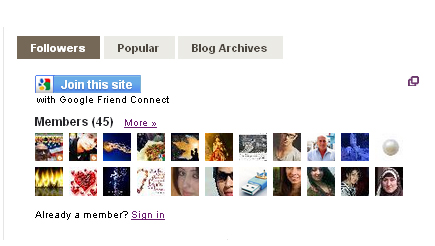
In this tutorial i will show you how to Add Three Column Tab Gadget in blogger sidebar with three option Followers, Popular Posts, Blog Archive. To install this widget in blogger template is so simple and easy or if you want to add this widget in blog then follow the below tutorial for doing this on your blogger. I also put/install this widget now then i want to share it with my blog readers. To add this widget in blogger is very effective for blog reader they can easily access your blog and easily find what they want on your blog. These three option is not fix you can easily change after adding this widget on blog.

5 Ways How to Make your Blogger Blog Like WordPress Website
How I Make My Blogger Good Looking Best Tricks
How To Make Website Like My Blogger Tricks To Get Best Alexa Rank 

Adding Three Tab Gadget/Widget On Blogger Blogspot:


This widget is one of the best widget because it is not occupies too much space in this widget space is less and three option is added easily which is very best. It also make your blog looking good and your blog look like perfect blog after adding this. The three tab gadget in layout many types but i choose simple and best looking i also make this tutorial so easy and any one add this widget to their blog by using this easy tricks.
Add | Put Three Tab Gadget/Widget In Blog Layout Sidebar On Blogspot
                                    

Now we are going to start the simple adding Three Tab or Multi Tab Widget on Blogger Blogspot. Follow below tutorial and add easily.

Go to Blogger.com.
Go to Template.
Click on Edit HTML orange button link.
First Download your full blogger template.
Press Ctrl+F in the HTML Body Box.
Paste the below code/tag in the search box and press enter.

]]></b:skin>

When you find this code/tag then pick or copy the below code and paste just above/before the above tag.


/***----- TOB Multi Tabbed Widget ----***/
.tabs-widget{list-style:none;list-style-type:none;margin:0 0 10px 0;padding:0;height:26px}
.tabs-widget li{list-style:none;list-style-type:none;margin:0 0 0 4px;padding:0;float:left}
.tabs-widget li:first-child{margin:0}
.tabs-widget li a{color:#4E4840;background:#EBEBE5;padding:5px 16px;display:block;text-decoration:none;font:bold 12px Arial,Helvetica,Sans-serif}
.tabs-widget li a:hover,.tabs-widget li a.tabs-widget-current{background:#756857;color:#FFF;text-decoration:none}
.tabs-widget-content{}

.tabviewsection{margin-top:10px;margin-bottom:10px;}


Now if you have Default Template or any types of template then find the any code which is given below one by one.


<div class='column-right-inner'>

<div id='sidebar-wrapper'>

<div id='rsidebar-wrapper'>

When you find any one of them then copy below code and paste below any of tag which you find.

Get Google Page Rank With In 1 Month By Simple And Easy Tricks 
Best Blogger Tips And Tricks For My Blog SEO Instantly


<div class='tabviewsection'>
<script type='text/javascript'>
            jQuery(document).ready(function($){
                $(&quot;.tabs-widget-content-widget-themater_tabs-1432447472-id&quot;).hide();
                $(&quot;ul.tabs-widget-widget-themater_tabs-1432447472-id li:first a&quot;).addClass(&quot;tabs-widget-current&quot;).show();
                $(&quot;.tabs-widget-content-widget-themater_tabs-1432447472-id:first&quot;).show();
      
                $(&quot;ul.tabs-widget-widget-themater_tabs-1432447472-id li a&quot;).click(function() {
                    $(&quot;ul.tabs-widget-widget-themater_tabs-1432447472-id li a&quot;).removeClass(&quot;tabs-widget-current a&quot;);
                    $(this).addClass(&quot;tabs-widget-current&quot;);
                    $(&quot;.tabs-widget-content-widget-themater_tabs-1432447472-id&quot;).hide();
                    var activeTab = $(this).attr(&quot;href&quot;);
                    $(activeTab).fadeIn();
                    return false;
                });
            });
        </script>
<ul class='tabs-widget tabs-widget-widget-themater_tabs-1432447472-id'>
<li><a href='#widget-themater_tabs-1432447472-id1'>Followers</a></li>
<li><a href='#widget-themater_tabs-1432447472-id2'>Popular</a></li>
<li><a href='#widget-themater_tabs-1432447472-id3'>Blog Archives</a></li>
</ul>
<div class='tabs-widget-content tabs-widget-content-widget-themater_tabs-1432447472-id' id='widget-themater_tabs-1432447472-id1'>
<b:section class='sidebar' id='sidebartab1' preferred='yes'>
<b:widget id='CustomSearch1' locked='false' title='' type='CustomSearch'/>
<b:widget id='Followers1' locked='false' title='Followers' type='Followers'/>
</b:section>                                      
</div>                           
                               
<div class='tabs-widget-content tabs-widget-content-widget-themater_tabs-1432447472-id' id='widget-themater_tabs-1432447472-id2'>
<b:section class='sidebar' id='sidebartab2' preferred='yes'>
<b:widget id='PopularPosts1' locked='false' title='Popular Posts' type='PopularPosts'/>
</b:section>                                        
</div>                           
                               
<div class='tabs-widget-content tabs-widget-content-widget-themater_tabs-1432447472-id' id='widget-themater_tabs-1432447472-id3'>
<b:section class='sidebar' id='sidebartab3' preferred='yes'>
<b:widget id='BlogArchive2' locked='false' title='Blog Archive' type='BlogArchive'/>
</b:section>                                    
</div>
</div>

Now Save your Template.
Click to View Blog.

Now you have done this trick and your blog look good now if you want to replace gadget with other gadgets then delete the following and replace which you want to add.

Related Articles:


Add | Put HTML Color Code Generator Tool To Your Blogger With Easy Tricks
Add Manually CSS Jqeury Drop Down Menu On Blogger
Add Three Or Four Column Footer Widget/Gadget In Blogger Blogspot
Add Facebook Like Box Widget/Gadget On Blogger
AddAbout Us Page Widget | Gadget On Your Blog Footer Or Sidebar
Add | Put 50 Flag Translator Widget | Gadget On Your Blogger
Easy Trick To Add Twitter Updates Gadget To Blogspot Blogger
Add Recent Post Moving In Down And Upward Direction


Kamis, 16 Mei 2013

How To Add | Put | Insert | Copyright Warning Message In Blogger Post To Prevent Content

The tutorial is about to how we prevent our blog articles/post by adding Copyright Warning Message when some one copy our blog articles. To Insert this message by every post we use simple or easy trick in the blogger HTML coding section. When you start blogging on your blog and after few days your Precious content or articles copied by some other person then you will disappoint by seeing that your content is paste on other blog. It is very important to prevent or save your blog content by other people.

How You Save Or Prevent Your Blogger Blogspot Post:


When you are writing some content full words on your blog post and you think your blog post or articles is now copy from other person then put a very useful method. When you use this method in Blogger HTML Coding Body then if again these guys copy/stole your content then with blog post content our warning message also show in end of post.


Easy | Best | Simple Tricks To Make Money From Youtube | Chitika
Best Blogger Tips And Tricks For My Blog SEO Instantly
Add Flickr/Picasa Web/Photobucket/Other Albums Slideshow On Blog Easy Tricks 

How To Add This Message In Blog Template Or Edit HTML:


Now we are going to start our simple tutorial for preventing our blog post or articles before stolen.
                         
How To Add | Put | Insert | Copyright Warning Message In Blogger Post To Prevent Content
  • Go to Blogger.com.
  • Go to Template.
  • Go to Edit HTML.
  • Now in between the coding section press Ctrl+F to Find the below code/tag.

                                              </head> 


Now When you find the above code or tag then copy the below code.

<script type='text/javascript'>
if(document.location.protocol==&#39;http:&#39;){
 var Tynt=Tynt||[];Tynt.push(&#39;cVwxpG4wer4jfFacwqm_6r&#39;);Tynt.i={&quot;ap&quot;:&quot;Warning! Content Copied From:&quot;,&quot;cc&quot;:&quot;1&quot;};
 (function(){var s=document.createElement(&#39;script&#39;);s.async=&quot;async&quot;;s.type=&quot;text/javascript&quot;;s.src=&#39;http://tcr.tynt.com/ti.js&#39;;var h=document.getElementsByTagName(&#39;script&#39;)[0];h.parentNode.insertBefore(s,h);})();
}
</script> 
  • Paste this cod above the </head> tag.
  • Now Save your Template.
  • Click view blog and copy your own post and paste it to note pad or other source.
  • Your Copyright Lines are appear below your words which you copy.

    Add | Put | Embed Google Map Between Blog Post Blogger Tricks
    Add/Put Blog Table In Blog Post Best Blogger Tricks 


      If you want also to add when other copyright then your blog name also appear then you should follow this below tutorial.

      Go to Blogger.com.
      Go to Layout.
      Go to Attribution.
      Click it and give your blog name.

      Now you have done correctly and your post are save now.


      Related Articles:


      Avoid From Six Very Common Blogger Mistakes
      Social Bookmarking Button Add To Blogger
      How To Add Facebook Page On Blog To Attract More Visitors
      How To Make Blogger Header Image
      5 Ways How to Make your Blogger Blog Like WordPress Website
      How to Add Next Page Or Previous Page Navigation Number For Post In Blogger
      How I Can Run And Float Text Line On My Blog For News Or Other Thing
      How I Can Reduce My Blog Page Loading Time For Blogger Blogspot

      Senin, 01 April 2013

      How I Can Get More Pageviews Using Social Bookmarking.Com

      In this tutorial i will show you how to increase your website pageviews using social sites. This trick is very useful while your blogging on your blog or website. Social bookmarking is very important for every bloggers to increase visitors because visitors are the main source of income if you are run advertising or affiliate programme on your blog or website then you can not make more money without visitors.

      I have very common and most of tricks which i discuss in this post. First i have tell you how to attract visitors to blog or website. Click below link.

      Now Going To Track Visitors to Your Blogger

      Now lets start tutorial i wants every one make perfect blog and collect informative tricks with our help that's why i decide to write this post. When you are going to start blogging on your website or blogger you should think how to attract more visitor using top ranking website or social site. When you achieve and gain information about that then your half of work is done. If you are already know to make links on search engine or high ranking website that's better but if you are not know about them then go with me and get this tricks.

      Social Bookmarking Site:

      Social Bookmarking site are the big and main source of huge traffic if you aware from this how to use them then you are perfect bloggers. I have some tricks below.

      Use of Best and Top Ranking Social Site:

      If your blog or website not get more visitors then use the following tips.
      Make your blog perfect and good content then go to social bookmarking sites.
      Social Bookmarking sites like Facebook, Twitter, Google+ are common but use others which is very useful and easy.

      Tips And Tricks:

      Go to Socialmarking.com.
      You see a big collection of social sites.
      Paste your site title or Url and click Bookmark it.
      Now select social site one by one to make new account and bookmark your site in it or more visitors.
      With 130+ social websites you can easily attract 300 visitors form these sites daily.

      Related Posts:

      How To Increase The Website Ranking From Social Bookmarking Sites
      How Use Social Website To Increase Your Website Traffic
      How I Can Optimize the Post Title Mean My Post Show First
      How I Can Make One Most Important Tip For SEO In My Blog
      How I Can Reduce My Blog Page Loading Time For Blogger Blogspot  

      Kamis, 21 Maret 2013

      How I Can Get Approval From Google Adsense My Blog Or Website

      How you can get approval from Google Adsense In this tutorial you will learn the most latest trick of approval of Adsense. If you run a blog or website then you can easily get approval from Google Adsense but some points are remember when you apply for Google Adsense. If you are blogging till six month then you can easily get approval from your website or blog. The simple and easy tips and tricks which is very useful for you to get account of adsense.

      How Get Google Adsense Account:

      I have blogging since two years on my website but i think that people are not properly aware from how to blogging then i start my blog with name of Trick Of Blogging and i decide i give the latest tips and tricks of blogging and show how to easily blogging ways. If you want to know about blogging then starting with my tutorial.


      Tips And Tricks Of Getting Approval:

      When you start blogging then keep in mind your blog is user friendly means if visitor comes on your site then they easily read and understand your post. The best ways to make your blog user friendly is use simple template. Make sure your blog bandwidth is fully compressed with all browsers and visitor like your blog bandwidth and they can't face any problem with your template. If you want to increase your website or blog traffic then decrease your website or blog loading page. If your blog is take to much time to open in any browser then reduce it. To reduce the page loading time with some tips and plugin then click the below link.


      How I Can Reduce My Blog Page Loading Time For Blogger Blogspot

      Make your post beautiful using the tools which is shown in the blog post.
      Use social media website to tell about your blog to search engine.
      Use better keywords to get organic traffic because Google give approval those website or blog which get daily 50 to 100 visitors on blog or website.

      Some Of Very Important Tips When Applying To Google Adsense: 

      If you have a blog with six month age then you can get easily approval.
      Change your blogspot to custom domain .com when applying Google. Remember when your are going to register your domain  then use Google Apps for get register means Godaddy.com.
      When applying to Google then keep in mind your website is complete and not in under construction.
      When you are going to apply for Adsense tell him about your domain registration means when you are register your domain take your real name when going to register your domain means If you are applying to Google Adsense with your real Payee Name then you also register your domain like Payee Name.
      Use Webmaster Tools to verify your custom domain to do so click below link.

      How to Verify My Blogger Blogspot in Webmaster Tools 

      When you are writing your post check it by using this link copyscape.com that link is tell you about your post is copyright or original.
      When you are writing your post you should give two or three keywords for tags and in search queries.
      I have more tips about this tutorial but this post is going to long then i am going to break it there and write other post about this tutorial. If you ask me personally about how to apply to adsense then i really reply you when you going to comment me. I analyze your blog or website its complete or not.


      Related Posts:

      5 Ways How to Make your Blogger Blog Like WordPress Website
      How I Can Remov Or Fix Broken URL For Google Adsense Crawler
      How To Verify Custom Domain With Analytic Code In Webmaster Tools
      How To Make Backlinks To Other Website To Increas Page Rank
      How To Increase The Website Ranking From Social Bookmarking Sites 

      Selasa, 19 Maret 2013

      How To Make Backlinks To Other Website To Increas Page Rank

      In this tutorial i will show you how to make user friendly Backlinks to other site. This trick is very easy and useful to increase page rank and blogging is start from there. If you are not known about how to create backlinks the read this full tutorial to make backlinks. When we start blogging and our vision is to increase the traffic on our blog and website then backlinks are the main source of blog to rank our website. I have many ways to increase backlinks.

      How I Can Make Backlinks Easily:

      This question is very difficult for some who not know the base of blogging. If you want to do this then you first deeply known about the blogging and some language of web designing. When we start blogging then HTML is the common coding which we face again and again. If you know about the HTML then you can easily manage all these tips.


      Backlinks:

      Backlinks is the main source of increase page rank. Look when some body make your backlink on their site then you see first backlinks is shown in search engine then your post or blog and this thing is very important. I have some tips and trick to make backlinks.

      Tips and Tricks:

      If you want to make backlinks then you should use the social bookmarking sites.
      One of the best ways to increase backlinks is to comments of other website with Dofollow link.
      Another way is to use Blog directories.
      Use Article Submission to increase backlinks.
      One of the best is Reciprocal Linking.

      What Is Blog Directories:

      Blog directories where you can submit our blog to increase backlinks. All directories are not make backlinks but some directories are the best ways to increase backlinks.

      What Is Reciprocal Linking:

      Reciprocal Linking is also the best way to increase backlink because if you make other website link on your blog then you also ask him to make your website link on his website.


      How Create Backlink When Commenting Some:

      Use this trick when commenting some.

      <a href="http://trickofblogging.blogpost.com"> Latest Blogging Tricks And Tips </a>

      Use this tips when you comment some and give your website link and you can changes the anchor text and one thing which is very important use then anchor text different always when you publish your comment.

      Related Articles:

      You Should Make Internal Links And Backlinks and Increase in Blogger Blogspot
      You Can Easily Manage Permalinks Which Is Search Engine Friendly
      How To Add Categories Link To Your Blogger Blog
      Method of Getting Free Backlinks From Your Blogger Or Website In Simple 5 Trick or Tips
      WordPress SEO Tips and Trick You Need

      Senin, 18 Maret 2013

      How I Can Reduce My Blog Page Loading Time For Blogger Blogspot

      This tutorial and trick is very helpful in blogging for blog page loading if your blog take too much time to open then reduce it because visitor don't like loaded website or blog. Blog or Website is the main source of income also you can also take time to check the blog health if you not check it health then your blog is drop their rank in search engine and this thing is not good. When you make your blog with more passion and you also like to take your website or blog on Google rank then you totally focus on your site. I have a beautiful and very effective trick for this thing which is know as page loading.

      When you start blogging on your blog then your mission is to take rank to your site. Imagine your website or blog is the only source of income then you get this things very easily in your mind. 

      How I Can Reduce Page Loading Time With Just Add JQuery Pluging:

      This post will deeply explain to you how you can add JQuery Plugin for loaded page reduce. You can also apply it on your website also because it is a JQuery Plugin if you have a blog or website contain many and many more images, softwares, and videos then you apply this tricks and make your site perfect. This plugin reduce the page loading time  of your blog or website. This JQuery plugin is written in JavaScript. In other ways and some cases it also reduce server load that's why when visitor is scroll a long pages with images and videos then your pages immediately shows all of the images and videos on your post or pages.

      Now Let's Start The Tutorial:

      Go to your Blogger.com.
      Go to Template.
      Go to Edit HTML.
      Click Expand Widget Template.
      Press Ctrl+F to find the </head> tag in the HTML coding.
      When you press ctrl+f then you see a box below in your browser paste </head> in your below box.

      To get JQuery Plugin Code Click Here.  

      When you get the jquery plugin code the paste it just before/above the </head> tag.
      When you paste it then save template and view your website or blog to see the results.


      Related Post:

      How Manage Blogger Title Tags to Improve SEO 
      Make Money Form Links of Amazon Product to Blogger Posts  
      Read More Button In Blogger Post With Jump Break Feature 
      You Put Chitika Ads to Blogger Blogspot with Simple Steps  
      5 Ways How to Make your Blogger Blog Like WordPress Website 
       

      Minggu, 17 Maret 2013

      How I Can Run And Float Text Line On My Blog For News Or Other Thing

      This tutorial and trick you will learn about how you can easily run a text on your blog for some latest news or highlight your message. This is very simple tutorial which i make for you. This trick is use to highlight your news or message which you want to show visitor first when they visit your website or blog. When you working on your blog with deeply mind then you should it go on rank or visitor comes on your blog if it not work then you are worried about it and you also want that visitor remember your site or blog in his/her mind and that trick is really work for this. I have many code for floating text which you can apply your own site easily to highlight your message or latest news.

      Now Let's Start The Tutorial.
      When you are writing the text in the given query its up to you which effective news or message you post in the floating text. If you want to attract visitor on your site then you should update your news or message daily.


      The following code is given below which works in different ways.

      First Code Is Just Simply Scorlling:

      1. <marquee> Here Is Your News/Message </marquee>
      2. If you want to do more and different changes then you can  try this
      3. <marquee bgcolor="#ffffff"> Here Is Your News/Message </marquee>
      4. Replace the yellow highlight words with other keyword to change the color of your text background.

      Second Code Is For Direction Of Words Where They Move:

      1. <marquee direction="right" bgcolor="#ffffff"> Here Is Your News/Message </marquee>
      2. If you want to change the direction of words then try this.
      3. <marquee> direction="up" bgcolor="#ffffff"> Here Is Your News/Message </marqee>
      4. Replace the yellow highlight up words with others keywords to change the direction of your text. Like

      • Left
      • Right
      • Up
      • Down

      Third Where Is The Code Place:

      When you completely make your text line then follow the below steps to embed/put on your blog.

      Go to Blogger.com.
      Go to Layout.
      Click Add Gadget.
      Go to HTML/Javascript.
      Paste your code there and select your place where your run your news.


      Related Posts:

      Social Bookmarking Button Add To Blogger
      That Is The Solution Of Your Blogger Missing Gadget Features
      You Can Easily Manage Permalinks Which Is Search Engine Friendly
      How to Add Next Page Or Previous Page Navigation Number For Post In Blogger
      How I Can Link My Adsense Account With Google Analytic To Check Earning

      Senin, 11 Maret 2013

      Why I Make More Pages On My Blog To Increase Organic Traffic

      In this tutorial i show you how to make more pages and why pages are so important to increase website or blogger traffic in search engine and Google ranking. It is very important thing that you get more organic traffic to make better revenue but if you want to do so then you can make some changes to your blog or website. I will show you how to make perfect and more pages to increase your organic traffic. This tutorial is very simple to do so. If you want to make some changes then go with me and learn how better pages can increase your website or blog traffic.

      Now Lets start the tutorial Why Pages Are So Important:
      When some one search about some thing which they want then only one URL is shown on Google search engine which is not good because there is only one chance to the visitor that they click your website or blog link but if you make more pages then your blog or website show more links on search engine which increase the chance to visit your site first. This thing is so important to blogger.


      Make More Pages On Your Blog Or Website To Increase Traffic:
      If you have a blog then you simply do the following steps:

      Go to Blogger.com.
      Go to Pages and click the Pages link.
      When you click this link you can see  already one page with Home Tab.
      Click the above link written by new pages. When you click you see two option.
      Blank Page or Web Address.

      There is your choice which one is choose.
      If you choose Blank Page then you put some text or images and videos.
      If you choose Web Address then you put some link in this page doesn't matter if this is your website link or another website link.
      When you make the page choose better words or text to select the page name because this will be the word that's show in the search engine.

      Now If you have a Website the you simply do the following steps:

      Login In your website.
      Go to Add New Page and select your page name that's so simple.
      Now you can easily put images or videos on your pages.
      This works same as blog. First your home page address is shown in search results and then your website pages.

      Related Posts:

      SEO Tips How Keyword Take Your Website On Rank
      Use Google Better Keywords Search Engine Friendly For Wordpress
      How To Increase The Website Ranking From Social Bookmarking Sites
      How To Add Facebook Page On Blog To Attract More Visitors
      WordPress SEO Tips and Trick You Need

      Senin, 25 Februari 2013

      How Use Social Website To Increase Your Website Traffic

      In this tutorial i am going to tell you about how to increase your traffic 500 to 1000 daily without any effort. This tutorial is very useful to increase your daily visitors. If you can't not use the social networking site to increase your website traffic then you are falling in loss. Now start to using the social media or social networking sites. Social Networking sites are the main source of increase website traffic. Social Media Strategy is the main weapon in the success of a blog. If you build right social media strategy and use it at right times and right places then you could certainly in the list of winners. I am going to introduce the main social website which is increase your website or blog traffic there is a trick also to increase website traffic.
                                     
      There are Some Social Media tips i given below i am also use this trick also.

      Post more and more engaging stuff. Stuff that call the people to comment more and more and like your posts more and more. If your increase your website traffic then you can also use this trick this is really benefit for you.

      Click this Link for better result in search engine:
         

        Create Your account most of your social website and add your link to these websites.
        When you post a new article in your blog then this tips is remember in your mind you can add share button to blog post or on home page. To Get Social Button in HTML code Click This link  Get Code.
        Share your new post regularly on Social Networking Sites and give comments on your blog post.
        Share your older post also with in 2 days or 5 days in week.
        Make more connection on your social media sites.

        Use browser extensions and SEO make tools to save your time while you sharing your post on socila media websites. The following Social Media Sharing Websites are Must to Post Websites Articles

        • Facebook
        • Twitter
        • Stumble Upon
        • LinkedIn
        • Google Plus
        • Digg
        • MySpace
        • Technorati
        • DailyStrength
        • Goodreads
        • Last.fm
        • Meetup
        • Netlog

        There are so many websites but these are the main source to increase your website ranking and your daily website traffic. I have more article about to increase your website rank or traffic.

        Related Articles:

        WordPress SEO Tips and Trick You Need
        Increase The Website Ranking From Social Bookmarking Sites
        You Can Easily Manage Permalinks Which Is Search Engine Friendly
        Method of Getting Free Backlinks From Your Blogger Or Website In Simple 5 Trick or Tips

        Minggu, 13 Januari 2013

        Make Money Form Links of Amazon Product to Blogger Posts

        In this tutorial you will learn how to deep link a specific Amazon product directly into your Blogger Post so that the link will appear either on every post page or alternatively only on a selected post page. By deep linking a targeted Amazon product directly to your Blogger Blog you can expect to increase your Amazon sales and to make extra money from Blogger. If you wish to learn more about adding Amazon Widgets then go blew for different trick.

        This tutorial provides you with a complete walk through of the process of adding Amazon product links to Blogger. I have rated the tutorial as moderate as it involves setting up the amazon product link, converting the code and adding a block of code to your Blogger template. All these steps are with in the capabilities of the average Blogger user provided you follow the step by step instruction below.

        How to Deep Link an Amazon Product to Blogger Posts:
        This tutorial will show you how to add an Amazon Product Link at the foot of every post in you Blogger blog. If you want your link to appear only on a specific individual post page see Tips and Troubleshooting below for Instructions.

        Difficulty Level:
        Moderate Leverl.
        Sign in to you Amazon Associates account. If your are not a member sign up is free to both Amazon.com Endless.com

        Click on the Links and Banners Tab
        Under the product links heading choose the Add Product Links Now Links.
        Add Amazon Product Links to Blogger Tutorial  - Choose Add Product Links 
        From the product links page choose your product category from the drop down list and enter your search keyword phrase to identify the product you wish to link to Hit the Go Button.
        Add Amazon Product Links To Blogger Tutorial -Search For Desired Product
        From the search results choose the individual product you will linking to by clicking on the Get Link button on the right hand side of the product.

        Add Amazon Product Links to Blogger Tutorial - Get Links for Specific Product
        You will now be taken to the customize and Get HTML code page.

        Select Link Type:
        By default both the product image and text link will display but you can customize it to display the image only or the text only by checking the box alongside these options.

        Customize Links Choose the appearance of your product. With or without a border. Choose color options to suit your blog. I suggest you keep the default setting for the link opening in a new window. Amazon.