Cari Blog Ini

Tampilkan postingan dengan label Blogspot. Tampilkan semua postingan

Jumat, 26 Juli 2013

Publish Blogger | Website Posts On Facebook | Twitter | LinkedIn | Tumblr Other Social Sites Automatically

In this tutorial i will show you how to Automatically Publish our Blog posts or Website posts on different Social Sites using simple best tricks. If you are not regularly updated your blog post on many of social sites or not share your blog post link on social sites due to less time in your busy life then follow this tutorial and save your time a also share your post on all social site just on click after publishing your post on blogspot or website. And if you can't share your blog post links on social sites then i think you loss a massive traffic from these social sites because social sites are also a big source of too much traffic.

Social Media or Social Sites plays an important role to improve blogger or website SEO. If you have a lot of Subscriber on your social sites account then use this automatically publish posts gadget and get massive traffic from these social sites and improve your ranking in Google Search Engine because Google also like those sites which have more backlinks on other popular or social sites and they also index your blog in search engine quickly and your blog get a lot of organic traffic through these tricks also. For doing this i am going to give you this trick how to use it and publish your posts on different social sites account.

How Use Social Website To Increase Your Website Traffic
Best Blogging Suggestion | Advice For Benefits In Business SEO Professionals

dlvr.it is the best service to publish automatically posts on different social sites and it also free of costs. I am also use this service and feel good. It is also very easy to setup.

Publish Blogger | Website Posts On Facebook | Twitter | LinkedIn | Tumblr Other Social Sites Automatically
Publish Blogger | Website Posts On Facebook | Twitter | LinkedIn | Tumblr Other Social Sites Automatically 1

How To Publish Post Automatically On Different Sites:


Follow below tutorial and done easily without having problem.

Go to divr.it.
After reaching on this website same above first page is shown.
Give your any Email Address and the Strong Password also and click on Signup Button.
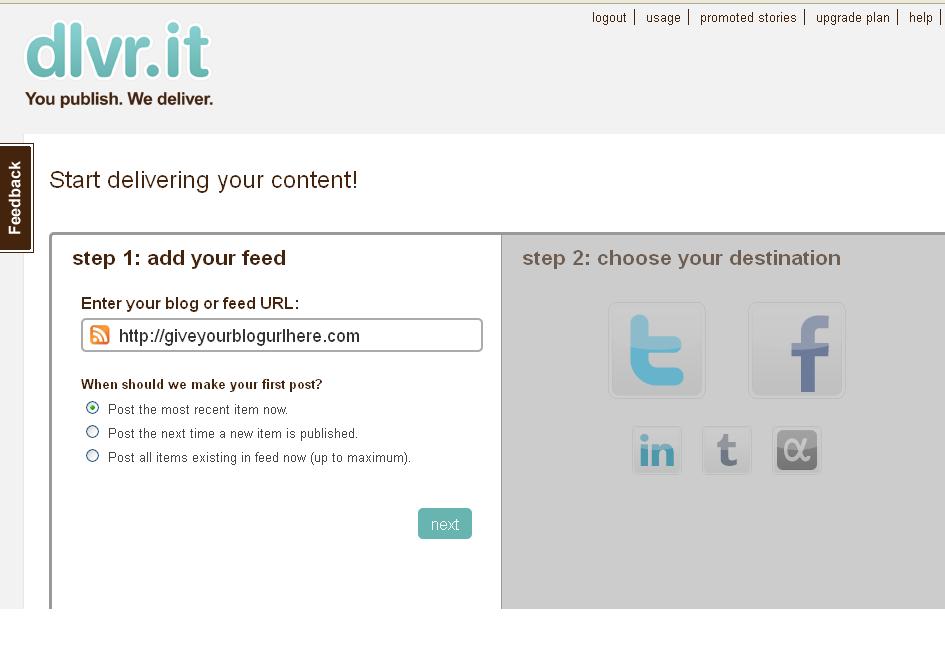
Then this type of page is appear on your screen.
Publish Blogger  Website Posts On Facebook  Twitter  LinkedIn  Tumblr Other Social Sites Automatically 2
Publish Blogger | Website Posts On Facebook | Twitter | LinkedIn | Tumblr Other Social Sites Automatically 2

1) Automatically Publish Post On Twitter:


Here you give your blog link or blog address and click on Next button.
When you press Next button Social Icon Page is highlighted.
Click on Twitter Icon.
And give your account Authorization Access.

Publish Blogger  Website Posts On Facebook  Twitter  LinkedIn  Tumblr Other Social Sites Automatically 3
Publish Blogger | Website Posts On Facebook | Twitter | LinkedIn | Tumblr Other Social Sites Automatically 3

Give your Twitter account Email Address and Password.
Then Click on Authorize App blue button.
When you Press button your blog posts are automatically publish on twitter when you publish your post in blogger same as Google Plus sharing.

How I Can Use Crawlers And Indexing Tool In Blogger
How To Make Backlinks To Other Website To Increas Page Rank


2) Automatically Publish Post On Facebook:


Back To Front Page and Click on Facebook Icon.
Give your Facebook Account Email Address or Fan Page or your blog.
Publish Blogger | Website Posts On Facebook | Twitter | LinkedIn | Tumblr Other Social Sites Automatically  4
Publish Blogger | Website Posts On Facebook | Twitter | LinkedIn | Tumblr Other Social Sites Automatically 4

Also give authorization to Facebook.
And Done.

Now you can repeat this process for all social sites and done easily.
You can also publish your post on LinkedIn or Tumblr.

3) Automatically Publish Post On LinkedIn:


Come Back on front page and click on LinkedIn Icon.
Also give the LinkedIn Account Email or Password.
When you give Email Address then click on blue button Allow Access shown in picture below.

Publish Blogger | Website Posts On Facebook | Twitter | LinkedIn | Tumblr Other Social Sites Automatically 5


 When you press Allow Access button your blog posts also automatically publish on LinkedIn Profile.

4) Automatically Publish Post On Tumblr:


Now do same above tutorial and Click on Tumblr Icon.
Give your Tumblr Account Email or Password and press on login and give access.
Now your work is done.

Do same as last icon i can not give you detail more because this post is already too much long and i am also tired.  If you face any problem then don't forget to comment me and use contact us page for better answer.

Related Articles:


Rabu, 24 Juli 2013

Best | Top Blog Marketing Tips Given To Successful Blogger And Free Tips Marketing Your Blog

In this tutorial i will discuss best points which give you better idea of Marketing Your Blog and also Best Tips To Marketing Successful Blogger. Blogger Blogspot is also same thing and when you want to by best Name for your Niche or Blog then first you decide about name to get better results. In my opinion any type of blog but must unique.

Which Website Name Give Best CPC | CTR To Make More Money
First i tell you in my below article words Journal means (Blogger or Blog) for better results means i want to fully optimize my post that's why i not use Blog commonly.

Everyone United Nations agency encompasses a journal desires it to achieve success and even have plenty of internet traffic. you wish your readers to be excited concerning your content so they keep coming to go to. There area unit 3 promoting tips that you just will to try to to to assist you be a booming blogger. To be a booming blogger, you would like to own a RSS Feeds, update on a regular basis and inquire into different relevant blogs.

Marketing Tips And Techniques Using RSS Feed:


When you begin a replacement journal, nobody is aware of concerning it unless you truly provide them the link. you truly ought to do some promoting to let folks grasp that you just exists. There area unit some simple ways in which to induce the word out concerning your new journal. the primary issue you ought to do is about up a RSS feed. you wish to permit RSS feeds to be taken from your journal. RSS feeds area unit a good means for promoting and obtaining your journal out there. you ought to embody a contrivance on your sidebar therefore folks will register for your RSS feed.

Best Ways Make Money With Blogging Through Google 5 Profitable Work
Easy | Best | Simple Tricks To Make Money From Youtube | Chitika


Marketing Tips And Techniques Using Update Journal Often:


The second tip is to update your journal often and on a regular basis. If you've got committed to change your journal daily, then update it daily. The minimum is to form a replacement journal post once every week. If you develop a regular pattern, then your readers can begin to return back to your Website probing for new content. I will tell you from personal expertise that you just have to be compelled to be consistent. If not, you'll be able to begin to lose your audience.

Marketing Tips And Techniques Using Journal Commenting:


Best | Top Blog Marketing Tips Given To Successful Blogger And Free Tips Marketing Your Blog

Another way to induce a lot of readers to your journal is to inquire into different relevant blogs. you ought to realize blogs that area unit like yours. browse the posts and create relevant helpful comments. do not simply say "Nice journal post". most of the people permit you to go away the URL of your journal within the comments. In some cases, this can conjointly produce a backlink to your journal. If your comments add worth then folks can return to your journal to search out out a lot of concerning you. There area unit many tools that you just will use to search out relevant blogs. 2 of those tools area unit Technorati or the Google journal search tool.

How To Make Backlinks To Other Website To Increas Page Rank

Now below is my second part of my article which tell you how to Marketing Your Blog for better optimization or make money.


With many blogs being made each day, it's a mystery to several web loggers a way to build their blog stand out. it's very easy. folks wish to browse effective content, and with smart content arrives ad revenue. Well, perhaps it's not that abundant straightforward. you've got finally loosed the secrets of flourishing web log promoting. Do note that these aren't assured to change of magnitude your click-through ratios and that they won't bestow smart fate to you or your adverts. However, the following pointers ought to gain for your web log and create it additional simply accessible, easy and additional content-modified.

Best | Easy Tricks To Monetize Your Blogger Blog With Google Ads

A web log directory categorizes and organizes blogs in such the way that anyone will verify blogs associated to any topic simply. you'll be able to notice a web log directory with connected keywords or dig broad within the directory to zero in to the category that you just area unit checking out. it's very similar to the web site directories rather like Yahoo! And Dmoz.

Acquiring an inventory in an exceedingly best web log directory ascertains you of a good quantity of subject matter in terms of the exposure that your web log gets. once anybody explores for your connected searches or keyword a category during which you're registered, they're going to notice your web log. you'll further notice a permanent link back to you web log.

Articles promoting area unit what all serious blogger ought to comprise in its promoting strategy. All the tampered web marketers take reward of this vehicle, why? simply since it works and acts upon within the long-term. Beginners usually area unit unconscious of the ability article promoting admits and that is probably why they fall inadequate of properly exploitation it. create a habit of posting a minimum of 2 of your higher written articles every week or each 10-12 days to article directories. you are doing not need to suggests what you've got written already and announce on the web log. If you'd ideally wish to keep your well composed stuff to your web log, no problem, simply retell the data, alter a trifle, and supply it a singular bit.

Optimize Blogger Website To Increase Or Make Money With Blogging Tricks

If you're a little business owner with a web site, the good thanks to change of magnitude your organic traffic is to jot down compelling and fascinating content that's focused towards your target market.

If your content is best, as compare to alternative web sites can after all begin linking to your website. The search engines promptly develop on this and simply offer your web site additional "authority." Higher authority suggests that additional directed free traffic approaching your manner.

This theme involves submitting your computing machine to superior internet directories that review manually every web site. In most of the cases, you'll bear a fee for the reviewing method. many folks can tell you that the Search Engines don't type paid links and devalue them.

Bloggorati.com could be a distinctive web site providing wondrous platform for web log directory submission [Bloggorati.com]. It guarantees to supply large traffic to individual or business blogs. To fancy the many edges of quality web log directory submission and drive organic traffic to a web site, webmasters will visit promoting Your web log [Bloggoratic]


Related Articles:


Ready to Make Money With Adsense Keywords and Blogger 
SEO Tips How Keyword Take Your Website On Rank
How Can I Make Earning With My Blogger Blogspot
Best Blogging Suggestion And Advice For Benefits In Business SEO Professionals
Use Language And Formatting | Search Preferences | Setting In Blogger Blogspot
Simplifying The Practice of Blogging With Software
Customise Blogger Default Template To Make Professional Template
Get Google Page Rank With In 1 Month By Simple And Easy Tricks

Senin, 22 Juli 2013

Add | Give Comment Numbering On Blogger Threaded Comments Using Best Tricks

In this tutorial i will show you how to Add Comment Number with every comment using beautiful images or bubbles and also give number to every comment. It is very simply to add comment numbering in your blogger template and also very helpful because you can easily find how many comment you have to every post. It will add numbers like this way 1,1.a,1.b,1.c,1.d and so on you can easily see in a screenshot which is given below in image. This is done with CSS Tricks if you want to do this then follow my below small tutorial for adding this beautiful trick on your blogger comments.

Add Best Comment Numbering In Different Bubbles:


Go to Template.
Click on Edit HTML.
Now Press Ctrl+F in the HTML Body Box.
When you Press Ctrl+F then Search Box is appear top right corner.
Copy below Code/Tag and paste in search box and press enter.

]]>
]]></b:skin>

When you find this above tag in HTML Body then add below code just above/before this ]]></b:skin> tag.
Add | Give Comment Numbering On Blogger Threaded Comments Using Best Tricks

.comment-thread ol {
    counter-reset: countcomments;
}

.comment-thread li:before {
    content: counter(countcomments,decimal);
    counter-increment: countcomments;
    float: right;
    font-size: 22px;
    color: #555555;
    padding-left: 10px;
    padding-top: 3px;
    background: url(https://blogger.googleusercontent.com/img/b/R29vZ2xl/AVvXsEge1fjXcH8hUJ4g8DuUcbI789AMyJDBTzg8vl0UiBH_3_5n4QqsVY5iREus81vIaJOpXzBZx9ZIIC5IPGKFm50tGHlwzxoqZ2PUnaGkPBmoAYm2TMSmtdM62EbqL2qQ5oGnXPf3mPwVaz77/s1600/comment+bubble2.png) no-repeat;
    margin-top: 7px;
    margin-left: 10px;

    width: 50px;
 /*image-width size*/
    height: 48px;
 /*image-height size*/
}

.comment-thread ol ol {
    counter-reset: contrebasse;
}

.comment-thread li li:before {
    content: counter(countcomments,decimal) "." counter(contrebasse,lower-latin);
    counter-increment: contrebasse;
    float: right;
    font-size: 18px;
    color: #666666;
}

Now save your template and you are done and now turn to customization in blogger comments by replacing bubbles.

Customization In Comment Number In Bubbles:


padding-left: 10px; - Edit it to adjust the position of text(number) from left size
padding-top: 3px - By editing the value you can adjust the position of text(number) inside bubble from top.
background: url(https://blogger.googleusercontent.com/img/b/R29vZ2xl/AVvXsEge1fjXcH8hUJ4g8DuUcbI789AMyJDBTzg8vl0UiBH_3_5n4QqsVY5iREus81vIaJOpXzBZx9ZIIC5IPGKFm50tGHlwzxoqZ2PUnaGkPBmoAYm2TMSmtdM62EbqL2qQ5oGnXPf3mPwVaz77/s1600/comment+bubble2.png) no-repeat; - If you want to change the bubble image then simply replace image URL with yours.
margin-top: 7px; - By editing this value you can adjust the position of bubble from top.
margin-left: 10px; - Increase or decrease the value as per your requirements.


Bubbles Image URL For Adding In Comments:


Now i am going to give you some shapes, images or bubbles which you can easily add in your blogger comment for adding these bubbles shapes Copy the URL of bubble images which you want to add and replace with red highlighted text or url and then save it. How to pick the URL of image? Your Answer is here. Right Click on your desire picture which you want to add and click on view image in your browser and copy the url in your browser and paste it.


Now save your template and you are done.
It will add numbers like this way 3,3.a,3.b & 4 here 3,4 are the main comments and 3.a,3.b are the replies,you can see a screenshot below in image. - See more at: http://www.helperblogger.com/2012/08/add-numbers-to-blogger-threaded-comments.html#sthash.Gv0yep4S.dpuf

Related Articles:


Rabu, 17 Juli 2013

Add | Put Pop Up Ads For Banner | Adsense Or Chitika On Blogger Blogspot Easy Tricks

In this tutorial i will show you how to Add Google Adsense Ads, Chitika Ads, Banner Ads with Popup on Blogger Blog with simple and easy steps and using new Tricks. My tutorial is so easy any one understand easily how to embed these ads on blogspot to get more click to increase Google Adsense Earning and other Advertiser links. If you worried about to get small money then forget this and do as soon as possible for make more money. If you have a blog and not get more click and not too much visitors then don't worry i am going to give you best of best trick to how get more clicks on your blogger ads on your banner ads or chitika and Google Adsense for get more money. I also use this trick but it is not run to many days because some advertising company can not like this pop up ads. Like Google Adsense it is very harmful for your Adsense Account because this is against the Google Adsense Policy if you are ready then you can start using this trick with my below tutorial.

Add | Put Pop Up Ads For Banner | Adsense Or Chitika On Blogger Blogspot Easy Tricks


Best EasyTricks To Monetize Your Blogger Blog With Google Ads Increase CPC | CTR And Earning 
How To Easily Make Money With Affiliate Marketing Blogger

How To Put Ads On Popups Window:


Now i give you a HTML Coding and i tell you where you put the ads code to work with this trick.


<style>
#btftopbar {
height:2px;
width:auto;
background: #005094 url('..');
background-repeat:repeat-x;
text-align:center;
padding-top:2px;
}
#adsground {
height:50;
margin:0 auto;
width: 0px;
background:#fff;
border-bottom:2px #005094 solid;
border-right:2px #005094 solid;
border-left:2px #005094 solid;
text-align:bottom;
padding:2px;
}

#headlineatas {
opacity:1.0;
height:auto;
width:auto;
position:fixed;
top:30px;
left:600px;
border-bottom:4px #005094 solid;
border-bottom:0px blue solid;
color:#333;
padding:0px;
z-index:1001;
font-size:13px;}
</style>
<script type="text/javascript">
function getValue()
{
document.getElementById("headlineatas").style.display = 'none';
}
</script>
<div id="headlineatas">
<div id="btftopbar">
<span style="color:#fff;font-size:10px;font-weight:bold;text-shadow:black 0.1em 0.1em 0.1em;float:right;padding-top:3px;padding-right:10px"><a href="http://trickofblogging.blogspot.com/"></a></span>
</div>
<div id="adsground">
<p align="left"><h3></h3></p>
<p>
<script type="text/javascript"><!--
google_ad_client = "ca-pub-xxxxxxxxxxxxxxxxxx";
google_ad_host = "pub-xxxxxxxxxxxxxxxx";
/* Larget Rectangle  */
google_ad_slot = "xxxxxxxxxxx";
google_ad_width = 160;
google_ad_height = 600;
//-->
</script>
<script type="text/javascript"
src="http://pagead2.googlesyndication.com/pagead/show_ads.js">
</script>

<br/></p></div></div>


When you copy this code on your notepad then change the Orange Highlighted Color coding/Ads with your own Google Adsense Ads. If you want to add Banner ads then also replace this mine ad code with your own Banner Ads code. And if you also want to put Chitika ads then replace again with mine ads code which is highlighted with orange color. Some times chitika ads are not display due to blogger template problem then at this time you can comment me and also give your blog link and template copy with attach notepad file and mail me using contact us form and i will definitely help you and also give you best tricks.

How Optimize Blogger | Website To Increase Or Make Money With Blogging Tricks
Which Website | Blogger Name Give Best CPC | CTR To Make Money With Google Adsense

Customization In Pop-Ups Ads For Better Placement:


I highlighted two digits with Red or Pink color. It is for adjustment of ads where you want change the pixels of the ads for Top and Left and choose your best placement for ads to get more clicks. If you have done also this customization then follow below tutorial and add your ads.

Go to Blogger.com.
Go to Layout.
Click on Add A Gadget.
Go to HTML/JavaScript.
Click on it.
Paste your customize code in HTML Box.
Click on Save.
View your Blog and check your ads.

Now my tutorial is finished and visit my blog till get new tricks for your blogger blogspot to make best blogger and Good Looking Blog for get more visitors also. I also write many article on Blogger SEO, Blogger Widget/Gadget to make perfect blog.

Rabu, 03 Juli 2013

Best | Easy Tricks To Monetize Your Blogger Blog With Google Ads Increase CPC | CTR And Earning

In this tutorial i will show you how you can easily Monetize your Blogspot or Website with using Google Adsense Ads to Make Money with high CPC (Cost Per Click) using high CTR (Click Through Rate). These two points are very important if you want to make more money with your blog or website. Let's suppose if you get 3000 visitors daily then you can easily make 10 to 15 dollars with your blog without high CPC and if you optimize your Google Adsense Ads means your Ads Placement like Above Post Title, Below Post Title, Wrap Ads with your Text Content means Float Left or Right, Below Post or Between the Post and Sidebar Gadget also. And one most important is below Header or Blog Title/Blog Name.


Best | Easy Tricks To Monetize Your Blogger Blog With Google Ads Increase CPC | CTR  And Earning
Best | Easy Tricks To Monetize Your Blogger Blog With Google Ads Increase CPC | CTR  And Earning

In this post i discuss  7 Better Ads and Banner Placement To Increase Earning. First i give you main headings of these 7 points and then we discuss all these headings one by one.

  1. Google Adsense Ads Above Post Title.
  2. Google Adsense Ads Below Post Title.
  3. Google Adsense Ads Wrap or Cover with Post Content means floating ads.
  4. Google Adsense Ads Between Post or Text.
  5. Google Adsense Ads Below Post.
  6. Google Adsense Ads In Sidebar Gadget/Widget.
  7. Google Adsense Ads Below Blog Title/Blog Name.

Now if you have a Google Adsense Account Approved with your blog then use these tricks and increase earning by controlling the CTR and check your earning after doing these tricks. Its really work. It does not matter your account is Youtube (Hosted Google Adsense Account) or Original means (Non-Hosted Google Account) in both situation you can increase your earning. But little difference always in hosted or non-hosted account. Hosted account not give you above 10 dollar in a day. But if you have approved your account with your Custom Domain Or Website which get daily 1000 visitors then you can easily make nearly 30 dollars in a day with CPC $1. If you get 30 clicks in a day approximately then you can get 30 dollars simply. That's why first you get your custom domain removing Blogspot and you can do easily by get your domain with help of Google Blogger using setting option i also give you link if you want to transfer your blogspot to your website or custom domain. Like .COM.

Simple | Easy Tutorial For Transfer Blogspot To Website


1) Google Adsense Ads Above Post Title:


How to add or put Google Adsense Ads above the post title? and answer is.
There are two ways if you want to put or add ads on your blogspot which you approved by Google Adsense or Google Blogger then it just easy. And if you want to put ads on other blogger then i also give you the method of putting them in above your post title.

First For Those Blogger Which Is Approve Already From Blogger.
Second For Those Who Can't Approve From Blogger.

Those Blogger Which Approve:


Now if you Google Adsense Account is Approved by Google Blogger Team then you can easily Monetize it by doing below small steps or tutorial.

Go to Blogger.com.
Go to Layout.
Click on Add A Gadget.
Go to Adsense which is represent with Dollar Sign.
Click on it. If your account is approve then your ads are shown in your blogger.
After this Select or Mix up your ads with your blogger themes.
Add your ads where you want if you want to add in blog post above title then do below steps.
Go to Layout Again.
Click Edit link in Blog Post Body below Header.
And Select your place and add your ads.

How Easliy/Simple To Manage Page Layout In Blogger Blogspot
How To Easily Make Money With Affiliate Marketing Blogger

Those Blogger Who Can't Approve:


Now if your account not approve then you can also add Google Adsense to other blogspot blogger easily above post title by doing below tutorial.

  1. Go to Blogger.com.
  2. Go to Template.
  3. Click on Edit HTML.
  4. Press Ctrl+F to appear Search Box in HTML coding box.
  5. When Search box is appear then copy below code and paste in search box and press enter.
  6. When you find this below code then add your Parse/Convert Google Ads code below or above this code. For parsing Google Ads code click here.  Google Adsense Converter

<div style='float: right; margin: 10px 10px 10px 0;'>
   &lt;script type=&quot;text/javascript&quot;&gt;&lt;!--
google_ad_client = &quot;ca-pub-xxxxxxxxxxxxx&quot;;
google_ad_host = &quot;pub-xxxxxxxxxxxxx&quot;;
/* Trick Of Blogging  */
google_ad_slot = &quot;xxxxxxxxx&quot;;
google_ad_width = 336;
google_ad_height = 280;
//--&gt;
&lt;/script&gt;
&lt;script type=&quot;text/javascript&quot;
src=&quot;http://pagead2.googlesyndication.com/pagead/show_ads.js&quot;&gt;
&lt;/script&gt;

    </div> 

Replace the Red Highlighted Code with your Parse Ads Code and paste above or below the below tag.


<div class='post-header'>

2) Google Adsense Ads Below Post Title:


If you want to add or put your Google Ads below title tag then same as above tutorial but just paste the code below this tag    <div class='post-header'>.

4) Google Adsense Ads Wrap or Cover with Post Content Means Floating Ads:


Now if you want to add the Google Adsense ads with floating left and right then use above 1 point same as and then find below tag and paste the ads code above/before the 3rd or last tag.


<data:post.body/>

Now if you want to float your ad right then write the left/right/center its up to you just change the code with your desire.

Add | Put | Embed Three Or Four Column Footer Widget/Gadget In Blogger Blogspot
Add Facebook Like Box Widget/Gadget On Blogger By Facebook Developer Plugin

5) Google Adsense Ads Below Post:


If you want to add or put the Google Ads below post then copy your parse ad code and replace with Red Highlighted Code adjust the alignment left right or justify it with your desire and paste the Ad code just below/before this tag.  <data:post.body/>.

Tips And Troubleshooting:

Always parse the Adsense Ads Code when you want to add in Blogger HTML Body. If you can't parse the code then it is not work and also first when you pick the ads code first add it in HTML/JavaScript just few second and then parse this code not newly code directly work in blogger HTML Body. If your account is hosted then you must do this first. And if you can't properly understand then contact us and i will definitely guide you with my best answer.

6) Google Adsense Ads In Sidebar Gadget/Widget:


Google Adsense Ads placement in Sidebar is also give you best CTR using the Ad size with 160*600.
Now make ad unit of   160*600 in your adsense account and paste it in the Gadget where you want.

7) Google Adsense Ads Below Blog Title/Blog Name:


Get the Google Adsense Ad Code and follow the below tutorial.

Go to Blogger.com.
Go to Layout.
Click on Add A Gadget.
Go to HTML/JavaScript.
Paste the code in HTML/JavaScript Box.
Pick this gadget and drag it and drop below your Blogger Title/Blog Name.

Now you have done all these steps and if you feel its not working then reply me for better answer. I will available all the daily for your help just feel free and keep comment on my post.

Related Articles:


You Put Chitika Ads to Blogger Blogspot with Simple Steps  
Affilate Banner Put Below in your Blogger Post  
The Best Placement of Adsense On Your Blogger Blogspot  
How Can I Make Earning With My Blogger Blogspot
How I Can Place Adsense Ads Between My Blog Post or Below Title Tags 
Easy Trick To Add Twitter Updates Gadget To Blogspot Blogger  
Best Blogger Tips And Tricks For My Blog SEO Instantly  
Easy Tricks To Get Lot Of Visitors On My Blogger

    Jumat, 21 Juni 2013

    Add | Changes Labels Or Tags With CSS Button Beautiful Color With Hover Effect

    In this tutorial i will show you how to Change or Replace simple labels with CSS Buttons with hover effect in blogger blogspot. This work is done in the CSS Coding and if you have proper knowledge using CSS then this trick is so simple for you and you can easily do that. If you have not familiar with CSS Language then don't worry i give simple and easy tutorial for doing this trick. Blogger platform is one of the best way to share your content to other peoples and also tell them about yourself with the help of your content. If you share your helpful and good stuff to people then they use your content and remember your to giving thanks. If you want visitors are come on your site and stay more time on your site then you should make Best and Good Looking Blog or Site for this means. I have publish many post on how to make blogger good looking and how you put SEO in your blogger blogspot, How you can Make money and how you can choose best template for your blogger blogspot. Now if you want to do these tricks then i give you some links after this CSS tricks first do that.


    How I Can Use Webmaster Tools Properly For Blogger
    How I Can Make Internal Links In The Blog Post To Increase Rank

    Now Lets Start The Tutorial Add CSS Bricks To Replace Or Change Lables:


    If you have not adding this trick in your template then ready now for doing it. I give you small tutorial which tell you in details what you do for having it.

    Add | Changes Labels Or Tags With CSS Button Beautiful Color With Hover Effect
    Add | Changes Labels Or Tags With CSS Button Beautiful Color With Hover Effect 1

    Go to Blogger.com.
    Go to Template.
    Click on Edit HTML.
    Press Ctrl+F in the HTML Body Box.
    When Search Box is appear in the HTML Body Box.
    Then copy below code/tag and paste in this box and press enter.


    ]]></b:skin>


    After appearing this tag copy the below CSS Coding for Labels and paste just before or above this code.


    /*--- MBL Custom Label Cloud With CSS3 --- */
    .Label a{
    padding-left:20px;
    background:#000;
    padding:0 20px;
    color:#fff!important;
    border-radius:100px;
    -moz-border-radius:100px;
    height:32px;
    line-height:32px;
    text-transform:uppercase;
    text-decoration:none;
    border:none !important;
    -webkit-transition:all .3s ease-in-out !important;t: 30pxt: 30px;
    float:left;
    margin-left:5px;
    margin-top:5px;
    font-size:14px; }

    .Label a:hover{
    color:#000 !important;
    background:#ff0; }

    Now Save your Template.


    And now turn to active the labels to get effect.

    How I Make My Blogger Good Looking Best Tricks

    Add Labels By Going to Layout:


    Go to Blogger.com.
    Go to Layout.
    Click On Add A Gadget.
    Go to Labels.
    Click on Labels.
    Now select or tick same as below pic.

    Add | Changes Labels Or Tags With CSS Button Beautiful Color With Hover Effect  2
    Add | Changes Labels Or Tags With CSS Button Beautiful Color With Hover Effect  2


    Now click on Save Button.
    And View your blog.
    You have done your work easily and enjoy it.

    I have also many widget or gadget to add in blogger and make blogger look like wordpress and also to make your blog Beautiful.


    Related Articles:


    Add | Put HTML Color Code Generator Tool To Your Blogger With Easy Tricks
    Add Manually CSS Jqeury Drop Down Menu By Replace/Remove Pages On Blogger
    Add | Put | Embed Three Or Four Column Footer Widget/Gadget In Blogger Blogspot
    Add Facebook Like Box Widget/Gadget On Blogger By Facebook Developer Plugin
    Add | Make About Us Page Widget | Gadget On Your Blog Footer Or Sidebar
    Add | Put 50 Flag Translator Widget | Gadget On Your Blogger Blogspot
    Add | Put Three Tab Gadget/Widget In Blog Layout Sidebar On Blogspot
    Create | Make | Add | Set 404 Error Page In Blogger Blogspot Easily

    Senin, 17 Juni 2013

    Use Language And Formatting | Search Preferences | Others Option Setting In Blogger Blogspot

    In this tutorial i will show you how to set up the Language And Formatting,Search Preferences for SEO settings in Blogspot with simple and easy tricks. If you make a blog on blogger blogspot then you should first learn everything about blog set up for properly use. In this post i tell you every thing and every heading in details. I also discuss first three headings already in my previous post. And if you want to make all setting prefect then first learn three first heading and its usage and then go next three. Now we are going to discuss the next three main heading about Blogger Best SEO Techniques using Search Preferences and Blogger Tools. Blogger SEO is very important for every blog to get visitors on your blog from search engine. When visitors come form search engine then the worth of these visitors are very high and if you have put PPC programme on your blog or website the you can get more PPC with these tips.

    Use Best Blogger Settings Option Basic For SEO And Others Option Links

    Language And Formatting:


    Language:


    In the Language and Formatting heading you can easily change or select the desire formatting for your blog. Here you can also select the language of your blog which you want. It  is just simple by visiting the Language And Formatting link and click on the language button with grey color and select your desire language for your blog.

    You can also Enable or Disable the Transliteration for your blog easily by selecting on of them.
    First click on Enable and then choose or select the language which you want.


    Formatting:


    In the Formatting Option you can easily select or choose the Time Zone, Date Header Format, Timestamp Format, Comment Timestamp Format, for your blog. If you want to do so then click on Language and Formatting and changes all these option with your choice.

    Use Language And Formatting | Search Preferences | Others Option Setting In Blogger Blogspot
    Use Language And Formatting | Search Preferences | Others Option Setting In Blogger Blogspot 1

    Search Preference:


    Search Preferences is the most important and very useful option in blogger blogspot to make or do better SEO for your blog. Here you can select or make your blog search engine friendly but in the Crawl and Indexing option you can also see the Yellow highlighted Banner written with these words.


    Warning! Use with caution. Incorrect use of these features can result in your blog being ignored by search engines.

    This is because if you make or do wrong selection for your blog then it is also effect in the search engine and your blog is ignore and left by search engine to show first. If you want to make your blog perfect and also get more visitors from search engine do better SEO according to my tutorial and write original content on your blog then your blog definatly get a lot of visitors in week or in a month. I am also do the same thing and now my blog get thousand of visitors daily.

    Meta Tags:


    In Search Preferences first of all go to Meta Tags > Description and give your blog description with only 150 Characters because only 150 characters are shown in the search results and more then ignore by search engine that's why select and choose better keywords for your search results.


    Errors And Redirection:


    In Error and Redirection you can choose, select or customize your Custom Page Not Found means when some one visit your blog with bad link or those link which is not available on your blog. These bad or crawler errors link are formed by using your homepage link first and then any letter or keywords after your homepage blog address. Like below.

    https://trickofblogging.blogspot.com/DKERIFD


    Add Custom Page Not Found On Your Blogger Blogspot:


    For adding this section on your blog is very easy with simple tutorial if you want to do so then follow my below tutorial for doing this amazing tricks.

    Go to Settings.
    Go to Custom Page Not Found.
    Click on Edit link.
    Now click below link and copy the code of your Beautiful Custom Page Not Found and also follow the tutorial given in this link.


    I have also a tutorial on how you can easily remove your 404 Error in blogger blogspot using webmaster tools by simple steps and it is also very important to remove it as soon as possible because these errors also slow down your blog indexing speed in Google Search Engine and also take effect on your blog health. To Remove this 404 Error visit below link.


    Custom Redirects:


    What is Custom Redirects?
    Custom Redirects is use when you want redirect your blog link to other website or blog easily when some one click on this link. Means if you have a Domain 1 and you want to attract visitor on domain 1 to domain 2 then you give the link of domain 1 in the custom redirect setting of domain 2 and when visitors from search engine or anywhere visit domain 2 they automatically reach on domain 1.

    Use Language And Formatting | Search Preferences | Others Option Setting In Blogger Blogspot 2
    Use Language And Formatting | Search Preferences | Others Option Setting In Blogger Blogspot 2


    When you give the domain link of any website or blog when visitor click on this domain or blog then they transfer to other blog.

    Now the most important and the best option in blogger to get lot of visitors on your blog just using these Two Option. It also very important for any blog to make blog perfect. Every blogger first set these two option then move next steps.

    Crawlers And Indexing:


    Crawlers And Indexing is very important for any blog it is also same in Webmasters Tools. Crawlers means Google Search Engine which crawlers the search results and shown on page. If you done this job effectively or better then i sure you get many visitors on your blog. If you are successful to tell about your blog to Google Crawlers or Google Bot then no one defeat you in the race of blogging.

    I already tell you about warning message in between my this post. This warning is given by search engine.

    Custom Robot .Txt File:


    It is very important point or feature in Google Blogger we easily control all our blog content which we want show to search engine and which we not want to show to search engine it is our choice. We can easily Allow or Disallow our content to show or not show in search engine. But now I give you simple robot .txt file which you can easily add in this option. If you want to know about more about Robot .txt file then i have also a big tutorial on it and also proper Blogger SEO Procedure.  How I Can Use Crawlers And Indexing Tool In Blogger


    User-agent: Mediapartners-Google
    Disallow:
    User-agent: *
    Disallow: /search
    Allow: /
    Sitemap: http://trickofblogging.blogspot.com/feeds/posts/default?orderby=UPDATED


    Now Just replace the link of my blog with your blog address and paste this robot .txt file in the Custom Robot .text box by click on edit link.

    Custom Robots Header Tags:


    For better selection of Custom Robots Header Tags i have already write the best and easy tutorial on setup of Robot Header Tags. If you want to also do so the click below link and do according to the tutorial and make your blog Search Engine Friendly.

     
    Use Language And Formatting | Search Preferences | Others Option Setting In Blogger Blogspot 3
    Use Language And Formatting | Search Preferences | Others Option Setting In Blogger Blogspot 3


    When you have done this then click on save button and enjoy this trick.


    Others:


    In the Others option you can make many changes means you can export, import, delete your blog. Also set the Site Feed in this Blog Tools option. Also Open ID, Adult Content or Google Analytic.

    If you want to delete the blog address or delete your whole blog for some problems like you not like your home address of your blog and you can also write about too much post which you can not write again the you can easily import your blog first and delete it. And after it you can export your blog to new blog address i have a easy tutorial on it if you want to do so then click below link.


    Site Feed:


    In Site Feed you can allow Full Site Feed, After Jump Break, Custom Feeds, None or Short Site Feed which you like to show on your Blog Feed Burner or on Blogger Homepage.

    Adults Content:


    In the Adults Content you can also set this option. If you make a Adults Blog which you want not show to children's then you just Yes or No the blog setting on Adults Content and when some one visit your blog then your blog show the Warning Message for Children to don't visit this site this is only for Adults.

    Google Analytics:


    In this option you can just paste the Google Analytic ID of your blog. Google Analytics Web Property ID is the Number Code which is located in your analytic account when you make your blog or website analytic account. For this Just Copy the Code from your analytic account and paste here. I have also a tutorial on Proper Analytic Account Creation.


    Now i give you six most important steps for blogger SEO and make it perfect using these 6 Headings if you have any question about this then using contact us page contact with me and tell me about your problem and also tell me can you understand my written content or not.


    Related Articles: