Cari Blog Ini

Tampilkan postingan dengan label Twitter. Tampilkan semua postingan

Jumat, 25 Oktober 2013

Menambahkan Tombol Follow Twitter untuk Blog

Manfaat menambahkan tombol follow twitter pada blog salah satunya adalah untuk memudahkan pengunjung mencari informasi blog Anda dari twitter sekaligus menambah komunitas blog Anda pada social media twitter. Jika Anda tertarik memasang tombol twitter pada blog, berikut langkah cara menambahkan tombol follow twitter :

1. Login akun twitter Anda.
2. Kunjungi https://twitter.com/about/resources/buttons#follow
3. Atur tombol sesuai keinginan Anda dengan pilihan yang tersedia.
4. Ganti User dengan akun twitter Anda.
5. Copy kode dibawah tampilan tombol twitter.

Nah, Anda bisa menambahkan widget blog dengan meletakkan kode tombol twitter pada Gadget HTML/JavaScript. Atau bisa juga menambahkan pada halaman posting, masuk Template > Edit HTML dan cari kode <data:post.body/>. Jika Anda ingin menambahkan diatas posting, tambahkan diatas kode tadi. Sedangkan jika ingin dibawah posting, tambahkan dibawah kode tadi.

Sabtu, 19 Oktober 2013

Mendapatkan Verifikasi Akun dari Twitter

Verifikasi akun twitter yaitu digunakan untuk menentukan keaslian identitas perorangan dan produk di twitter. Untuk mendapatkan verifikasi akun twitter tidaklah mudah, twitter tidak akan sembarangan memberikan verifikasi akun twitter. Contoh akun yang dapat diverifikasi seperti politisi, pemerintahan, artis, atlet, portal berita, bisnis, dll. Verifikasi akun twitter tidak ditentukan oleh jumlah follower yang banyak.

Bagaimana twitter mengetahui keaslian akun twitter Anda? Salah satunya adalah memasang tombol follow twitter pada blog/web Anda, atau memberikan tautan link blog pada twitter Anda. Berikut contoh akun twitter yang sudah terverifikasi milik presiden Indonesia @SBYudhoyono
Info selengkapnya tentang verifikasi akun twitter bisa Anda baca di Twitter Verified Terms, atau Anda bisa menghubungi pihak twitter melalui Twitter Contact.

Jumat, 18 Oktober 2013

Cara Membalas dan Berkomentar pada Twitter

Membalas dan berkomentar di twitter caranya cukup mudah, kita tinggal menuliskan @username komentar yang akan kita balas kemudian tuliskan tweet dibelakangnya. Biasanya formatnya seperti ini, @username (spasi) tweet Anda. Untuk melihat tweet balasan dari seseorang atau teman twitter Anda, bisa Anda lihat di mentions. Klik menu tab Connect.

Berikut langkah cara membalas dan berkomentar pada twitter :

1. Pilih tweet yang akan dikomentari, kemudian arahkan kursor pada tweet.
2. Akan muncul beberapa pilihan, klik Reply.
3. Kemudian muncul kotak dibawahnya, isi kotak tersebut dengan tweet balasan.
Keterangan:
Berikan spasi antara @username dengan tweet.
4. Setelah selesai klik Tweet.

Semoga dapat membantu!

Kamis, 10 Oktober 2013

Cara Mengubah Warna Background dan Link Twitter

Twitter merupakan salah satu social media yang menyediakan fitur terlengkap, salah satunya adalah kita dapat mengganti warna background dan link pada twitter sesuai keinginan. Ini agar Anda dapat merubah tampilan akun Anda menjadi lebih menarik.

Berikut langkah cara mengubah warna background dan link twitter :

1. Login akun twitter Anda.
2. Klik menu akun disebelah kanan atas halaman, klik Setting.
3. Pilih menu Design, dibagian bawah halaman design Anda bisa memilih warna.
4. Ganti warna background dan link dengan mengklik kotak warna.
Keterangan :
Background color : untuk mengganti warna background.
Link color : untuk mengganti warna link.
Overlay :kotak ditengah background twitter, bisa Anda ganti sesuai keinginan.
5. Kemudian Save changes.

Nah, kini Anda dapat mengganti warna background dan link sesuai keinginan Anda. Semoga dapat membantu!

Rabu, 09 Oktober 2013

Cara Melihat Teman yang Tidak Follow Back Twitter

Setiap pengguna twitter pasti ingin memiliki follower sebanyak mungkin, dan sebaliknya memiliki following seminimal mungkin, dengan mem-follow orang maka kita akan mendapatkan update status dari orang yang kita follow tersebut. Bagaimana kita dapat mengetahui teman twitter Anda yang tidak follow back?

Berikut langkah cara melihat teman twitter yang tidak follow back :

1. Kunjungi situs http://manageflitter.com/
2. Klik Sign In >> Connect to Twitter >> kemudian login akun twitter Anda.
3. Pada halaman ManageFlitter, klik menu tab Manage >> klik Unfollow.
4. Kemudian Anda akan melihat daftar teman Anda yang tidak followback.

Nah, kini ketahuan siapa yang tidak followback twitter Anda. Jika ingin men-unfollow klik tombol kotak Unfollow disamping profil twitter mereka.

Minggu, 06 Oktober 2013

Share Otomatis Posting Blog ke Twitter via App.dlvr.it

Keuntungan melakukan share otomatis posting blog ke twitter adalah kita tidak perlu lagi kesulitan meng-copy URL atau mengklik tombol share untuk meng-update twitter, dengan menggunakan update otomatis posting blog, informasi blog kita bisa langsung diterima pengunjung lewat twitter sesaat setelah kita publikasi posting.

Berikut langkah cara share otomatis posting blog ke twitter :

1. Kunjungi http://app.dlvr.it/, klik Don’t have an account?
2. Masukkan alamat email dan password Anda, klik sign up.
3. Pada step 1 masukkan alamat URL blog Anda, klik next.
4. Kemudian step 2 pilih share via facebook atau twitter, pilih twitter.
5. Setelah registrasi selesai, login dengan akun twitter Anda.
6. Jika ingin menambahkan URL blog, klik +add pada bagian Sources, dan Anda juga bisa menambahkan share via facebook, google+, dll, klik +add pada bagian Destinations.
7. Terakhir masuk akun email Anda dan konfirmasi app dlvr.it

Nah, sekarang posting blog Anda bisa tampil otomatis pada Twitter setiap kali Anda membuat artikel terbaru pada blog. Semoga dapat membantu!

Rabu, 02 Oktober 2013

Cara Menulis Status Arab di Facebook dan Twitter

Anda ingin menuliskan status menggunakan bahasa arab di facebook dan twitter? Dengan menggunakan layanan gratis Arabic keyboard dari yamil.com, Anda dapat dengan mudah menuliskan status bahasa Indonesia diterjemahkan ke bahasa arab. Selain itu, kita juga dapat menggunakan layanan Google Translate yang lebih lengkap. Namun kami sendiri masih belum mengerti keakuratan tulisan arab yang diterjemahkan tersebut.

Berikut langkah cara menulis status arab di facebook dan twitter :

1. Kunjungi situs http://www.yamli.com/arabic-keyboard/
2. Ketikan tulisan dalam bahasa Indonesia sesuai keinginan Anda.
3. Klik tombol spasi pada keyboard komputer, untuk menerjemahkannya.

Jika menggunakan Google Translate berikut langkahnya :

1. Kunjungi situs https://translate.google.com/
2. Ganti pengaturan translate dari Indonesia ke Arabic.
3. Masukkan tulisan di kotak Indonesia kemudian pada kotak disampingnya/Arabic akan otomatis menerjemahkannya.

Kalau dirasa sudah selesai, copy paste tulisan Arab tersebut pada status facebook dan twitter Anda kemudian publikasikan.

Selasa, 01 Oktober 2013

Menggunakan Aplikasi Twitter untuk RT (Retweet)

RT singkatan dari Retweet yang artinya mengulang atau meneruskan tweet seseorang. Caranya cukup mengklik tombol Retweet yang Anda pada bagian bawah setiap tweet. Fitur (RT) Retweet pada web twitter.com hanya bisa mengulang tweet saja, untuk membalas tweet menggunakan Reply. Namun pernahkan Anda melihat teman Anda membalas tweet dengan RT (Retweet)? Bagaimana cara membalas tweet teman yang diikuti dengan RT (Retweet) dibelakangnya ?

Berikut daftar Aplikasi twitter untuk BlackBerry, IPhone, Android, Desktop, dll yang mempunyai fitur lengkap, bisa Anda gunakan untuk RT (Retweet) :

1. TweetDeck (Desktop)
2. Ubersocial
3. HootSuite
4. TweetCaster

Jika Anda menggunakan ponsel java, Anda bisa menggunakan ini :

1. m.ubersocial.com
2. m.tweete.net
3. writelonger

Untuk menggunakannya Anda diharuskan mendownload terlebih dahulu, tapi untuk ponsel java tidak perlu.

Senin, 30 September 2013

Menghubungkan Profil Twitter ke Facebook

Twitter menyediakan fitur untuk melakukan integrasi dengan Facebook, jika Anda mengaktifkan menu ini maka ketika Anda mengupdate status di twitter secara otomatis facebook akan mengikuti dengan status yang sama.

Berikut cara menghubungkan profil twitter dengan facebook :

1. Login akun twitter Anda.
2. Klik menu akun di sebelah kanan atas halaman, klik Setting.
3. Pilih Profile, pada halaman bawah profile klik Connect to Facebook.
4. Masuk ke profil facebook Anda, lakukan persetujuan integrasi.

Nah, kini profil twitter Anda sudah terhubung dengan facebook. Selanjutnya untuk menonaktifkan profil twitter ke facebook sebagai berikut :

1. Kembali ke halaman twitter, pilih Setting >> Profile.
2. Pada halaman bawah profil, klik Disconnect it.

Dengan demikian profil twitter Anda tidak terhubung lagi dengan facebook. Semoga dapat membantu!

Minggu, 29 September 2013

Cara Mengganti Foto Profil dan Header Twitter

Bagaimana cara mengganti Foto Profil dan Header Twitter? Pada postingan ini kami akan membahas masalah tersebut. Cara mengganti foto profil dan header twitter sangat mudah, Anda cukup mengikuti langkah-langkah cara mengganti foto profil dan header twitter berikut :

1. Login akun twitter Anda.
2. Klik menu akun di sebelah kanan atas halaman, klik Setting.
3. Pilih Profile, disebelah Photo ada kotak Change photo, klik kotak tersebut.
4. Kemudian akan masuk folder komputer Anda, pilih foto yang akan diganti.
5. Klik Save changes.
6. Nah, jika ingin mengganti header twitter, klik kotak Change header disebelah Header.
7. Kemudian lakukan hal yang sama, Save changes.

Agar tidak terjadi kesalahan atau gagal saat mengupload gambar, sebaiknya Anda memperkecil ukuran gambar terlebih dahulu sebelum menguploadnya.

Rabu, 04 September 2013

Add Flash Twitter Follow Me Buttons to Blogger Blogs / Websites

Twitter is a social networking sites popular in the world of bloggers to promote their blogs. So here I am very cool Twitter Blogger widget, now it shows me how to add flash buttons to your twitter blogs and websites. These are the widgets based on Flash animations and have some nice effects.These buttons can help Twitter Flash Spice up your blogs, Webssites and can help you gain more followers on Twitter. These are designed and developed by twitterflash.net. I'm taking all the 15 types of one-click install to your blog.


How to Install Flash Animated Twitter Follow Me Widget To Blogger / Blog / Websites


Now let's start adding it...

Step 1. Login to Your Blogger Account.Go to your Blogger Dashboard.Click on Layout tab from left pane and click on Add a Gadget link.

Blogger Tips And Tricks|Latest Tips For Bloggers

Step 2. After click on Add a Gadget link A pop-up box will open now
with many gadget list, Choose HTML/JavaScript from the gadget options by clicking the blue plus sign for that gadget.

Blogger Tips And Tricks|Latest Tips For Bloggers


Step 3. Select 'HTML/Javascript' and add the one of code given below.

Step 4. Now Click On Save 'JavaScript' You are done. ..............


<object type="application/x-shockwave-flash" data="http://www.buzzbuttons.com/BUTTON3/twitbutton.swf" width="150" height="150"><param name="movie" value="http://www.buzzbuttons.com/BUTTON3/twitbutton.swf"></param><param name="allowscriptaccess" value="always"></param><param name="menu" value="false"></param><param name="wmode" value="transparent"></param><param name="flashvars" value="username=rohul786"></param><a href="http://24work.blogspot.com/" target="_blank" title="Blogger Tips and Tricks"><img src="https://bitly.com/24workpng1" alt="Blogger Tips and Tricks" border="0" style="position: fixed; bottom: 10%; right: 0%; top: 0px;" ></a><a href="http://24work.blogspot.com/" target="_blank" title="Latest Tips And Tricks"><img src="https://bitly.com/24workpng1" alt="Latest Tips And Tricks" border="0" style="position: fixed; bottom: 10%; right: 0%;" ></a><a href="http://24work.blogspot.com/" target="_blank" title="Blogger Tricks"><img src="https://bitly.com/24workpng1" alt="Blogger Tricks" border="0" style="position: fixed; bottom: 10%; left: 0%;" ></a><embed src="http://www.buzzbuttons.com/BUTTON3/twitbutton.swf" type="application/x-shockwave-flash" allowscriptaccess="always" width="150" height="150" menu="false" wmode="transparent" flashvars="username=rohul786"></embed></object>


And now click Save


How to Install Flash Twitter Follow Me Buttons on Your Blog?


1. Choose Any Flash Follow Me Button As You Want

2. Replace rohul786 With Your Twitter User Name

3. Customize Width And Height as You Need

4. Click on Generate Button and Finally Click on Add to Blogger Button to add this widget on your blog.


OR

5. Click on Get Code Button and Copy the code to use it.


Sabtu, 17 Agustus 2013

Solusi Ketika Lupa Password Twitter

Ketika kita membuka twitter dan tidak dapat mengaksesnya terkadang membuat kita merasa jengkel, ini bisa disebabkan karena kita salah memasukkan kata sandi/password twitter. Belum lama ini kami juga mengalami hal tersebut.

Bagaimana cara mendapatkan kata sandi/password kita kembali? Kita ganti password yang lama dengan password baru. Kalau Anda penasaran silahkan ikuti langkahnya berikut ini :

1. Kunjungi situs https://twitter.com/account/resend_password
2. Masukkan alamat email atau username twitter Anda, klik Submit.
3. Kemudian Anda akan menerima email konfirmasi ke alamat email yang Anda gunakan saat mendaftar twitter.
4. Pada email tersebut, klik URL yang diberikan untuk mereset password Anda.
5. Kemudian masukkan password sesuai dengan keinginan Anda, klik Submit.

Nah, sekarang twitter kita sudah bisa dipakai lagi, dan pastikan Anda tidak akan lupa password lagi.

Minggu, 11 Agustus 2013

Summer 2013 Bucket List Update

Before the summer holiday began, several folks in my PLN wrote Summer Bucket Lists of things to accomplish during summer. My original list is at this post and was admittedly quite ambitious, but I didn't to too badly. This is, of course, the follow-up to report on the progress (or lack of progress) on my Summer 2013 Bucket List. 
  1. Furnish the house in Bozkoy. This goal was basically completed. I mean we still have some furniture we would like to purchase, but we have a functional house where we can live and enjoy. The first big purchase will be a bed for the guest room, because my father is already stating that he will not come to visit until his guest room is completed and apparently having a bed is on his mental list of items that are necessary.
  2. Begin the landscaping around the house. This goal was also accomplished with some very long and painful days for me. When we arrived in Turkey, the yard looked like a construction site. I moved 3-4 cubic meters of rock to one central area of the yard and planted several plants, a jasmine bush, and three fruit tress (apricot, pear, and peach). These trees were chosen because they will be producing fruit during the months of June and July when we are most likely to be there. I love oranges, but they don't produce fruit until November and we will never be there then. :-)
  3. Finish reading Schooling by Design. Missed out on this one completely. In fact, I picked the book up once and read about ten pages during the whole summer. :-P
  4. Reflect on Out of Our Minds. I finished the book and have been thinking about the implications for how schools deal with teaching and learning. I will be posting more about this in the coming months, but it has impacted the way I will be teaching Creative Writing this semester.
  5. Study my Turkish more diligently. I have to say that this goal was worked on a bunch. I had several discussions with multiple local Turks, when Aysem was either busy or not around, and I held my own pretty well. The one I felt the most positive about was when I provided a tour of our house to a couple who are building a stone house in another village. Aysem was away and I handled the tour completely on my own. 
  6. Music and Movie production. As Schooling by Design, this was a bridge too far. I only made one short stop-motion video about a disappearing rock pile. I created one song in GarageBand on my iPad, but that was all. Not a good summer of music/movie creativity. Too many hours spent on the yard work.
  7. International Ethical Educational Leadership website. I continued my planning for the website and managed to plan out some major next steps that will help to make the site a success when it finally is launched. 
In other matters, please note that International Educators Chat is happening Wednesday evenings (6:00PM) Beijing time in Twitter with the hash tag #intedchat. This chat focuses on the issues and concerns facing international teachers and schools and is hosted by the amazing Brett Petrillo (@brettpetrillo). 

Minggu, 28 Juli 2013

Best Social Sharing Tool Box With Share Post Count Below Every Blog Post

In this tutorial i will show you how to Add Cool Shareaholic Sharing Icon below every article in blogger and which also tell how many time post is share on Social Media or Social Sites.

Best Social Sharing Tool Box With Share Post Count Below Every Blog Post
Now i am going to tell how to Add this on your blog posts. If you have already adding Social Sharing Widget/Gadget on blogger then remove it and replace with this widget because it is very simple show able and also occupies less space comparatively to other sharing widgets. It is a tool tips with Hover Effect means when some one place mouse on these icons its rises and also shows the sharing number of posts on social websites.

WordPress Best | Easy Plugins Installation List For SEO And Make Professional Wesbite After Blogger
Add | Changes Labels Or Tags With CSS Button Beautiful Color With Hover Effect
Add 6 Best | Beautiful | Cool Looking Social Bookmarking Sharing Buttons Widget | Gadget On Blogger Blogspot

How To Add Shareaholic Sharing Icon on Blogger:


Follow my below tutorial and do same as my posts tell.

Go to Template.
Click On Edit HTML.
Press Ctrl+F in HTML Body Box.
When search box is appear in right to corner then paste below code/tag in it and press enter.

]]></b:skin>

When you find this above code then copy below coding and paste it just above/before ]]></b:skin> tag.


div.shr-bookmarks{margin:20px 0 8px;clear:both !important;display:block !important}div.shr-bookmarks ul.shr-socials{width:100% !important;margin:0 !important;padding:0 !important;float:left !important}div.shr-bookmarks ul.shr-socials{background:transparent none !important;border:0 none !important;outline:0 none !important}div.shr-bookmarks ul.shr-socials li{display:inline !important;float:left !important;list-style-type:none !important;padding:0 !important;height:29px !important;width:60px !important;cursor:pointer !important;margin:3px 0 0 !important;background-color:transparent !important;border:0 none !important;outline:0 none !important;clear:none !important}div.shr-bookmarks ul.shr-socials li:before,div.shr-bookmarks ul.shr-socials li:after,div.shr-bookmarks ul.shr-socials li a:before,div.shr-bookmarks ul.shr-socials li a:after{content:'' !important;}div.shr-bookmarks ul.shr-socials a,div.shr-bookmarks ul.shr-socials a:hover{display:block !important;width:60px !important;height:29px !important;text-indent:-9999px !important;background-color:transparent !important;text-decoration:none !important;border:0 none !important}div.shr-bookmarks ul.shr-socials a:hover,div.shr-bookmarks ul.shr-socials li:hover{background-color:transparent !important;border:0 none !important;outline:0 none !important}.shareaholic-show-on-load{display: block !important;}div.shr-bookmarks div.shr-getshr{line-height:20px !important;padding-left:8px !important;float:left !important;}div.shr-bookmarks div.shr-getshr a{width:auto !important;font-size:10px !important; text-indent:0px !important;text-decoration:none !important;}div.shr-count{font:12px bold,arial !important;position: relative !important;}div.shr-count-outline{position: absolute !important;color: white !important;}div.shr-count-center{position: absolute !important;color: blue !important;}li.shr-2{background-position:-120px bottom !important}li.shr-2:hover{background-position:-120px top !important}li.shr-3{background-position:-180px bottom !important}li.shr-3:hover{background-position:-180px top !important}li.shr-5{background-position:-300px bottom !important}li.shr-5:hover{background-position:-300px top !important}li.shr-7{background-position:-420px bottom !important}li.shr-7:hover{background-position:-420px top !important}li.shr-10{background-position:-600px bottom !important}li.shr-10:hover{background-position:-600px top !important}li.shr-38{background-position:-2280px bottom !important}li.shr-38:hover{background-position:-2280px top !important}li.shr-40{background-position:-2400px bottom !important}li.shr-40:hover{background-position:-2400px top !important}li.shr-43{background-position:-2580px bottom !important}li.shr-43:hover{background-position:-2580px top !important}li.shr-52{background-position:-3120px bottom !important}li.shr-52:hover{background-position:-3120px top !important}li.shr-74{background-position:-4440px bottom !important}li.shr-74:hover{background-position:-4440px top !important}li.shr-88{background-position:-5280px bottom !important}li.shr-88:hover{background-position:-5280px top !important}li.shr-106{background-position:-6360px bottom !important}li.shr-106:hover{background-position:-6360px top !important}li.shr-201{background-position:-12060px bottom !important}li.shr-201:hover{background-position:-12060px top !important}li.shr-219{background-position:-13140px bottom !important}li.shr-219:hover{background-position:-13140px top !important}
Shareaholic
Shareaholic

Now find another code in your template for adding Social Icons on below post or Footer of your blogger blogspot.

<div class='post-footer'>

When you find this code line then copy below given code and paste below this above code.

<b:if cond='data:blog.pageType == &quot;item&quot;'> <div class='shr_class shareaholic-show-on-load'> </div> <script type='text/javascript'> var SHRSB_Settings = {&quot;shr_class&quot;:{&quot;src&quot;:&quot;http://www.shareaholic.com/media/css/styles/sb&quot;,&quot;link&quot;:&quot;&quot;,&quot;service&quot;:&quot;5,7,2,38,3,219,43,52,201,88,74,10,106,45,40,210,78,39&quot;,&quot;apikey&quot;:&quot;6ffe2cbf142c45bd4cd03b01ec46b8658&quot;,&quot;localize&quot;:true,&quot;shortener&quot;:&quot;google&quot;,&quot;shortener_key&quot;:&quot;&quot;,&quot;designer_toolTips&quot;:true,&quot;twitter_template&quot;:&quot;Some fancy post title - http://goo.gl/dbqlx via @trickofblogging&quot;}}; </script> <script type='text/javascript'> (function() { var sb = document.createElement(&quot;script&quot;); sb.type = &quot;text/javascript&quot;;sb.async = true; sb.src = (&quot;https:&quot; == document.location.protocol ? &quot;https://dtym7iokkjlif.cloudfront.net&quot; : &quot;http://cdn.shareaholic.com&quot;) + &quot;/media/js/jquery.shareaholic-publishers-sb.min.js&quot;; var s = document.getElementsByTagName(&quot;script&quot;)[0]; s.parentNode.insertBefore(sb, s); })(); </script><a href='http://trickofblogging.blogspot.com/' target='_blank'>Social Bookmarking Gadget</a></b:if>

Replace Red Highlighted Color my twitter page with your Twitter page by replacing name.
Now Save your template.
Click on view blog.
And you have done.

If you feel any problem about this widget or other gadgets for adding in your blog then submit your comment and get a beautiful and helpful answer.

Related Articles:


Jumat, 26 Juli 2013

Publish Blogger | Website Posts On Facebook | Twitter | LinkedIn | Tumblr Other Social Sites Automatically

In this tutorial i will show you how to Automatically Publish our Blog posts or Website posts on different Social Sites using simple best tricks. If you are not regularly updated your blog post on many of social sites or not share your blog post link on social sites due to less time in your busy life then follow this tutorial and save your time a also share your post on all social site just on click after publishing your post on blogspot or website. And if you can't share your blog post links on social sites then i think you loss a massive traffic from these social sites because social sites are also a big source of too much traffic.

Social Media or Social Sites plays an important role to improve blogger or website SEO. If you have a lot of Subscriber on your social sites account then use this automatically publish posts gadget and get massive traffic from these social sites and improve your ranking in Google Search Engine because Google also like those sites which have more backlinks on other popular or social sites and they also index your blog in search engine quickly and your blog get a lot of organic traffic through these tricks also. For doing this i am going to give you this trick how to use it and publish your posts on different social sites account.

How Use Social Website To Increase Your Website Traffic
Best Blogging Suggestion | Advice For Benefits In Business SEO Professionals

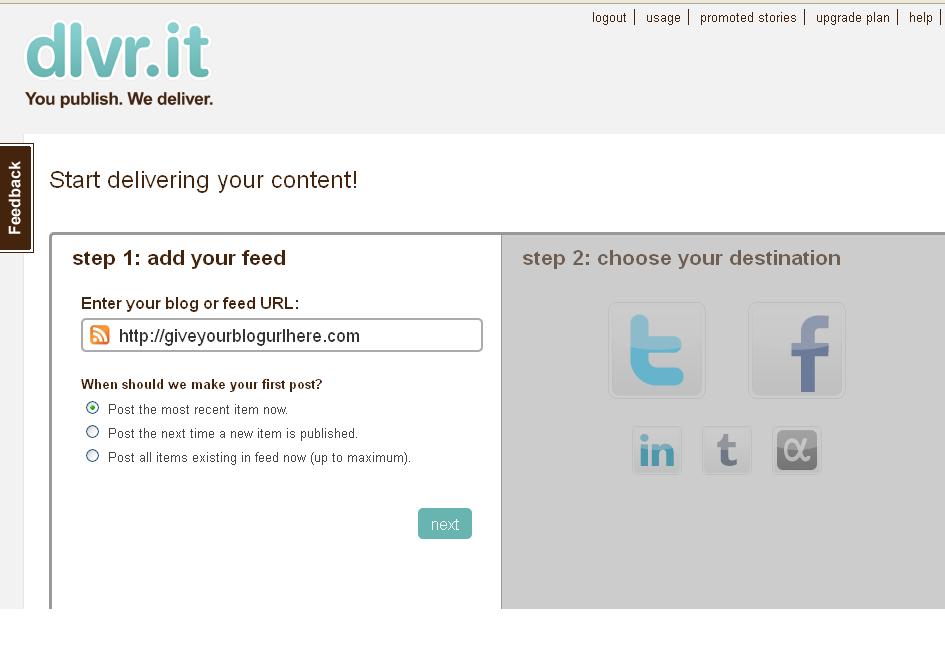
dlvr.it is the best service to publish automatically posts on different social sites and it also free of costs. I am also use this service and feel good. It is also very easy to setup.

Publish Blogger | Website Posts On Facebook | Twitter | LinkedIn | Tumblr Other Social Sites Automatically
Publish Blogger | Website Posts On Facebook | Twitter | LinkedIn | Tumblr Other Social Sites Automatically 1

How To Publish Post Automatically On Different Sites:


Follow below tutorial and done easily without having problem.

Go to divr.it.
After reaching on this website same above first page is shown.
Give your any Email Address and the Strong Password also and click on Signup Button.
Then this type of page is appear on your screen.

Publish Blogger  Website Posts On Facebook  Twitter  LinkedIn  Tumblr Other Social Sites Automatically 2
Publish Blogger | Website Posts On Facebook | Twitter | LinkedIn | Tumblr Other Social Sites Automatically 2

1) Automatically Publish Post On Twitter:


Here you give your blog link or blog address and click on Next button.
When you press Next button Social Icon Page is highlighted.
Click on Twitter Icon.
And give your account Authorization Access.

Publish Blogger  Website Posts On Facebook  Twitter  LinkedIn  Tumblr Other Social Sites Automatically 3
Publish Blogger | Website Posts On Facebook | Twitter | LinkedIn | Tumblr Other Social Sites Automatically 3

Give your Twitter account Email Address and Password.
Then Click on Authorize App blue button.
When you Press button your blog posts are automatically publish on twitter when you publish your post in blogger same as Google Plus sharing.

How I Can Use Crawlers And Indexing Tool In Blogger
How To Make Backlinks To Other Website To Increas Page Rank


2) Automatically Publish Post On Facebook:


Back To Front Page and Click on Facebook Icon.
Give your Facebook Account Email Address or Fan Page or your blog.
Publish Blogger | Website Posts On Facebook | Twitter | LinkedIn | Tumblr Other Social Sites Automatically  4
Publish Blogger | Website Posts On Facebook | Twitter | LinkedIn | Tumblr Other Social Sites Automatically 4

Also give authorization to Facebook.
And Done.

Now you can repeat this process for all social sites and done easily.
You can also publish your post on LinkedIn or Tumblr.

3) Automatically Publish Post On LinkedIn:


Come Back on front page and click on LinkedIn Icon.
Also give the LinkedIn Account Email or Password.
When you give Email Address then click on blue button Allow Access shown in picture below.

Publish Blogger | Website Posts On Facebook | Twitter | LinkedIn | Tumblr Other Social Sites Automatically 5


 When you press Allow Access button your blog posts also automatically publish on LinkedIn Profile.

4) Automatically Publish Post On Tumblr:


Now do same above tutorial and Click on Tumblr Icon.
Give your Tumblr Account Email or Password and press on login and give access.
Now your work is done.

Do same as last icon i can not give you detail more because this post is already too much long and i am also tired.  If you face any problem then don't forget to comment me and use contact us page for better answer.

Related Articles:


Selasa, 02 Juli 2013

Best Ways Make Money With Blogging Through Google And 5 Profitable Work For Home Tips And Tricks

In this tutorial i will discuss two main points how to collect money first Make Money using Google Adsense Advertiser for showing ads on your blog and second is best and most easy or excellent ways to make money online sitting home in front of your computer through blogging. I give you best and beautiful tips and techniques keep in mind and make money. If you have a blog with better rank and you get organic traffic on your blog then you can easily get approval by Google Adsense and also make more many using the Google Ads. If you have not get approval then i will also discuss other ways or tips how to make money and how to make best blogger and get more traffic in below links.

First I Discuss Best Ways Make Money With Blogging Through Google:


There area unit free and straight forward ways that to form cash web logging although you initially got to promote your blog. on-line cash creating secrets area unit hidden behind attracting traffic to your web log or web site. after you have traffic to your webpage so legitimatize it, you may reach earning Associate in Nursing financial gain on-line. I ne'er accustomed perceive however one will earn from their free web log while not finance cash, till somebody shared with ME these revenue generating choice.

Easy | Best | Simple Tricks To Make Money From Youtube | Chitika
How I Can Place Adsense Ads Between My Blog Post or Below Title Tags


Google AdSense has provided a really straight forward mechanism for bloggers to form cash blogging. This service is free and it displays each text and graphic advertisements on bloggers webpage. All you wish is to own content on your web log and Google can show relevant adverts therefore successively increase click through rate. As guests click on the advert links you get paid counting on what quantity advertisers have placed their bids.

Best Ways Make Money With Blogging Through Google And 5 Profitable Work For Home Tips And Tricks


Advertisers generate ads victimisation keywords that area unit then connected to their websites. you may earn cash from cost-per-click since the advertisers pay a precise quantity to Google for each click created on their advert campaigns. Therefore, the additional visits you generate the additional you may create cash blogging from these Google ads.

The superb factor is that weather folks click on these adverts or not you'll be able to still create cash blogging. The system additionally charges advertisers victimisation cost-per-impression (CPM). this implies advertisers pay each time your guests read adverts whereas on your web log whether or not they click on the AdSense adverts or not.

If you probably did not understand, currently you ought to take action and legitimatize your web log. this can be a straight forward thanks to earn additional financial gain from your web log therefore raise your streams of financial gain.

How I Can Make Internal Links In The Blog Post To Increase Rank
How I Can Use Webmaster Tools Properly For Blogger
How To Make Backlinks To Other Website To Increas Page Rank


Secondly I Discuss 5 Profitable Work For Home With Blogging Tips And Tricks:


          "Make Free cash Blogging And Earn Instant cash along with your Blog"


You have listen this dialogue many time on internet but you can't find the perfect way how. Then i write this post all these people who are wondering all the day for make some cash by sitting in front of your computer with your website or blogger blogspot.

There square measure legitimate ways in which to form cash with a diary, however please lose the promotional material. If you genuinely need to form cash with blogging, you may got to place a substantial quantity of your time and patience in your diary to even begin to expertise benefit from your efforts. A prospering diary cannot be established nightlong. it'll take real work, time, and perseverance to reap rewards.

Below square measure five tips you must recognize before beginning and establishing a diary

1) Skilled Layout:


First you wish a pleasant and arranged layout that's navigation friendly. Refrain from employing a ton of flashy graphics. These can solely distract your readers. individuals visit blogs to scan them and resolve what they need to supply. A clear-cut skilled layout with straight forward navigation is essential for a prospering diary.

2) Consistent Change:


Keeping your diary updated with new entries is crucial to your blogging success. The search engines love new content. If you regularly enter new prime quality diary posts, the higher possibilities you may have at ranking high in Search Engines, and so making the specified traffic.

Easy Tricks To Get Lot Of Visitors On My Blogger
How To Increase Index Status In Webmaster Tools Tricks For Better SEO

3) Monetizing Your Diary:


There square measure variety of the way within which you'll be able to create cash along with your diary. the foremost wide used square measure with Google AdSense, FeedBurner, and Affiliate Programs. the most effective famous affiliate programs square measure Amazon, ClickBank, and Commission Junction. additionally if you're in direct sales, you'll be able to create cash with product reviews.

How To Easily Make Money With Affiliate Marketing Blogger

4) Inquire Into Alternative Diary:


In fact if you're planning to create cash along with your blog, you may would like traffic. Reading and commenting on alternative diarys that pertain to your own blog and/or niche can get you that traffic if tired the right manner. If you participate with spamming your inks everywhere the place on blogs, this may undoubtedly discourage any viewers from clicking on and reading your diary. Use comments the proper manner and supply support, advice, and check out and find to understand your fellow bloggers. Your link can pay attention of itself from your name you utilize along with your blogging account.

5) Social Selling:


Social selling is everywhere the place. you'll be able to socialize on forum boards, Twitter, Facebook, and alternative social network sites. For me, my favorites square measure Twitter and forums. Others expertise success with the opposite social sites like MySpace and LinkedIn. you need to follow correct social rule on all the higher than to urge the foremost profit out of it. Again, it all goes back to spamming. individuals detest it and as a result, won't do business with you.

Related Articles:


How Can I Make Earning With My Blogger Blogspot
How Use Social Website To Increase Your Website Traffic
How I Can Optimize the Post Title Mean My Post Show First 
How I Can Make One Most Important Tip For SEO In My Blog
How I Can Link My Adsense Account With Google Analytic To Check Earning
Increase Google Page Ranking And Alexa Ranking 
5 Ways How to Make your Blogger Blog Like WordPress Website 
How I Can Use Crawlers And Indexing Tool In Blogger  

Kamis, 30 Mei 2013

Social Media in Education at KIS

On May 28, 2013, I presented this Keynote at the Digital Educational Show Asia in Kuala Lumpur, Malaysia. This presentation supports my case study on how Korea International School uses social media to enhance student learning and motivation. If you would like more information about these material for your school, please feel free to contact me.

Selasa, 30 April 2013

Cara Menonaktifkan Akun Twitter

Memiliki akun twitter dan sering meng-updatenya bagi sebagian orang merupakan kegiatan yang mengasikkan, tapi jika penggunaannya terlalu berlebihan dan mengganggu kegiatan di dunia nyata mugkin sangat merugikan bagi kita. Kini saatnya Anda harus mulai menguranginya, atau menonaktifkan akun twitter Anda.

Jika Anda ingin menonaktifkan akun, berikut ikuti dan simak langkah-langkah cara menonaktifkan akun twitter :

1. Login akun twitter Anda.
2. Klik menu akun di sebelah kanan atas halaman twitter.
3. Pilih Setting > Account
4. Pada bagian halaman bawah Account, klik Deactivate my account.
5. Kemudian masuk halaman persetujuan, klik Deactivate @username untuk menonaktifkan atau klik Cancel untuk membatalkan.
6. Masukkan kata sandi saat diminta dan konfirmasikan bahwa Anda ingin menonaktifkan akun Anda.

Akun dapat diaktifkan kembali dengan login twitter dengan username dan password Anda, tapi jika lebih dari 30 hari akun akan dihapus untuk selamanya.

Minggu, 28 April 2013

How To Make Website Like My Blogger Tricks To Get Best Alexa Rank

My Blogger Tricks is one of the best site related to blogger tips and SEO. On Blogging platform there are many sites but it get better rank in Alexa nearly 3500+ if you want to get also this type of blog then you should work with your blog or website to take too much time.

                            
I also want to make my blog like this website but i can't take too much time on my blog but one day i take my site on better rank in Alexa. I just publish one post daily and not share a link on social site with huge amount that's why my site is not like this blog. If you also want to make your blog or website like this then i give you some tips and tricks which i also use and get huge amount of visitors daily that's why my blog get also rank in Alexa. There are many points about blog to make perfect on blogging platform but i discuss most important points in this tutorial.

Start With A Blogger Making Point:

When you think about you should make a good blog and choose a blogging platform to tell about you to whole world then first you make a blog with better name and advertise to your blog on social sites and other platform. If you make a blog then you put some changes with your blog to get rank on Google or Alexa Ranking. I have Given some tips about that how to make blog or how i put SEO in my blog easily. If you have a blog already then jumps to the tutorial points but if you have not make your blog till then click below link and get tips and tutorial how to make a blog on blogger.com.

Make Your Own Free Blog At Blogger.Com

How To Make Website Like My Blogger Tricks To Get Best Alexa Rank
When you make your blog then you also write something on it that is most and very important thing whats to write and which type of content is write on blog. Because if you paste a copy content then Google can not take you approval of you Adsense Account and you can't make money too. That's why you should write original content on your blog with your writing skills. To check how write original content on your blog click below link.

How I Can Write 100% Original Content For Blogger

And when you are writing on your blog then one question is arise on your mind if someone stole my content then what you do at this time. Don't worry i have some tips and tricks how to make your post save. Many type of tricks on blogging platform to keep your content save like this i have given a small tutorial on it.

How I Can Save My Blog Post Duplicate Content Problems

Huge Tips Of Blogger SEO Tutorials:

When you start writing post then you put some SEO tips on your blog which is given below links.

Hot And Latest Seo Tips For Blogger
How To Added Meta Tag In Your Blogger For Better Optimization
How Manage Blogger Title Tags to Improve SEO
Now Next Step To Add Webmaster Tools And Google Analytics to a Blogger Blog  
Other New Tools for a Blogger To Make Like Website


Now Small Tutorial On Webmaster Tools To Handle SEO Points:

When you make a blog and start posting on it then you should also check your blog health which is only check in webmaster tools it is the best tool to take your site save form hackers and viruses. Good Ranking website or Blog always take a time to get perfect that's why not you can make a blog perfect in between the night it take time. Below tutorial is how to use webmaster tools to check blog health.

How I Can Use Webmaster Tools Properly For Blogger
How I Can Use Crawlers And Indexing Tool In Blogger 
How to Remove 404 Errors in Blogger Blogspot

First Use Social Bookmarking Sites:

With SEO tips you can get more visitors on your blog or website and more pageviews which is organic. But you can also get more visitors to your blog or website using Social Sites like Facebook, Twitter, Stumbleupon, Digg, Google Bookmark, Technoriti and many more. I give you some tips to add your blog or site on these social bookmarking sites easily.

Social Bookmarking Button Add To Blogger
How Use Social Website To Increase Your Website Traffic
How I Can Get More Pageviews Using Social Bookmarking.Com 


Making Money With Google And Other Advertising Links:

When we start blogging our first aim is to make money form blog or website by using Google Adsense, Chitika, Amazon Links, Ad Hitz and many more advertising links. I have some tricks and tips about how to make money form these links easily and how to get approve form these Advertising Companies.

Make Money Form Links of Amazon Product to Blogger Posts
Easy | Best | Simple Tricks To Make Money From Youtube | Chitika
Other Tips To Make Money
How I Can Get Approval From Google Adsense My Blog Or Website
How To Add Google Custom Search On Blog Or Website To Make Money

How To Put These Advertising Links or Ads On Blog or Website:


When you get approved from Google Adsense, Chitika, Amazon, Ads Hitz and Affiliate Banners then how to put it on blog or website easily and simple tricks the large amount of tutorial is given below for putting different advertising links or Ads on blog.

You Put Chitika Ads to Blogger Blogspot with Simple Steps
Affilate Banner Put Below in your Blogger Post
The Best Placement of Adsense On Your Blogger Blogspot
How I Can Place Adsense Ads Between My Blog Post or Below Title Tags

When you can do all these tips and tricks with your blog then you can easily get more visitors to your blog and make more money with your blog or website easily if your aim is to take website to good rank in Alexa or Google then you should work on them with more time spend on your website for better optimization. SEO is the most important thing in now days then work it form get something form this huge world.

Related Articles:

If You want to Increase Google Ranking Then Sitemap of Your Blogger Is Submitt to Major Search Engines
Now Going To Track Visitors to Your Blogger
The Most Essential Tools for a Blogger Analytics
Now You can Replace Old Style Templates in Blogger in new one
Avoid From Six Very Common Blogger Mistakes
Live Traffic Counter Put In Your Blogger Blogspot

Sabtu, 20 April 2013

Cara Buat/Pasang Burung Twitter Terbang Di Blogspot

Cara membuat / memasang widget burung Twitter terbang di Blogger, mungkin trik ini sudah tidak asing lagi bagi sobat dan sudah banyak sekali saya melihat blog yang sudah memasang widget burung Twitter terbang ini dengan berbagai macam style dan warna burung Twitter yang berbeda-beda, sekarang saya akan mengulas kembali khusus buat teman-teman blogger yang baru membuat blog dengan platform blogspot

Memasang Burung Twitter Terbang di Blogspot
Twitter adalah layanan jejaring sosial yang sangat populer sekarang ini selain Facebook dan Google+ dan tidak salah banyak orang yang beramai-ramai untuk menjalin koneksi melalui Twitter apakah itu untuk keperluan bisnis maupun hanya sekedar berteman saja, nah bagi sobat yang mempunyai blog tidak ada salahnya memasang widget burung twitter terbang ini selain membuat blog sobat cantik dan unik, widget ini juga mempermudah sobat untuk menjalin pertemanan baru dengan pembaca blog sobat,Cara Buat / Pasang Burung Twitter Terbang Di Blog hanya dengan sekali klik pada burung twitter yang terbang maka akan otomatis terhubung dengan profile Twitter sobat,
Ok tanpa panjang lebar mari kita kupas bersama-sama cara memasang widget ini

Pertama-tama silahkan login di Blogger

  • Klik Layout > Add Gadget > Html/Javascript
  • Copy paste kode di bawah ini ke kolom Html/javascript

<!-- floating twitter Bird -->
<script type="text/javascript" src="http://bloggerpeer.googlecode.com/files/tripleflap.js"></script>
<script type="text/javascript">
var birdSprite="https://blogger.googleusercontent.com/img/b/R29vZ2xl/AVvXsEhzNc2ldfOJG0lpcP5W2cwkwFx33jGXkDJD_iz6eWAL889J_XYOp9Z3MrgWrvqqpMxfujn6sLHLWShxrXSIF5dtH-o_guLNjz-3mCtrP3Pie5OyBMhQCzkVwFXnR6Wwm3snj1jjhv3IQX8/s1600/burung+twitter+terbang.png";
var targetElems=new Array("img","hr","table","td","div","input","textarea","button","select","ul","ol","li","h1","h2","h3","h4","p","code","object","a","b","strong","span");
var twitterAccount = "http://twitter.com/Username";
var tweetThisText = "Twitter - UserID http://bloggerpeer.blogspot.com/";
tripleflapInit();
</script>


  • Ganti kode yang berwarna biru dengan nama pengguna (username) akun Twitter sobat
  • Simpan dan lihat hasilnya

Warna Pilihan Burung Terbang Twitter

Rubah Warna Burung Twitter

Untuk membuat warna burung Twitter yang lain sobat bisa mengganti kode yang berwarna merah diatas dengan kode-kode dibawah ini sesuai dengan warna pilihan yang sobat inginkan

Warna Kuning

  • https://blogger.googleusercontent.com/img/b/R29vZ2xl/AVvXsEhIUNdS2o00YumFEmMGHzmncL54LMJ7Ut1sx7NLSioie0eLd_DW6u0fKQzt5V9tlgycc7VhKx6ZMR9eTKy-Th8CkEHSpaHnf-Lbvd9dyp3qRL5lXKvgRgqiFJBYWpx55endePmfA5fgvtc/s1600/yellow+bird.png
Warna Hitam

  • https://blogger.googleusercontent.com/img/b/R29vZ2xl/AVvXsEiUkMHUUYamQpv_lH59xrT4_0yLex4jSDCDdzJsdDiGxCj9et6pPYA4M11tBkrzdQ3LjuJSA5DQSp0wB7IFVTBVNEQaF0841cuzGT85A35PdAMXoCfwPA4-1yjXGVmPkJw27tOhItkq9s4/s1600/black+bird.png
Warna Biru

  • https://blogger.googleusercontent.com/img/b/R29vZ2xl/AVvXsEh4TEcjewmlQbk2jZDsZJJgRo87KWdfKjrKn98Pc4hK9qCW8dHkG3RYNRnDZdM2Vbi7t2oUIJ57Z5HJwhUcN8OW64JjMdhyUFZ35tKTg9o8ivJu19ISCI3rQ_McNsd6SD_K9G5HtUWm6gI/s1600/Blue+bird.png
Warna Coklat

  • https://blogger.googleusercontent.com/img/b/R29vZ2xl/AVvXsEhl8ex1YWReK1dR1RJ7lGMYTLAmIVgb0UujWAyN9slVghPF9ZvGnr-pFUYW5US30BKQ5DKKfeI35VXqrS0qDrYBMvUOk_CnKgNIdhj6UItLY_wMPZpaAabvjs_NT6-fEccVuSWpgUj8LWw/s1600/brown+bird.png
Warna Hijau

  • https://blogger.googleusercontent.com/img/b/R29vZ2xl/AVvXsEh2_c-mvcmyv6kq6VAIV9WvT8BPwOqw3tvJru6EHHVQY4ooS_ueFgTahpBd_TDl5eXyHtoYitjk31Rxej8-nN4L2pl7DnNK-WXtFGaZ2hHLEP5xmIGmhPUIz9dCh3qlU2DAfZEOoDyNIfE/s1600/Green+bird.png
Warna Ungu

  • https://blogger.googleusercontent.com/img/b/R29vZ2xl/AVvXsEhhcc01ZIVnlBJhCM_IEZm17QxyGqYAsWNq8k57KvGAHH-4K06Qf1xPSne3b8-e5bnGVPNLXiftkU0z4u4vIZnvFt26P4fVhAz5tUTt9G1XFPLF7KL4th_X6uf_jvSrKJ1nvWqrvRF1tIQ/s1600/purple+bird.png
Warna Putih

  • https://blogger.googleusercontent.com/img/b/R29vZ2xl/AVvXsEidc8qqTmva425i-aK2vonLZcbVSKwl5VWwq2J9C1kvnugiXZe5n1C_hr1IZ_KfMvYCHKssgmsJwnBrnTm-yW-PkeLe7GhHHdLbxQA4uOtxCFu4inGKxYo4jGuGNjAYivA4MHvzBY0IZiE/s1600/white+bird.png
Warna Merah

  • https://blogger.googleusercontent.com/img/b/R29vZ2xl/AVvXsEgshorQOebVrnX8UFXR0PunRybZoH6Gh9CWChnZdBOXFfKppaz7CKdQNdbKai9I59IZAmwQ2f-Odxcm7VsWQf1l3dJs0nxPmZ8WiDuFjqioFWj-iSO9HVcHInOn6I_he2GPmIHtUP1JTq4/s1600/red+bird.png

Dan terakhir jangan lupa disimpan
Good luck Sob..!