Cari Blog Ini

Tampilkan postingan dengan label beautiful blog. Tampilkan semua postingan

Kamis, 22 Agustus 2013

How To Stop Articles Stealing In Blogger Using Best CSS Tricks Easily

In this tutorial i will show you and teach how to save your article or post by stole someone if you are worried about them then forget this problem and give a new look of your blog template just using CSS code which is add in your HTML Body and your post always save by stole. If you want to do this then use and follow below tutorial and make your blog perfect and powerful content blog. Think you are working so hard in writing articles and someone without your permission just copy and paste your all blog content on their website or blog and also without adding any credit link, then how would you feel. It is so embracing in my point of view. So don't hesitate and use this beautiful CSS Tricks and keep your blog content save.

How To Stop Articles Stealing In Blogger Using Best CSS Tricks Easily

How To Save Blog Article or Blog Content From Article Thief:


I am going to give you a best trick which save your all content of your blog easily and it is also very simple and good. You can easily do this. This trick is use in HTML Body of your blog i give you some coding which you can add in your blog HTML body and save your article. Follow the below tutorial and do same as below i tell you.

Go to Template.
Click on Edit HTML.
Press Ctrl+F in HTML Body.
When you press Ctrl+F then on top right corner Search Box is appear.
When search box is appear then copy the below code and paste in search box and press enter.


]]></b:skin>

When you find this code then copy below coding which is given in few lines and paste this code above/before this tag ]]></b:skin> .

.post-body {
-webkit-touch-callout: none;
-khtml-user-select: none;
-moz-user-select: -moz-none;
-ms-user-select: none;
user-select: none;
} 

When you paste the coding above ]]><b:skin> tag then after this save your template.
When you save your template.
Click on View Blog.
Now check this out your blog content can not be copy.

Now you have free and keep blogging with content full article and forget about stealing your articles and give the best comment for get further tricks i am waiting for your best and beautiful comment.

Related Articles:


]]>

Senin, 22 Juli 2013

Add | Give Comment Numbering On Blogger Threaded Comments Using Best Tricks

In this tutorial i will show you how to Add Comment Number with every comment using beautiful images or bubbles and also give number to every comment. It is very simply to add comment numbering in your blogger template and also very helpful because you can easily find how many comment you have to every post. It will add numbers like this way 1,1.a,1.b,1.c,1.d and so on you can easily see in a screenshot which is given below in image. This is done with CSS Tricks if you want to do this then follow my below small tutorial for adding this beautiful trick on your blogger comments.

Add Best Comment Numbering In Different Bubbles:


Go to Template.
Click on Edit HTML.
Now Press Ctrl+F in the HTML Body Box.
When you Press Ctrl+F then Search Box is appear top right corner.
Copy below Code/Tag and paste in search box and press enter.

]]>
]]></b:skin>

When you find this above tag in HTML Body then add below code just above/before this ]]></b:skin> tag.
Add | Give Comment Numbering On Blogger Threaded Comments Using Best Tricks

.comment-thread ol {
    counter-reset: countcomments;
}

.comment-thread li:before {
    content: counter(countcomments,decimal);
    counter-increment: countcomments;
    float: right;
    font-size: 22px;
    color: #555555;
    padding-left: 10px;
    padding-top: 3px;
    background: url(https://blogger.googleusercontent.com/img/b/R29vZ2xl/AVvXsEge1fjXcH8hUJ4g8DuUcbI789AMyJDBTzg8vl0UiBH_3_5n4QqsVY5iREus81vIaJOpXzBZx9ZIIC5IPGKFm50tGHlwzxoqZ2PUnaGkPBmoAYm2TMSmtdM62EbqL2qQ5oGnXPf3mPwVaz77/s1600/comment+bubble2.png) no-repeat;
    margin-top: 7px;
    margin-left: 10px;

    width: 50px;
 /*image-width size*/
    height: 48px;
 /*image-height size*/
}

.comment-thread ol ol {
    counter-reset: contrebasse;
}

.comment-thread li li:before {
    content: counter(countcomments,decimal) "." counter(contrebasse,lower-latin);
    counter-increment: contrebasse;
    float: right;
    font-size: 18px;
    color: #666666;
}

Now save your template and you are done and now turn to customization in blogger comments by replacing bubbles.

Customization In Comment Number In Bubbles:


padding-left: 10px; - Edit it to adjust the position of text(number) from left size
padding-top: 3px - By editing the value you can adjust the position of text(number) inside bubble from top.
background: url(https://blogger.googleusercontent.com/img/b/R29vZ2xl/AVvXsEge1fjXcH8hUJ4g8DuUcbI789AMyJDBTzg8vl0UiBH_3_5n4QqsVY5iREus81vIaJOpXzBZx9ZIIC5IPGKFm50tGHlwzxoqZ2PUnaGkPBmoAYm2TMSmtdM62EbqL2qQ5oGnXPf3mPwVaz77/s1600/comment+bubble2.png) no-repeat; - If you want to change the bubble image then simply replace image URL with yours.
margin-top: 7px; - By editing this value you can adjust the position of bubble from top.
margin-left: 10px; - Increase or decrease the value as per your requirements.


Bubbles Image URL For Adding In Comments:


Now i am going to give you some shapes, images or bubbles which you can easily add in your blogger comment for adding these bubbles shapes Copy the URL of bubble images which you want to add and replace with red highlighted text or url and then save it. How to pick the URL of image? Your Answer is here. Right Click on your desire picture which you want to add and click on view image in your browser and copy the url in your browser and paste it.


Now save your template and you are done.
It will add numbers like this way 3,3.a,3.b & 4 here 3,4 are the main comments and 3.a,3.b are the replies,you can see a screenshot below in image. - See more at: http://www.helperblogger.com/2012/08/add-numbers-to-blogger-threaded-comments.html#sthash.Gv0yep4S.dpuf

Related Articles:


Kamis, 11 Juli 2013

Which Website | Blogger Name Give Best CPC | CTR To Make Money With Google Adsense

In this tutorial i will show you how get best Website or Blog name to make more money. It is very simple because website or blog name is very effective on your Google Adsense Ads CPC. When you use high Niche then you also get High CTR or CPC. Like i give you some example if you want to run a blog or website with common words then you can not achieve high Click Through Rate because it is already common keywords which is used by million people on their website or blog. But if you use Good and effective keywords by using Adsense keywords then you make this easily. But i want to tell you how you can get best name of your website which you want to purchase or make money through your website by putting Adsense Ads or other Affiliate Programme ads or Affiliate Banners.

How To Improve Content Keywords Significance Easy Tricks To Blog
Affilate Banner Put Below in your Blogger Post
You Put Chitika Ads to Blogger Blogspot with Simple Steps  

Which Website | Blogger Name Give Best CPC | CTR To Make Money With Google Adsense

Best Paying Website or Niche Name For Make More Dollars:


I am blogging since 2010 on my WordPress Blog which name is Marketing Most. I am just 18 when i start blog on my website i give some best tips and techniques on my blog about Marketing Strategy and Marketing Ideas. After this i also make blog on Career when i realize that these are the perfect name to make more money i also make about 50 dollars in a day with my these website using Google Adsense ads.


Now Start Our Tutorial:


If you want to make more and more money using these types of ads because Google Adsense is the one of the best paying advertising company which pay their advertiser good. I also believe if some one make a beautiful blog about Marketing or Career then they also get approval from Google Adsense immediately and make dollars in few days.

How To Easily Make Money With Affiliate Marketing Blogger
How Can I Make Earning With My Blogger Blogspot

I suggest you when ever you want to buy your Custom Domain Name then always choose the best Niche name. I tell you what type of Website name you should choose.

Marketing.
Career.
Software.

These are the best name or worthfull name which pay you best CPC after using Google Ads.


Related Articles:


Best Tricks To Monetize Your Blogger Blog With Google Ads Increase CPC | CTR And Earning 
Best Ways Make Money With Blogging Through Google And 5 Profitable Work Tips And Tricks
How Optimize Blogger | Website To Increase Or Make Money With Blogging Tricks 
How I Can Place Adsense Ads Between My Blog Post or Below Title Tags
How I Can Get Approval From Google Adsense My Blog Or Website
Easy | Best | Simple Tricks To Make Money From Youtube | Chitika
Add/Put Banners Ads On Blog To Make Money Easily
Simple | Easy Tutorial For Transfer Blogspot To Website

Selasa, 02 Juli 2013

Best Ways Make Money With Blogging Through Google And 5 Profitable Work For Home Tips And Tricks

In this tutorial i will discuss two main points how to collect money first Make Money using Google Adsense Advertiser for showing ads on your blog and second is best and most easy or excellent ways to make money online sitting home in front of your computer through blogging. I give you best and beautiful tips and techniques keep in mind and make money. If you have a blog with better rank and you get organic traffic on your blog then you can easily get approval by Google Adsense and also make more many using the Google Ads. If you have not get approval then i will also discuss other ways or tips how to make money and how to make best blogger and get more traffic in below links.

First I Discuss Best Ways Make Money With Blogging Through Google:


There area unit free and straight forward ways that to form cash web logging although you initially got to promote your blog. on-line cash creating secrets area unit hidden behind attracting traffic to your web log or web site. after you have traffic to your webpage so legitimatize it, you may reach earning Associate in Nursing financial gain on-line. I ne'er accustomed perceive however one will earn from their free web log while not finance cash, till somebody shared with ME these revenue generating choice.

Easy | Best | Simple Tricks To Make Money From Youtube | Chitika
How I Can Place Adsense Ads Between My Blog Post or Below Title Tags


Google AdSense has provided a really straight forward mechanism for bloggers to form cash blogging. This service is free and it displays each text and graphic advertisements on bloggers webpage. All you wish is to own content on your web log and Google can show relevant adverts therefore successively increase click through rate. As guests click on the advert links you get paid counting on what quantity advertisers have placed their bids.

Best Ways Make Money With Blogging Through Google And 5 Profitable Work For Home Tips And Tricks


Advertisers generate ads victimisation keywords that area unit then connected to their websites. you may earn cash from cost-per-click since the advertisers pay a precise quantity to Google for each click created on their advert campaigns. Therefore, the additional visits you generate the additional you may create cash blogging from these Google ads.

The superb factor is that weather folks click on these adverts or not you'll be able to still create cash blogging. The system additionally charges advertisers victimisation cost-per-impression (CPM). this implies advertisers pay each time your guests read adverts whereas on your web log whether or not they click on the AdSense adverts or not.

If you probably did not understand, currently you ought to take action and legitimatize your web log. this can be a straight forward thanks to earn additional financial gain from your web log therefore raise your streams of financial gain.

How I Can Make Internal Links In The Blog Post To Increase Rank
How I Can Use Webmaster Tools Properly For Blogger
How To Make Backlinks To Other Website To Increas Page Rank


Secondly I Discuss 5 Profitable Work For Home With Blogging Tips And Tricks:


          "Make Free cash Blogging And Earn Instant cash along with your Blog"


You have listen this dialogue many time on internet but you can't find the perfect way how. Then i write this post all these people who are wondering all the day for make some cash by sitting in front of your computer with your website or blogger blogspot.

There square measure legitimate ways in which to form cash with a diary, however please lose the promotional material. If you genuinely need to form cash with blogging, you may got to place a substantial quantity of your time and patience in your diary to even begin to expertise benefit from your efforts. A prospering diary cannot be established nightlong. it'll take real work, time, and perseverance to reap rewards.

Below square measure five tips you must recognize before beginning and establishing a diary

1) Skilled Layout:


First you wish a pleasant and arranged layout that's navigation friendly. Refrain from employing a ton of flashy graphics. These can solely distract your readers. individuals visit blogs to scan them and resolve what they need to supply. A clear-cut skilled layout with straight forward navigation is essential for a prospering diary.

2) Consistent Change:


Keeping your diary updated with new entries is crucial to your blogging success. The search engines love new content. If you regularly enter new prime quality diary posts, the higher possibilities you may have at ranking high in Search Engines, and so making the specified traffic.

Easy Tricks To Get Lot Of Visitors On My Blogger
How To Increase Index Status In Webmaster Tools Tricks For Better SEO

3) Monetizing Your Diary:


There square measure variety of the way within which you'll be able to create cash along with your diary. the foremost wide used square measure with Google AdSense, FeedBurner, and Affiliate Programs. the most effective famous affiliate programs square measure Amazon, ClickBank, and Commission Junction. additionally if you're in direct sales, you'll be able to create cash with product reviews.

How To Easily Make Money With Affiliate Marketing Blogger

4) Inquire Into Alternative Diary:


In fact if you're planning to create cash along with your blog, you may would like traffic. Reading and commenting on alternative diarys that pertain to your own blog and/or niche can get you that traffic if tired the right manner. If you participate with spamming your inks everywhere the place on blogs, this may undoubtedly discourage any viewers from clicking on and reading your diary. Use comments the proper manner and supply support, advice, and check out and find to understand your fellow bloggers. Your link can pay attention of itself from your name you utilize along with your blogging account.

5) Social Selling:


Social selling is everywhere the place. you'll be able to socialize on forum boards, Twitter, Facebook, and alternative social network sites. For me, my favorites square measure Twitter and forums. Others expertise success with the opposite social sites like MySpace and LinkedIn. you need to follow correct social rule on all the higher than to urge the foremost profit out of it. Again, it all goes back to spamming. individuals detest it and as a result, won't do business with you.

Related Articles:


How Can I Make Earning With My Blogger Blogspot
How Use Social Website To Increase Your Website Traffic
How I Can Optimize the Post Title Mean My Post Show First 
How I Can Make One Most Important Tip For SEO In My Blog
How I Can Link My Adsense Account With Google Analytic To Check Earning
Increase Google Page Ranking And Alexa Ranking 
5 Ways How to Make your Blogger Blog Like WordPress Website 
How I Can Use Crawlers And Indexing Tool In Blogger  

Kamis, 27 Juni 2013

Add 6 Best | Beautiful | Cool Looking Social Bookmarking Sharing Buttons Widget | Gadget On Blogger Blogspot

In this tutorial i will give you some Beautiful and Good Looking Sharing widget/gadget code which you can easily add on your blog for Social Media Sites and also share you content or post on these social website for get visitors by sharing your content.


I am going to give you some HTML/Javascript Coding which you can easily install in your blog by visiting layout in blogger. First i show you small tutorial for adding these widget or gadget in blogger layout and after that we also install some sharing widget in blog post like Facebook Sharing icon in float right or left side or also add in below every post.

Add 6 Best | Beautiful | Cool Looking Social Bookmarking Sharing Buttons Widget | Gadget On Blogger Blogspot
In this below tutorial i will give you only those code which is easily install in blogger just adding code in HTML Box.

Go to Blogger.com.
Go to Layout.
Find HTML/Javascript.
Click on it.
Now paste any of your desire coding in this box and check it out and also if you can not like it then replace with other code.

Add Facebook Like Box Widget/Gadget On Blogger By Facebook Developer Plugin
Easy | Best | Simple Tricks To Make Money From Youtube | Chitika


The Code are give below pick any one and add this by following above small tutorial.

The name of this Social Sharing Widget Is.
1) Touch Me Social Media Sharing Widget.


<style>
/*--------TOB Touch Me Sharing Widget ------*/
.touchme a {
display:block;
height:50px;
width:50px;
padding:0 4px;
float:left;
background:transparent url(http://beautifulbloggerwidgets.googlecode.com/files/Sharing%20Touch%20Me.png) no-repeat;
-webkit-transition: ease-in 0.2s all;   
-moz-transition: ease-in 0.2s all;   
-o-transition: ease-in 0.2s all;   
-ms-transition: ease-in 0.2s all;   
transition: ease-in 0.2s all;
cursor:pointer;
}

.touchme a.googleplus {
background-position: 0px -58px;
}
.touchme a.googleplus:hover {
background-position: 0px 0px;
}

.touchme a.twitter {
background-position: 0px -290px;
}
.touchme a.twitter:hover {
background-position: 0px -232px;
}
.touchme a.facebook {
background-position: 0px -406px;
}
.touchme a.facebook:hover {
background-position: 0px -348px;
}

.touchme a.rss {
background-position: 0px -174px;
}
.touchme a.rss:hover {
background-position: 0px -116px;
}

</style>
<p style="display:none;">Add 6 Best | Beautiful | Cool Looking Social Bookmarking Sharing Buttons Widget | Gadget On Blogger Blogspot<a href="http://trickofblogging.blogspot.com/2013/06/add-best-cool-social-bookmark-share-gadget-on-blogger.html">Beautiful Blogger Widgets</a></p>
<div class='touchme'>
<!--RSS-->
<a class='rss' href="http://feeds.feedburner.com/blogspot/LPkip" rel='external nofollow' target='_blank'></a>
<!--Google Plus-->
<a class='googleplus' href="https://plus.google.com/u/0/113224303869289827964/posts" rel='nofollow' target='_blank'></a>
<!--Facebook-->
<a class='facebook' href="https://www.facebook.com/pages/Trick-Of-Blogging/447187668684161" rel='nofollow' target='_blank'></a>
<!-- Twitter -->
<a class='twitter' href="https://twitter.com/trickofblogging" rel='nofollow' target='_blank' ></a>
</div>

Now Change the Orange Highlighted Link with your RSS Feed link of your blog.
Change the Pink Highlighted Color Link with your Google+ Profile link or post of your blog.
Change the Red Highlighted Color Link with your Facebook Page link of your blog.
Change the Blue Highlighted Color link with your Twitter Page or Profile link.


2) Floating Social Media Social Sharing Widget For Blogger:


Just follow the small above tutorial and add this in your blogger blogspot easily.


<p style="display:none;">Floating Social Media Buttons for Blogger by <a href="http://beautifulbloggerwidgets.blogspot.com/">Beautiful Blogger Widgets</a></p> <style type="text/css">
* html #ss-box{
position: absolute;
}
#ss-box{
width: 70px;
background:#ffffff;border:1px solid #dedede;border-radius:px;-moz-border-radius:px;-webkit-border-radius:px;position:fixed;left:4%;
top: 20%;
height:200px;
height:auto;
}
#ss-box div{
padding:6px 6px 4px 5px;
}
#icon_twitter,#icon_digg{
margin-left:-2px;
}
#icon_linkedin{
margin-left:-5px;
}
#sfs{
margin-left:-5px;
}
#ss-get{
bottom: -20px;
clear: both;
color: #666666;
font-size: 9px;
left: 18px;
position: absolute;
text-align: center;
text-decoration: none;
}

</style>

<div id="ss-box">
<div id="ssl-box">

<div id="icon_facebook">
<iframe src="http://www.facebook.com/plugins/like.php?app_id=235665053131744&href&send=false&layout=box_count&width=50&show_faces=false&action=like&colorscheme=light&font&" scrolling="no" frameborder="0" style="border:none; overflow:hidden; width:100px; height:60px; margin-left: 2px;" allowtransparency="true"></iframe>
</div>

<div id="icon_googleplus">
<script type="text/javascript" src="https://apis.google.com/js/plusone.js"></script>
<g:plusone size="tall"></g:plusone>
</div>

<div id="icon_twitter">
<a href="http://twitter.com/share" class="twitter-share-button" data-count="vertical">Tweet</a>
<script type="text/javascript" src="http://platform.twitter.com/widgets.js"></script>
</div>

<div id="icon_digg">
<script type="text/javascript">
(function() {
var s = document.createElement('SCRIPT'), s1 = document.getElementsByTagName('SCRIPT')[0];
s.type = 'text/javascript';
s.async = true;
s.src = 'http://widgets.digg.com/buttons.js';
s1.parentNode.insertBefore(s, s1);
})();
</script>
<a class="DiggThisButton DiggMedium"></a>
</div>
<div id="icon_linkedin">
<script type="text/javascript" src="http://platform.linkedin.com/in.js"></script><script type="in/share" data-counter="top"></script>
</div>

</div>
<a id="ss-get" href="http://beautifulbloggerwidgets.blogspot.com/2012/03/floating-social-media-buttons-for.html">Get This</a>
<div style="clear:both;"></div>
</div>


3) Spinning Social Icons Sharing Widget | Gadget For Blogger Template:


This Social Icons sharing buttons are formed in CSS3 Coding which you can install in HTML/Javascript Box and save and enjoy it.


<style>p#hb_socialicons img {
 /* Spinning Social Icons Widget By TOB */
    -moz-transition: all 0.4s ease-in-out;
    -webkit-transition: all 0.4s ease-in-out;
    -o-transition: all 0.4s ease-in-out;
    -ms-transition: all 0.4s ease-in-out;
    transition: all 0.4s ease-in-out;
}

p#hb_socialicons img:hover {
    -moz-transform: rotate(120deg);
    -webkit-transform: rotate(120deg);
    -o-transform: rotate(120deg);
    -ms-transform: rotate(120deg);
    transform: rotate(120deg);
}

/* Spinning Social Icons Widget By TOB */
</style>


<center><p id="hb_socialicons">
    <a href="http://www.facebook.com/btsnts/">
<img border="0" src="https://blogger.googleusercontent.com/img/b/R29vZ2xl/AVvXsEhvCYPlfJGfj1-nZ8TkxztHsbKtsVsboeUCtpRBCy_MrMquSHD3-Q84Lbp1DDDuwV3oTAUKtmlR5_Q58hPJuqmmAoTzhLWoT7LT6BXyWQBHlj6YZR8vSVhJCFWufjoJJvzp8psaXuVbly4/s1600/helperblogger.com-facebook.png" /></a>
    <a href="http://www.twitter.com/helperblogger/">
<img border="0" src="https://blogger.googleusercontent.com/img/b/R29vZ2xl/AVvXsEiAFINrnARsBpzttuafuuw8kOuOKKvwfGeF3hkMEqv-QpwKYMC__wbBurSqwX24ALxoAqpHzNCfSMy9DJxihewd1ayQ8_2eKMBm8AOUs_SCtQq2hM4Y9qJbsUY9TL0GPcAnmKT59WuyLqs/s1600/helperblogger.com-twitter.png" /></a>
    <a href="https://plus.google.com/u/0/106527290580119996124">
<img border="0" src="https://blogger.googleusercontent.com/img/b/R29vZ2xl/AVvXsEjBasW9QRKOldIa7GylUqizw7oa4DPc0qKl8Zu1mAPOUe6l862jwdbAHDlFZ-HiRVuTYbwUmM2o1EEz2PdbSu0fZ1egTTZ81a8vjSp9CMb3OdOy-tWWUaHTQMzOwAUItyqH-eQvNfcR1x4/s1600/helperblogger.com-google_plus.png" /></a>
    <a href="http://www.feeds.feedburner.com/hblogger/">
<img border="0" src="https://blogger.googleusercontent.com/img/b/R29vZ2xl/AVvXsEhOWFxWmveQ-pyHOWHZPMYnYnfzdueZ96A2Xl7qANzJ0EBhS1J10798FrsNh23nBSLkSkebhM-gRvD8AY9PdirvOOW0LxXlg7Ea50Yh2VP3unoJqr71jQsJrfdKEo4GJaXzNwBCu1ElE8g/s1600/helperblogger.com-rss.png" /></a>
    <a href="http://www.youtube.com/helperblogger1/">
<img border="0" src="https://blogger.googleusercontent.com/img/b/R29vZ2xl/AVvXsEjs5wau5KCbpbuLcgT0hD_1pQB82ivV5Tx_UG8cnWRD6yUMpxncARaLzdk6itFh90TxEvj2kdbFM1zmbNXeOBVpMQ4B8NI1j92KAW0HZ5zWcHbNfUa1Xsr7wSSDZZ_wuFdh8aOgczXv9NE/s1600/helperblogger.com-youtube.png" /></a>
</p></center>

4) "Add This" Widget For Blogger For Social Sharing:


This is the widget or gadget for blogger simple adding in HTML Box and choose your desire place where you want to add or put this widget for sharing easily.

<!-- Add This Code Starts -->
<div class='addthis_toolbox addthis_default_style '>
<a class='addthis_button_facebook_like' fb:like:layout='button_count'/>
<a class='addthis_button_tweet'/>
<a class='addthis_button_google_plusone' g:plusone:size='medium'/>
<a class='addthis_counter addthis_pill_style'/>
</div>
<script src='http://s7.addthis.com/js/250/addthis_widget.js#pubid=xa-4ec4dd3d1e59e9dc' type='text/javascript'/>
<!-- Add This Code Ends -->

5) Social Bookmarking Or Sharing  Widget With Egg Sliding For Blogger Blog:


Go to Blogger.com.
Go to Template.
Click on Edit HTML.
Press Ctrl+F in HTML coding box.
Paste the </head> tag or code in this appear search box and press enter.
When you Find </head> and paste the following code just above it.

Use Best Blogger Settings Option Basic For SEO And Others Option Links
Customise Blogger Default Template To Make Professional Template

<script src='http://w.sharethis.com/gallery/shareegg/shareegg.js' type='text/javascript'/><script src='http://w.sharethis.com/button/buttons.js' type='text/javascript'/><script type='text/javascript'>stLight.options({publisher: &quot;bea50586-2b9f-448d-947a-01385f28e305&quot;, onhover:false}); </script><link href='http://w.sharethis.com/gallery/shareegg/shareegg.css' media='screen' rel='stylesheet' type='text/css'/>


Now find for </body> and place the following code just above it.

<div style='position: fixed; bottom: 2%; left: 2%;'><div class='shareEgg' id='shareThisShareEgg'/></div><script type='text/javascript'>stlib.shareEgg.createEgg(&#39;shareThisShareEgg&#39;, [&#39;facebook&#39;,&#39;twitter&#39;,&#39;googleplus&#39;,&#39;linkedin&#39;,&#39;blogger&#39;,&#39;stumbleupon&#39;,&#39;sharethis&#39;],{title:&#39;<data:blog.pageTitle/>&#39;,url:&#39;<data:blog.url/>&#39;,theme:&#39;shareegg&#39;});</script>


Save Template.
Now click on View Blog and check this out left bottom the Egg Type sharing widget with beautiful effect is appear.


6) Cool Social Sharing Shareaholic Sassy Bookmarks Widget For Blogspot:


Go to Blogger.com.
Go to Template.
Click on Edit HTML.
Press Ctrl+F to find the </body> tag.
When search box appear then paste </body> tag in it and press enter.
Now paste the below code just above/before of the </body> tag.


 <!-- Start Shareaholic Sassy Bookmarks HTML (trickofblogging.blogspot.com)-->
<div class="shr_ss shr_publisher">

</div>
<!-- End Shareaholic Sassy Bookmarks HTML (trickofblogging.blogspot.com) -->
<!-- Start Shareaholic Sassy Bookmarks settings -->
<script type="text/javascript">
var SHRSS_Settings = {"shr_ss":{"src":"//dtym7iokkjlif.cloudfront.net/media/downloads/sassybookmark","link":"","service":"5,7,2,313,38,201,88,74","apikey":"b87f5899d80a5edce8b5e55f58542ef0f","localize":true,"shortener":"bitly","shortener_key":"","designer_toolTips":true,"tip_bg_color":"black","tip_text_color":"white","viewport":true,"twitter_template":"${title} - ${short_link} via @Shareaholic"}};
</script>
<!-- End Shareaholic Sassy Bookmarks settings -->
<!-- Start Shareaholic Sassy Bookmarks script -->
<script type="text/javascript">
(function() {
var sb = document.createElement("script"); sb.type = "text/javascript";sb.async = true;
sb.src = ("https:" == document.location.protocol ? "https://dtym7iokkjlif.cloudfront.net" : "http://cdn.shareaholic.com") + "/media/js/jquery.shareaholic-publishers-ss.min.js";
var s = document.getElementsByTagName("script")[0]; s.parentNode.insertBefore(sb, s);
})();
</script>

<!-- End Shareaholic Sassy Bookmarks script (trickofblogging.blogspot.com) -->


Now Save your Template.
Click On View Blog and enjoy these amazing effects.

If you have any problem to adding these or other widgets then contact me and also leave your nice comment on my blog then i will definitely reply you with my best answers.

Related Articles:


How Easliy/Simple To Manage Page Layout In Blogger Blogspot
Add Flickr/Picasa Web/Photobucket/Other Albums Slideshow On Blog Easy Tricks
Add | Put HTML Color Code Generator Tool To Your Blogger With Easy Tricks
Add Manually CSS Jqeury Drop Down Menu By Replace/Remove Pages On Blogger
Add | Put | Embed Three Or Four Column Footer Widget/Gadget In Blogger Blogspot
Add Facebook Like Box Widget/Gadget On Blogger By Facebook Developer Plugin
Add | Make About Us Page Widget | Gadget On Your Blog Footer Or Sidebar
Add | Put Three Tab Gadget/Widget In Blog Layout Sidebar On Blogspot

Sabtu, 01 Juni 2013

Add | Make About Us Page Widget | Gadget On Your Blog Footer Or Sidebar

In this tutorial i will show you how you can easily make About Us Profile on blog widget or gadget in you footer of in sidebar of you blog. If you feel problem by adding about us page on your blog then forget it and now ready to add this on your blog by simple blogging tricks. About Us page is very important if you want a approval from Google Adsense or Monetize you blog with Google Adsense. Because Google want a info about the Author properly and if you can't put this on your blog i will sure you can't approve any time from Google and Google reject the application of your Google Adsense Account Immediately. I have also many trick to make money online by YouTube Or Chitika Ads.

How I Can Get Approval From Google Adsense My Blog Or Website
Easy | Best | Simple Tricks To Make Money From Youtube | Chitika

If you have not get a lot of visitors on your blog then i have also best and latest tips for Blogger SEO which increase your traffic. You can also get to much traffic from Social Bookmarking Sites.

Best Blogger Tips And Tricks For My Blog SEO Instantly
How I Can Get More Pageviews Using Social Bookmarking.Com

Add Make About Us Page Widget Gadget On Your Blog Footer Or Sidebar
      

How You Can Easily Add This Widget On Your Blog By Simple Steps:


I have a small and best tutorial for you if you want to add this widget on your blog like my profile widget then ready to make it. I share this post only for you .

I have Latest Blogger Widget you can easily add on your blog to increase the Beautiful Look of your blog.

Add Facebook Like Box Widget/Gadget On Blogger
Add Three Or Four Column Footer Widget/Gadget In Blogger
Add CSS Jqeury Drop Down Menu On Blogger
Manage Page Layout In Blogger
Live Traffic Counter Put In Your Blogger Blogspot
Add Twitter Updates Gadget To Blogspot Blogger

Add This Gadget With Below Code Pasting:

Copy the below code and paste it notepad file and customize it according to below tutorial.

<h2 class="title">About Me</h2>
<div class="widget-content">
<!--[if !IE]> -->
<style>
}
#trickofblogging:hover
 {
border:2px solid #ccc;
cursor:pointer;
}
.opacity
{
opacity: 0.5;
margin-right: 50px;
-moz-transition: all 0.5s ease-out;
-o-transition: all 0.5s ease-out;
-webkit-transition: all 0.5s ease-out;
-ms-transition: all 0.5s ease-out;
transition: all 0.5s ease-out;
-moz-transform: rotate(7deg);
-o-transform: rotate(7deg);
-webkit-transform: rotate(7deg);
-ms-transform: rotate(7deg);
transform: rotate(7deg);
}
.opacity:hover
{
-moz-transform: rotate(0deg);
-o-transform: rotate(0deg);
-webkit-transform: rotate(0deg);
-ms-transform: rotate(0deg);
transform: rotate(0deg);
-moz-box-shadow: 1px 1px 4px #000;
-webkit-box-shadow: 1px 1px 4px #000;
box-shadow: 1px 1px 4px #000;
}

</style>
   <!--[endif]---->


<style>
#trickofblogging
{
border:2px solid #888; margin:2px 5px 0px 0px; padding:2px;
}
#profileAditya:hover
 {
border:2px solid #ccc;
cursor:pointer;
}

.opacity:hover
 {
opacity: 1;
-moz-box-shadow: 1px 1px 4px #000;
-webkit-box-shadow: 1px 1px 4px #000;
box-shadow: 1px 1px 4px #000;
}

</style>

<img class="opacity" id="trickofblogging" src="https://blogger.googleusercontent.com/img/b/R29vZ2xl/AVvXsEgDtmsJfQeUMaaTsA1hUC5lAzVEJNQOneW51d9dJaUOxqhaFhkuDhn3p71FuXsP8x9BOx2R5mJpFGjawbJaPR5yQv4Boc_PJdJCUfFehJUoNk9HXSamatCMaVa_YvqlpUwBZsybkHqGsf4/s1600/DSC00108.JPG" width="100" />
<div style="font-family: Arial Tahoma Verdana; font-size: 13px; text-align: justify; ">
<b>Founder & Author:</b> Founder & Author: Hi! I am Umair Noor: Hi guys, Welcome to TrickOfBlogging and let me introduce myself to you. Like any other, I’m a normal guy who is passionate about Computing, Blogging and Internet. I’m Umair Noor student of Software Engineer by education a Blogger by profession and Blogging is my passion<a href="http://trickofblogging.blogspot.com/"> <b>Trick Of Blogging</b></a>is not start of blogging Umair launched his frist Marketing Site in 2010. He is a problogger & running a number of sites from his living room</div><a style="color:#5634;" href="http://trickofblogging.blogspot.com/p/blog-page_2741.html#.UakbF9jIfFwl" target="_blank">...Read More</a><!--![endif]---->
</div>

Changes Required:


Replace the Red highlighted line with your image link which you want to add on About Us page.
Replace the Green highlighted line with your desire Font or Size.
Replace the Orange highlighted line with your Info Text.
Replace the Blue highlighted line with your blog home page link.
Replace the Brown highlighted line with your Blog About Us page link.


When you customize all the required highlighted lines then copy your customize coding and paste this code according to below tutorial. If you want to easily add this in your blog feel free and work now.

Go to Blogger.com.
Go to Layout.
Click On Add A Gadget.
Go to HTML/JavaScript.
Paste your Customize Code In the HTML box.
Save it.
View blog.

 Related Articles:


Social Bookmarking Button Add To Blogger
5 Ways To Make Your Blogger Blog Like WordPress Website
How to Verify My Blogger Blogspot in Webmaster Tools
Submitt Sitemap of Your Blogger To Google And Major Search Engines
How I Can Optimize the Post Title Mean My Post Show First
How I Can Use Webmaster Tools Properly For Blogger
How I Can Boost Traffic With Targeted Country On Blogger
How I Can Make Internal Links In The Blog Post To Increase Rank

Rabu, 15 Mei 2013

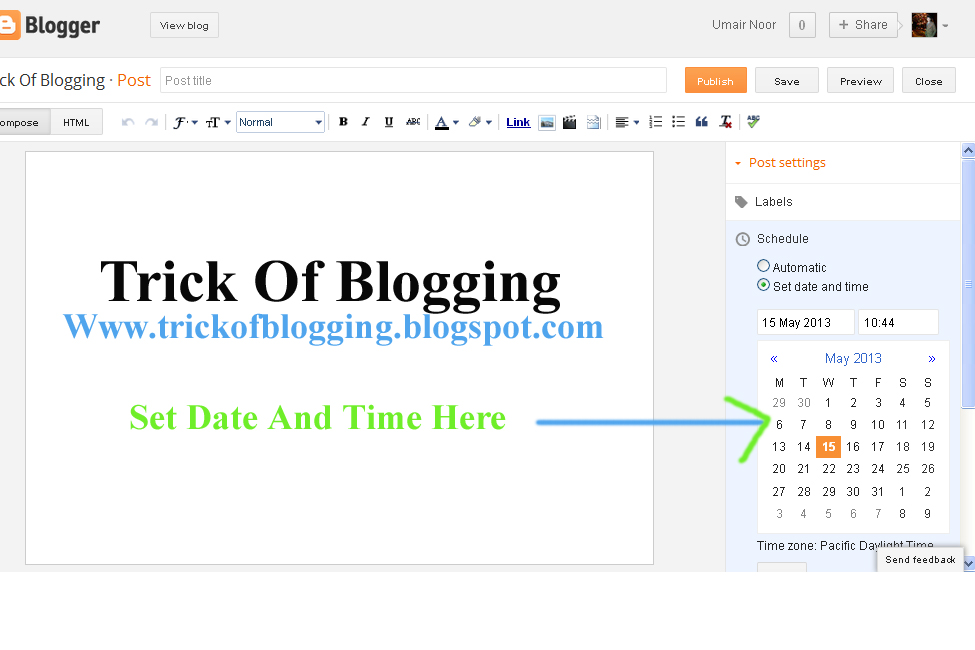
How To Set | Select | Choose | Change Desire Blog Post Date And Time In Blogger

I am gona show you how to Change or Set Blog Post Date and Time in blogger blogspot. To customize the blog post simply using small tutorial and make blog post beautiful by selecting daily or weekly its up to you. Now if you want to show your blog post with arrangement to make perfect then you use this feature. Publish On feature on right hand side of your post page is for that if you have miss some days or forget to write post then make changes and return back your post on that date which you want.

Setup A Different Date Of Your Blog Post:

In Blogger.com we set date easily. Blogger allow a Blog Administrator or Webmaster to set any publication date for a post which they choose. For setting up there are many reason for set a particular publishing date for a blog post. To keep continuity with  sequence for blog articles we use this feature. You also use this feature if you forget to write a post/articles with sequence or you can decide afterwards to add an extra article to the sequence. When we start blogging on our blog we always forget to make About Author Page in blog and after we decide to set up them. It also take you several years back if you want.

Social Bookmarking Button Add To Blogger
5 Ways How to Make your Blogger Blog Like WordPress Website
How Use Social Website To Increase Your Website Traffic 

Tips And Troubleshooting:


  • I suggest you to setup the About Page Date first because it appears first at the beginning of your RSS feeds.
  • Remember when you are posting with changing date that the post will still appear in your recent posts Rss Feeds even you setup this post date in past.
   

How To Setting Up User Defined Publish Date In Blogger Blogspot:

  1. Create a new post of your blog as usual.
  2. Click on the Published On.
  3. Set your desire Date or Time like below picture/image.
  4. Click on Done Link.
  5. Click Update Orange Button.
  6. And preview your blog post it is list in those post where you want.
How To Set | Select | Choose | Change Desire Blog Post Date And Time In Blogger
In this post you will learn how to select or changes the desire post date or time. I have also a big and detailed tutorial about how to make money from blog or website, Blogger SEO Tips and Tricks, Alexa Ranking, Google Page Rank, Get Backlinks, Make Internal links, Get lot of visitors on your blog by Search Engine Optimization, Submitting sitemap of blog or website to Google Search Engine or Major Search Engine.

Related Articles:


Minggu, 12 Mei 2013

Add Flickr/Picasa Web/Photobucket/Other Albums Slideshow On Blog Easy Tricks

You can easily put Slideshow of Flickr, Picasa Web Albums, Photobucket on your blogger blogspot simply by adding widget/gadget in layout to manage blog albums to make beautiful blog and show your albums to your blog visitors.

In this beautiful and easy tutorial i will show you how to put or add Flickr Albums, Picasa Albums, Photobucket Albums slideshow on blogger blogspot these are the main Photostream Albums which i want to tell you how it is embed on blog sidebar or in footer for make blog looking better.

How To Add A Photostream Flickr Slideshow On Blog Using Layout:

If you want to add Flickr Slideshow on your blog sidebar then follow the below tutorial to put them on your blog with simply tricks.

Easy Tricks To Get Lot Of Visitors On My Blogger
Easy Trick To Add Twitter Updates Gadget To Blogspot Blogger

Flickr Account:


  • First make Flickr Account by signing up if you have already then go with tutorial.
  • When you make Flick account then login in to your account.
  • After login you should go to You link like which you can see in picture with black arrow.
  • When go to YOU link click to Photostream link.
  • After clicking on Photostream link you can see the link with address bar in your browser like my photostream link.
  • You can see easily in pic with arrow head in browser URL address box.
  • Copy photostream link only your photo names not a previous link i will clearly cut the the previous link with red color.

    Add Flickr/Picasa Web/Photobucket/Other Albums Slideshow On Blog Easy Tricks

    Now next step in Blogger.


    1. Go to Blogger.com.
    2. Go to Layout.
    3. Click on Add A Gadget.
    4. Go to Slideshow Link.
    5. Click on Slideshow.
    6. Give the title name of your Slideshow which you want by removing Slideshow.
    7. Choose the Source Flickr.
    8. Click on User.
    9. Give User name which you already copy from your address bar.
    10. Choose the Speed of Slideshow which type of speed you want to show.
    11. Choose Option link open image on new tab or Random Images.
    12. You can also check both of two option.
    13. Now you can see the live Preview of your Photostream Images.
    14. Click on Save with Orange Button. 

    Best Blogger Tips And Tricks For My Blog SEO Instantly
    How Remove Photos/Images Border In Simple Or Awesome Inc Templates Blogger


        How To Add A Picasa Web Albums Slideshow On Blog Using Keyword or User Name:

        You can also add picasa web albums on your blog it also very easy. For this make picasa account and use the below tutorial.

        1. Go to Blogger.com.
        2. Go to Layout.
        3. Go to Add Gadget.
        4. Go to Slideshow.
        5. Select the Source Picasa Web Albums. Here you can see two option Keywords or Albums.
        6. If you want to add albums with help of keyword then just write keywords which pictures/images you want to show on your blog. Like you write the word moon you can see all pictures or images of about moon.
        7. If you want to add albums with using your user name then paste your Picasa Web Albums user name and show your own pic on blog.
        8. Now select the speed of picture slideshow which speed you want.
        9. Select also two option with open window new tab or random images.
        10. Take preview and save the setting.

        Now if you want to add also Photobucket or Other types of albums on your blog then i will definitely write post about Photobucket Slideshow. If you have any question about this tutorial then comments me and i will answer your problem as soon as possible. I have also a big collection of tutorial to make your blog good looking or perfect and you can easily put seo on your blog or monetize your blog with Chitika, Amazon and other affiliate Ads.

        Related Articles:

        Easy | Best | Simple Tricks To Make Money From Youtube | Chitika
        Make Money Form Links of Amazon Product to Blogger Posts
        Add/Put Banners Ads On Blog To Make Money Easily
        Tricks To Add Simply/Easily/ PayPal Donate Button To Blogger
        How To Make Website Like My Blogger Tricks To Get Best Alexa Rank
        Best Blogger Tips And Tricks For My Blog SEO Instantly
        How To Make Backlinks To Other Website To Increas Page Rank
        How Manage Blogger Title Tags to Improve SEO